> ## Documentation Index
> Fetch the complete documentation index at: https://support.visualcare.com.au/llms.txt
> Use this file to discover all available pages before exploring further.
# vOnboard
> Set up and use the vOnboard portal to onboard new workers into Visualcare
vOnboard is a web-based portal that allows new workers to enter their personal details, upload documents, and complete onboarding tasks before they start work. Rather than collecting paperwork manually, you send workers a login link and they fill in everything themselves, with the data flowing straight into VCore.
## Setting up vOnboard
Before a worker can access the vOnboard portal, you need to set up their profile in VCore.
The following fields are required:
* First and last name
* Email
* Tick **Web Enabled** and add a username
* Tick **vOnboard Portal**
Save the worker profile and send the login details to your worker. The first time they log in, they'll be prompted to create a password.
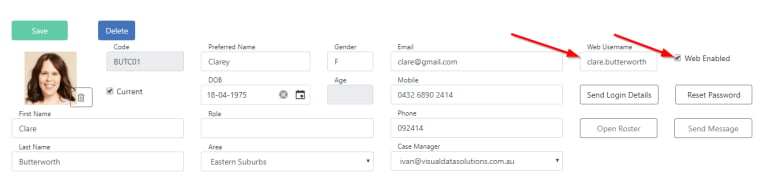 To receive email notifications when new workers update their profile, assign a case manager to the worker in VCore.
### Portal settings in VCore
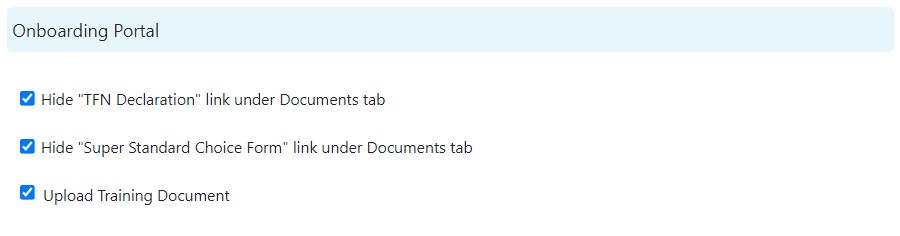
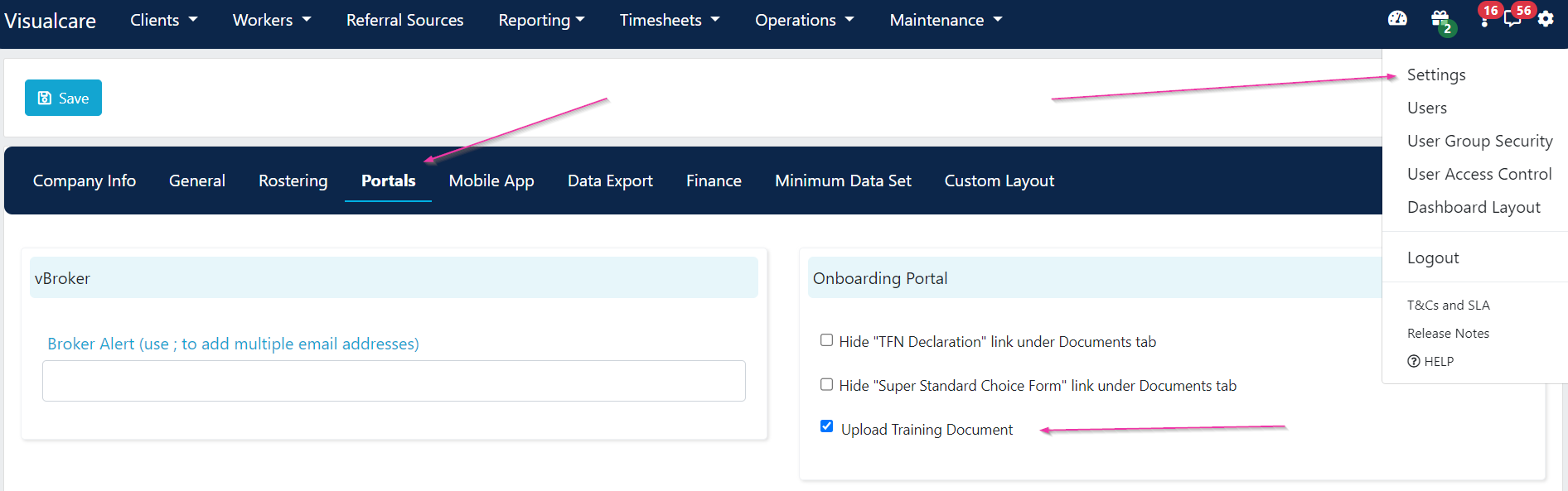
You can customise the vOnboard portal from **Settings** → **Portals** → **Onboarding Portal** in VCore.
The following options are available:
| Setting | Description |
| -------------------------------------------------------------- | ---------------------------------------------------------------------------------- |
| **Hide "TFN Declaration" link under Documents tab** | Tick to hide the TFN Declaration document from the portal, or untick to show it |
| **Hide "Super Standard Choice Form" link under Documents tab** | Tick to hide the Super Standard Choice Form from the portal, or untick to show it |
| **Upload Training Document** | Turn on or off the option for workers to upload training documents from the portal |
Once you've made changes, click **Save**.
To receive email notifications when new workers update their profile, assign a case manager to the worker in VCore.
### Portal settings in VCore
You can customise the vOnboard portal from **Settings** → **Portals** → **Onboarding Portal** in VCore.
The following options are available:
| Setting | Description |
| -------------------------------------------------------------- | ---------------------------------------------------------------------------------- |
| **Hide "TFN Declaration" link under Documents tab** | Tick to hide the TFN Declaration document from the portal, or untick to show it |
| **Hide "Super Standard Choice Form" link under Documents tab** | Tick to hide the Super Standard Choice Form from the portal, or untick to show it |
| **Upload Training Document** | Turn on or off the option for workers to upload training documents from the portal |
Once you've made changes, click **Save**.
 ## Logging in to vOnboard
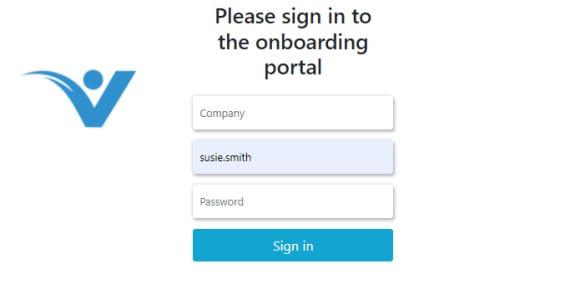
Workers access the portal at [onboard.visualcare.com.au](https://onboard.visualcare.com.au).
To log in, workers need:
| Field | Details |
| ------------ | ------------------------------------------------------------------------------ |
| **Provider** | The same company name used for Vworker |
| **Username** | The username set up in their VCore worker profile (for example, donna.summers) |
| **Password** | Left blank on first login, which prompts the worker to create a password |
## Logging in to vOnboard
Workers access the portal at [onboard.visualcare.com.au](https://onboard.visualcare.com.au).
To log in, workers need:
| Field | Details |
| ------------ | ------------------------------------------------------------------------------ |
| **Provider** | The same company name used for Vworker |
| **Username** | The username set up in their VCore worker profile (for example, donna.summers) |
| **Password** | Left blank on first login, which prompts the worker to create a password |
 ## Entering details
Once logged in, workers can start entering their personal information. If they don't have time to complete everything in one session, they can save their progress and come back later. If they try to close the page without saving, the portal automatically prompts them to save.
## Entering details
Once logged in, workers can start entering their personal information. If they don't have time to complete everything in one session, they can save their progress and come back later. If they try to close the page without saving, the portal automatically prompts them to save.
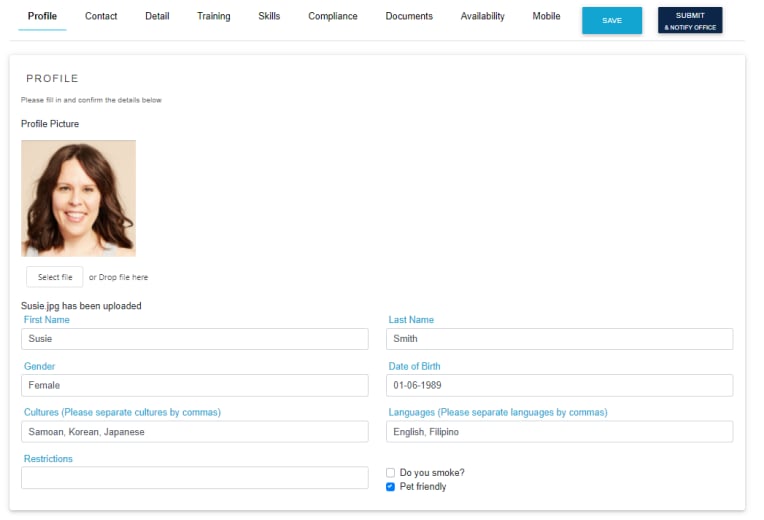 **Moving between pages:** Click on the tabs to move through the different sections.
 **Free text fields:** Click in the text box and type your information.
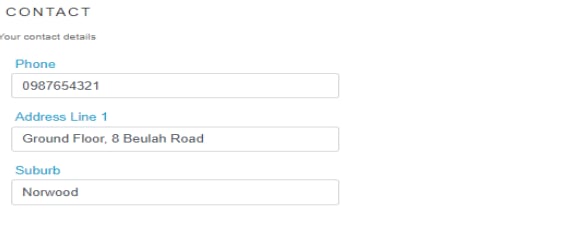 **Tick boxes:** Click in the box to add a tick (for example, "Do you smoke?").
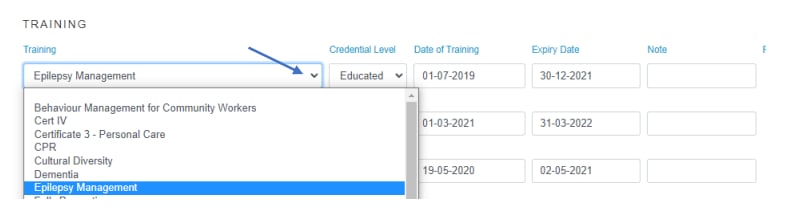
 **Drop-down lists:** Click the drop-down arrow to access lists (for example, the training list).
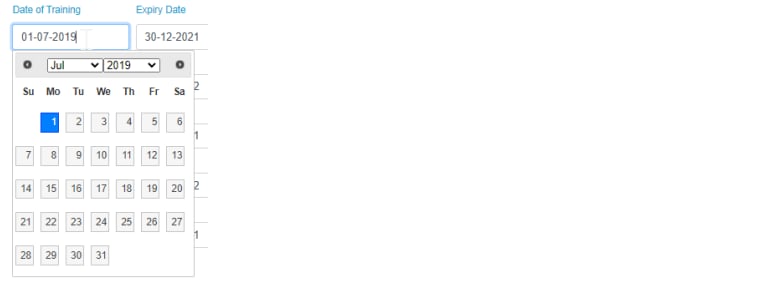
 **Date fields:** Click on the date box, select the month, year, and day. The box closes automatically when you select the day.
 ## Uploading documents
Workers can upload and remove documents as training items from the **Training** tab in the portal.
## Uploading documents
Workers can upload and remove documents as training items from the **Training** tab in the portal.
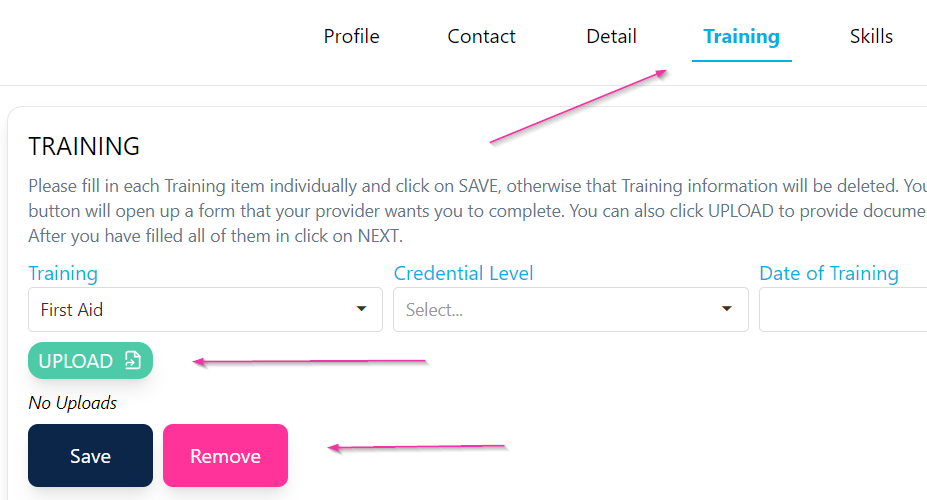 This feature is controlled by the **Upload Training Document** tick box in VCore under **Settings** → **Portals**. By default, the feature is disabled.
 ## Mandatory fields
To require responses before a worker submits their onboarding (for example, car insurance details), review the mandatory field settings under **Settings** → **Minimum Data Set** → **Workers**. Fields marked as mandatory there must be completed in the portal before submission.
## Adding forms to the portal
To make a form available to workers in the vOnboard portal:
1. Navigate to **Maintenance** → **Templates**
2. Click **Edit** on the template and adjust the required settings
3. Tick the onboarding portal option
4. Save
Workers need to log out of the portal and log back in to see new forms after the setting is updated.
## After submission
Once a worker submits their vOnboard portal, all completed information flows directly into their Visualcare worker profile for review and approval. The case manager assigned to the worker in VCore is automatically notified by email.
The information workers complete in the portal includes:
* Personal and contact details
* Certificates for training and qualifications
* Skills selection and confirmation
* Compliance items
* Availability
* A final declaration review and sign-off
## Running into issues?
See [General troubleshooting](/troubleshooting/general) for common errors and fixes.
## Related articles
Enabling and managing worker portal and app access
Setting up a new worker in VCore
The broker portal for managing subcontracted shifts
The assessment portal for workers conducting client assessments
## Mandatory fields
To require responses before a worker submits their onboarding (for example, car insurance details), review the mandatory field settings under **Settings** → **Minimum Data Set** → **Workers**. Fields marked as mandatory there must be completed in the portal before submission.
## Adding forms to the portal
To make a form available to workers in the vOnboard portal:
1. Navigate to **Maintenance** → **Templates**
2. Click **Edit** on the template and adjust the required settings
3. Tick the onboarding portal option
4. Save
Workers need to log out of the portal and log back in to see new forms after the setting is updated.
## After submission
Once a worker submits their vOnboard portal, all completed information flows directly into their Visualcare worker profile for review and approval. The case manager assigned to the worker in VCore is automatically notified by email.
The information workers complete in the portal includes:
* Personal and contact details
* Certificates for training and qualifications
* Skills selection and confirmation
* Compliance items
* Availability
* A final declaration review and sign-off
## Running into issues?
See [General troubleshooting](/troubleshooting/general) for common errors and fixes.
## Related articles
Enabling and managing worker portal and app access
Setting up a new worker in VCore
The broker portal for managing subcontracted shifts
The assessment portal for workers conducting client assessments