> ## Documentation Index
> Fetch the complete documentation index at: https://support.visualcare.com.au/llms.txt
> Use this file to discover all available pages before exploring further.
# Client expenses
> Record, manage, and export client expenses including reimbursements and HCP charges in Visualcare
The **Expenses** tab on the client profile lets you record expenses that are charged to the client or reimbursed to a worker. Expenses flow through to data export for invoicing.
## Adding an expense
Open the client profile and navigate to the **Expenses** tab.
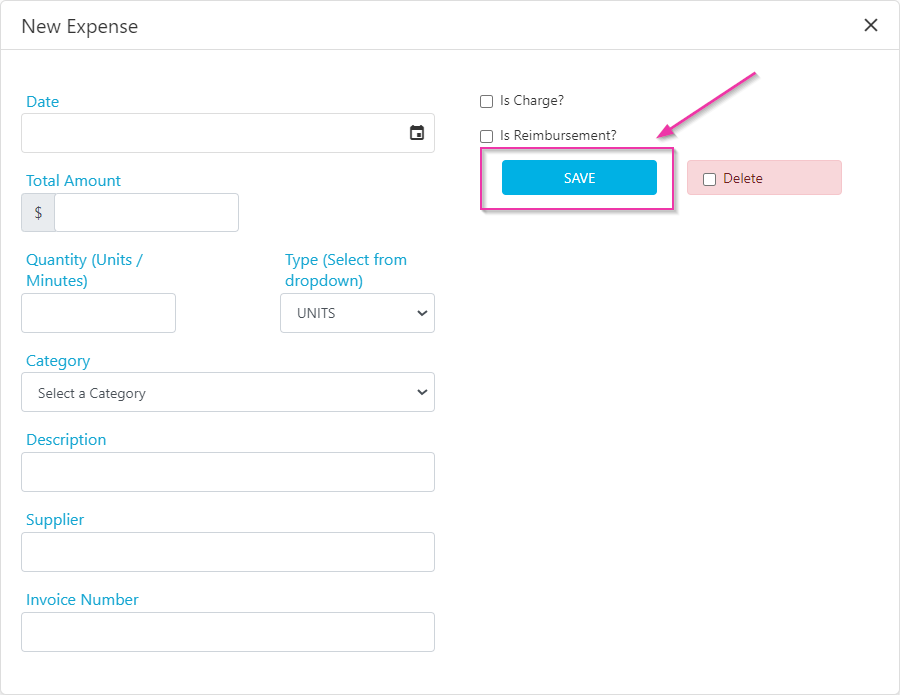
 Click to add a new expense, fill in the relevant details, and click **Save**.
 ## Managing expenses
Once an expense is entered:
* Use **Edit** to make changes
* Use **Upload** to attach relevant invoices or receipts
Only the latest uploaded file is saved per expense.
## Managing expenses
Once an expense is entered:
* Use **Edit** to make changes
* Use **Upload** to attach relevant invoices or receipts
Only the latest uploaded file is saved per expense.
 ## Expense categories
Expense categories are managed under **Maintenance** → **Categories**.
## Expense categories
Expense categories are managed under **Maintenance** → **Categories**.
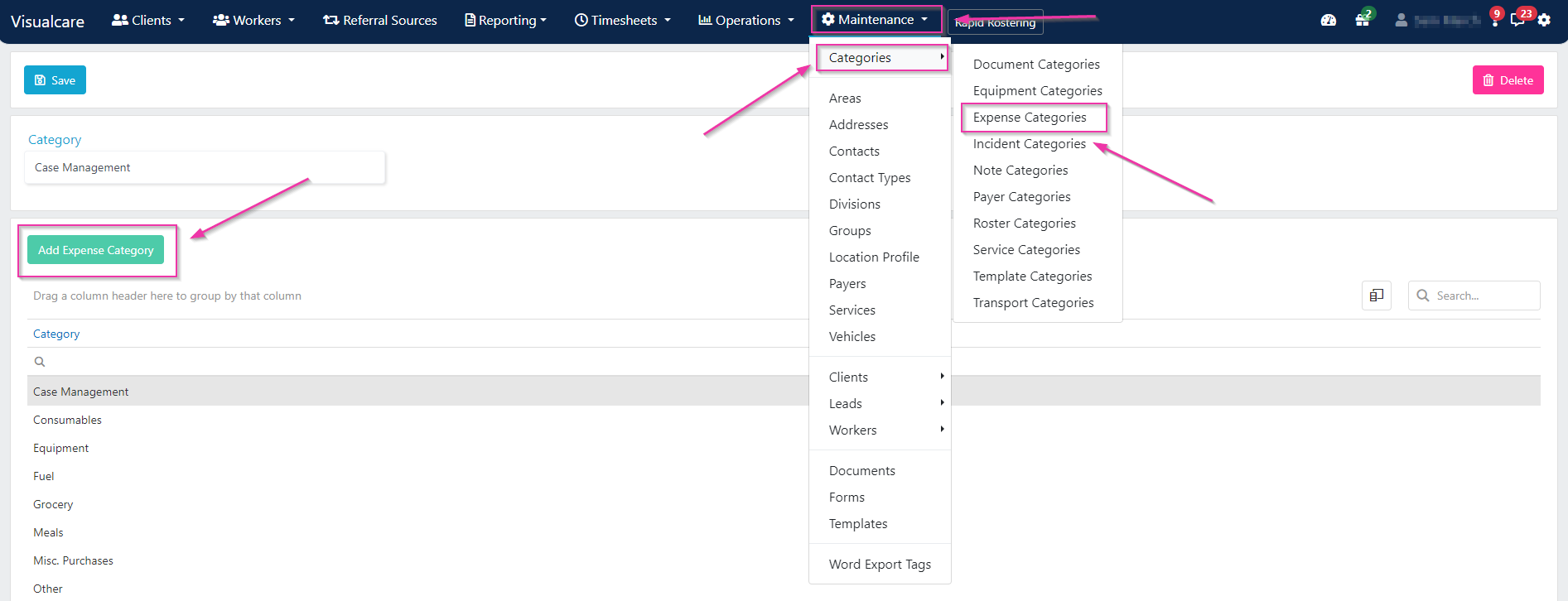 Categories appear in the drop-down when entering a new expense.
## Charging and reimbursing
Categories appear in the drop-down when entering a new expense.
## Charging and reimbursing
 | Action | How to do it |
| ----------------------------- | ----------------------------------------------------------------------------------------------------------------------------------------------------------- |
| **Charge the client** | Tick the **Reimbursement** tick box, select the agreement the item was purchased under, the service, and the charge code set up in your accounting software |
| **Reimburse a worker** | Tick the **Reimbursement** tick box, select the worker and the code set up in your accounting software for reimbursements |
| **Charge to HCP package** | Select the HCP agreement from the drop-down. The expense is deducted from the package funds |
| **Charge client outside HCP** | Tick the **HCP** tick box to charge the client directly (not from the HCP package funds) |
## Expenses from Vworker
Workers can submit expenses through the Vworker mobile app. These appear on the client's **Expenses** tab in Visualcare, where you can edit them to mark them as chargeable or payable before exporting.
## Exporting expenses
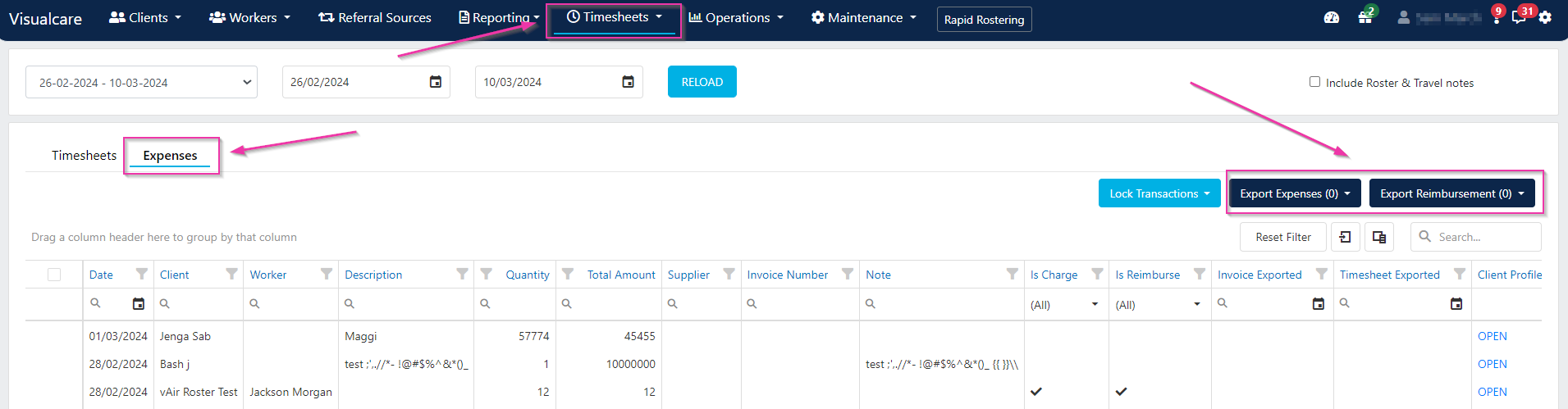
To export expenses, navigate to **Timesheets** → **Data Export** and open the **Expenses** tab.
Select the expenses you want to export, then choose the appropriate export action:
* Click **Export Expenses** to export client charges as an invoice
* Click **Export Reimbursements** to export worker reimbursements
Make sure each expense has the correct charge or reimbursement settings before exporting. Client charges need an agreement, service, and charge code selected. Worker reimbursements need the worker and reimbursement code selected.
## Running into issues?
See [Client management troubleshooting](/troubleshooting/general) for common errors and fixes.
## Related articles
Manage HCP and SAH budgets and financial exports
Set up agreements that expenses link to
| Action | How to do it |
| ----------------------------- | ----------------------------------------------------------------------------------------------------------------------------------------------------------- |
| **Charge the client** | Tick the **Reimbursement** tick box, select the agreement the item was purchased under, the service, and the charge code set up in your accounting software |
| **Reimburse a worker** | Tick the **Reimbursement** tick box, select the worker and the code set up in your accounting software for reimbursements |
| **Charge to HCP package** | Select the HCP agreement from the drop-down. The expense is deducted from the package funds |
| **Charge client outside HCP** | Tick the **HCP** tick box to charge the client directly (not from the HCP package funds) |
## Expenses from Vworker
Workers can submit expenses through the Vworker mobile app. These appear on the client's **Expenses** tab in Visualcare, where you can edit them to mark them as chargeable or payable before exporting.
## Exporting expenses
To export expenses, navigate to **Timesheets** → **Data Export** and open the **Expenses** tab.
Select the expenses you want to export, then choose the appropriate export action:
* Click **Export Expenses** to export client charges as an invoice
* Click **Export Reimbursements** to export worker reimbursements
Make sure each expense has the correct charge or reimbursement settings before exporting. Client charges need an agreement, service, and charge code selected. Worker reimbursements need the worker and reimbursement code selected.
## Running into issues?
See [Client management troubleshooting](/troubleshooting/general) for common errors and fixes.
## Related articles
Manage HCP and SAH budgets and financial exports
Set up agreements that expenses link to