> ## Documentation Index
> Fetch the complete documentation index at: https://support.visualcare.com.au/llms.txt
> Use this file to discover all available pages before exploring further.
# CRM overview
> Manage leads, website enquiries, and the client onboarding pipeline in Visualcare
The CRM (Customer Relationship Management) module manages leads for both clients and workers, and captures website enquiries. Leads let you manage the client onboarding process separately from the client profile. When a lead converts, their information transfers to a new client profile automatically.
## Website enquiries
An enquiry form built to match your company website feeds data into the VCore **Website Enquiries** area for reporting and visibility.
### Viewing enquiries
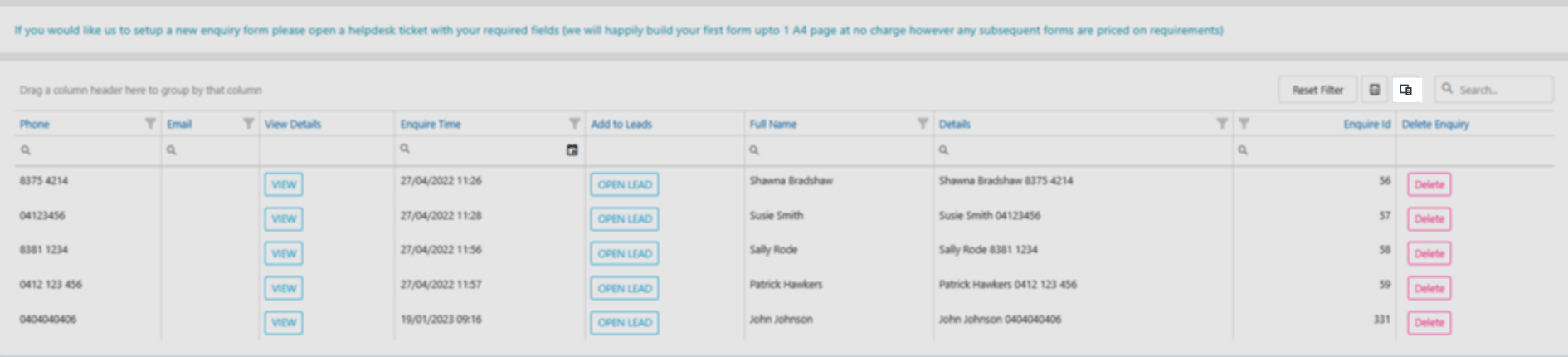
Navigate to **Operations** → **CRM** → **Website Enquiries** to see all enquiries in the database.
### Customising the list
Use the **Column Chooser** to add or remove columns. Drag fields from the chooser into the header area, rearrange by dragging, or remove by dragging back.
 ### Searching for enquiries
Search in the top right corner by entering criteria such as a name. The search highlights matching records across the data set.
### Searching for enquiries
Search in the top right corner by entering criteria such as a name. The search highlights matching records across the data set.
 ### Filtering and grouping
Filter a column by selecting the filter icon on the right. Choose the values to display and click **OK**.
### Filtering and grouping
Filter a column by selecting the filter icon on the right. Choose the values to display and click **OK**.
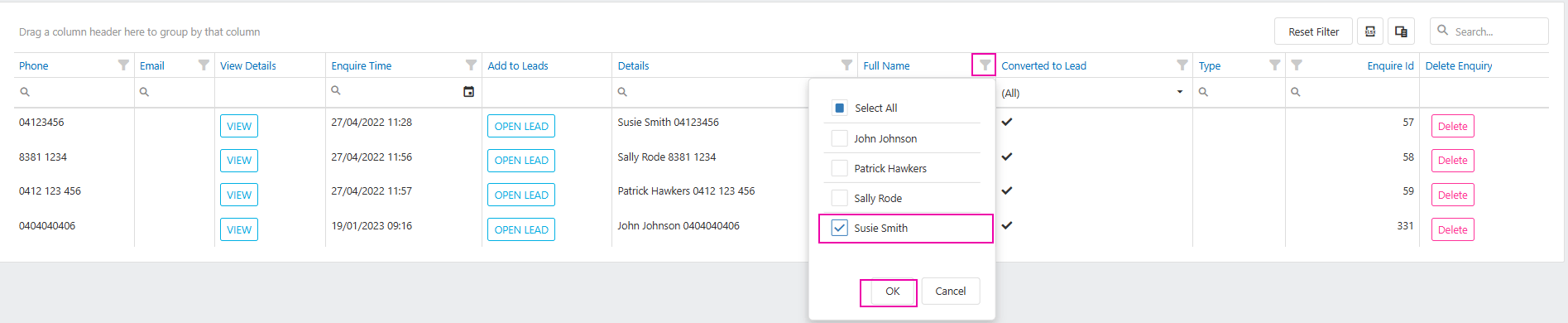 Group the data by dragging a column header to the grouping area at the top left.
 ### Exporting to Excel
Export enquiry data to Excel by clicking the **Excel** icon.
### Exporting to Excel
Export enquiry data to Excel by clicking the **Excel** icon.
 ### Managing individual enquiries
**Viewing the form** - click **View** to review the enquiry details in the original form format.
### Managing individual enquiries
**Viewing the form** - click **View** to review the enquiry details in the original form format.
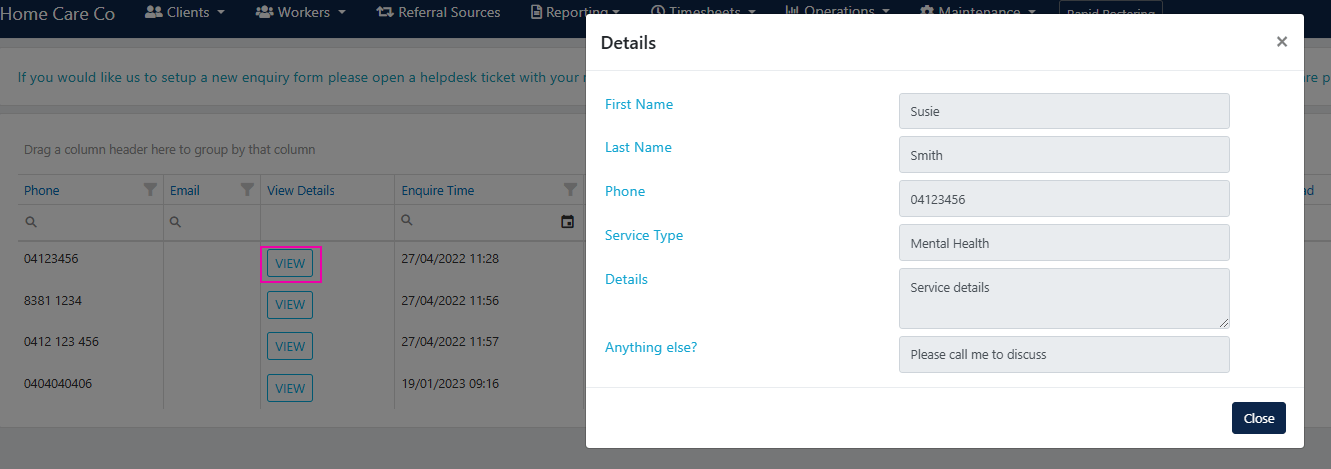 **Deleting an enquiry** - click **Delete** to remove an enquiry. A confirmation window appears to prevent accidental deletion.
 ### Adding an enquiry to leads
Push enquiry data into the leads pipeline. Data from the form is mapped automatically where the field types match (for example, drop-down to drop-down). Fields need to be linked by the Visualcare team when the form is built, and options in the form must match those in the database.
## Lead profile missing sections
If the **General Details** and **Health** sections are missing from a lead's profile, the **Type** field on the lead is blank. Open the lead, set the **Type** to **Client**, click **Save**, and refresh the page - the missing sections then appear.
## Running into issues?
See [Client management troubleshooting](/troubleshooting/general) for common errors and fixes.
## Related articles
Generate service quotes for leads and clients
Create a full client profile after converting a lead
Import multiple client, worker, or expense records from a CSV file
### Adding an enquiry to leads
Push enquiry data into the leads pipeline. Data from the form is mapped automatically where the field types match (for example, drop-down to drop-down). Fields need to be linked by the Visualcare team when the form is built, and options in the form must match those in the database.
## Lead profile missing sections
If the **General Details** and **Health** sections are missing from a lead's profile, the **Type** field on the lead is blank. Open the lead, set the **Type** to **Client**, click **Save**, and refresh the page - the missing sections then appear.
## Running into issues?
See [Client management troubleshooting](/troubleshooting/general) for common errors and fixes.
## Related articles
Generate service quotes for leads and clients
Create a full client profile after converting a lead
Import multiple client, worker, or expense records from a CSV file