> ## Documentation Index
> Fetch the complete documentation index at: https://support.visualcare.com.au/llms.txt
> Use this file to discover all available pages before exploring further.
# Messaging
> Send and manage private and group messages between office staff and workers through Visualcare
The messaging module in Visualcare connects office staff with workers through the Vworker mobile app. Workers receive push notifications on their phone when a new message is sent. Office staff see an unread message count next to the message icon in VCore.
 Click the message icon to open the messaging module.
## Private messages
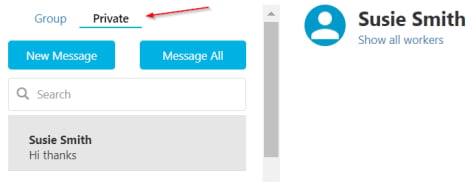
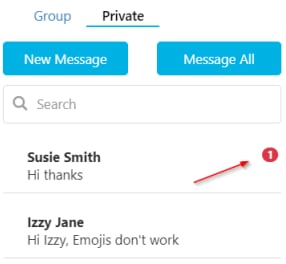
Click the **Private** tab to view private conversations. The number of unread messages for each person is highlighted in red.
Click the message icon to open the messaging module.
## Private messages
Click the **Private** tab to view private conversations. The number of unread messages for each person is highlighted in red.
 ### Marking messages as read
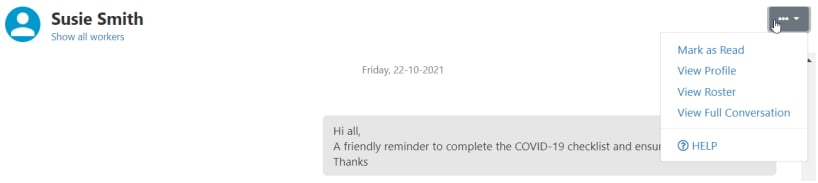
When a new message appears, click **Mark as read** to clear the unread indicator. This clears the red number for all office users.
### Marking messages as read
When a new message appears, click **Mark as read** to clear the unread indicator. This clears the red number for all office users.
 Click on the person, then click **Mark as read** in the top right corner.
 ### Viewing read receipts
Click the information icon (**i**) to see who has read each message and when.
### Viewing read receipts
Click the information icon (**i**) to see who has read each message and when.
 The **Seen time** shows when the message was marked as read, and **Seen by** shows who read it.
## Group messages
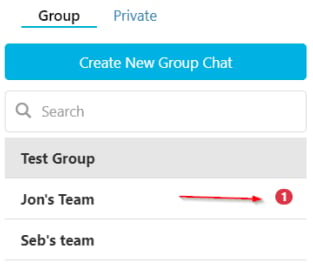
Click the **Group** tab to view group conversations. Unread message counts appear next to each group name.
The **Seen time** shows when the message was marked as read, and **Seen by** shows who read it.
## Group messages
Click the **Group** tab to view group conversations. Unread message counts appear next to each group name.
 ### Creating a new group
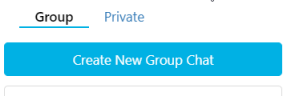
Click the **Create new Group Chat** icon.
### Creating a new group
Click the **Create new Group Chat** icon.
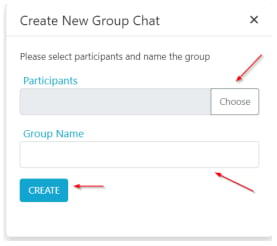
 Choose participants by clicking **Choose**, enter a group name, and click **Create**.
 ### Managing a group
To edit the list of users in a group, click **Manage group**.
### Managing a group
To edit the list of users in a group, click **Manage group**.
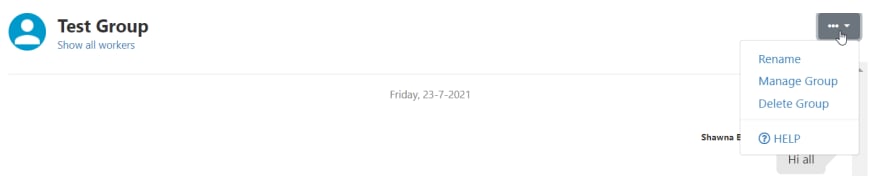 From here you add or remove participants from the group.
## Running into issues?
See [Client management troubleshooting](/troubleshooting/general) for common errors and fixes.
## Related articles
Manage notes including those from the Vworker app
Configure client profiles including vAboutMe messaging access
From here you add or remove participants from the group.
## Running into issues?
See [Client management troubleshooting](/troubleshooting/general) for common errors and fixes.
## Related articles
Manage notes including those from the Vworker app
Configure client profiles including vAboutMe messaging access