> ## Documentation Index
> Fetch the complete documentation index at: https://support.visualcare.com.au/llms.txt
> Use this file to discover all available pages before exploring further.
# Notes and tasks
> Create, manage, and follow up on client notes and tasks from the client profile and app notes area
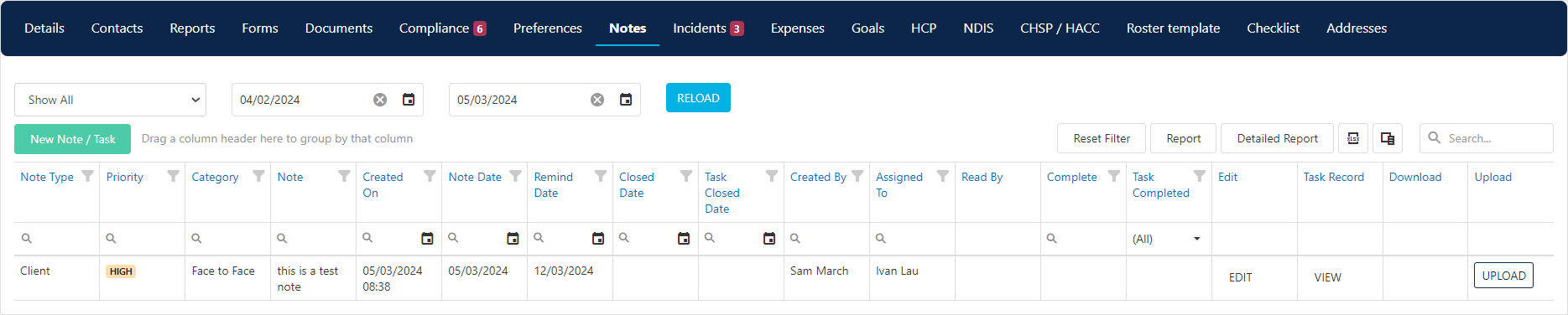
Notes in Visualcare capture information from the roster, mobile app, and direct entries on the client profile. When a note is assigned to an office user, it becomes a task for follow-up.
## Where notes come from
Notes are created in several ways:
* From the **Vworker** mobile app
* From within the client **Notes** tab
* From within the roster area
As soon as a note is created, it flows through to the client's **Notes** tab where office staff decide how to handle it.
 ## Managing a note
If a note needs follow-up, open it and set the parameters:
## Managing a note
If a note needs follow-up, open it and set the parameters:
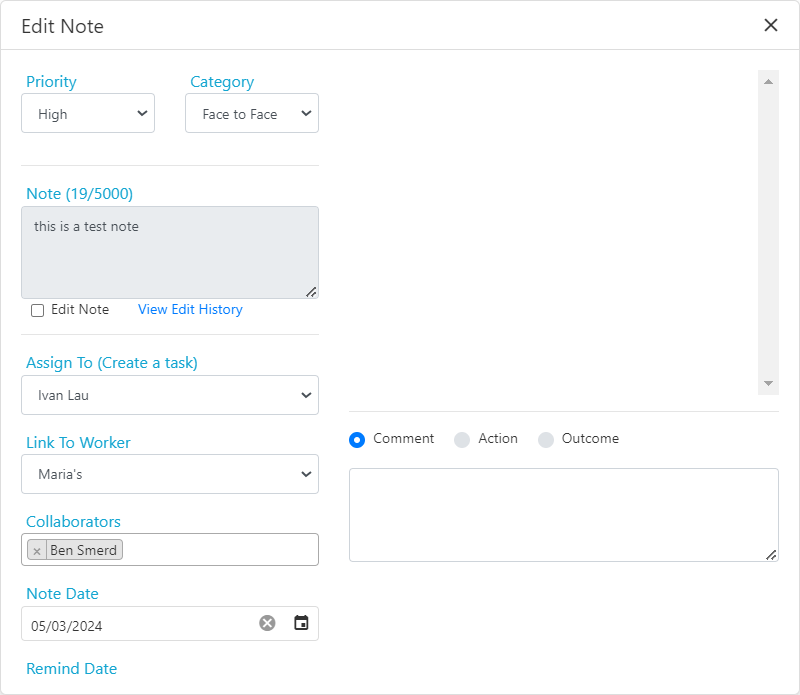 | Field | Description |
| -------------------------- | ------------------------------------------------------------------------------------------------------------------------ |
| **Priority** | Low, Medium, High, or Urgent |
| **Category** | The type of note (categories are configured in **Maintenance** → **Note Category**) |
| **Note** | The text content. Notes are editable with a full edit history retained. Deleting needs a specific permission - see below |
| **Assign To** | Select the person to assign the note to (this creates a task for that user) |
| **Link to worker** | Copies the note to the worker's profile notes tab |
| **Remind Date** | Set a reminder date for follow-up |
| **Requires Follow Up** | Auto-ticks when the note is assigned to someone |
| **Mark note as completed** | Tick this when the note has been actioned |
### Deleting a note
Deleting notes is controlled by the **Ability to delete note** permission in [User Group Security](/getting-started/user-group-security), under the **Clients** section.
If your user group has the permission, open the **Column Chooser** on the notes table, drag in the **Delete** column, and use it to delete the note. If not, ask someone in the Administration user group to delete the note or enable the permission.
## App notes
Notes created in the Vworker app are pushed to the **App Notes** area of VCore, where office users manage them. The **App Notes** KPI tile on the Home Dashboard shows the number of unread notes needing action. The count increases when new notes arrive and decreases once notes are marked as read.
| Field | Description |
| -------------------------- | ------------------------------------------------------------------------------------------------------------------------ |
| **Priority** | Low, Medium, High, or Urgent |
| **Category** | The type of note (categories are configured in **Maintenance** → **Note Category**) |
| **Note** | The text content. Notes are editable with a full edit history retained. Deleting needs a specific permission - see below |
| **Assign To** | Select the person to assign the note to (this creates a task for that user) |
| **Link to worker** | Copies the note to the worker's profile notes tab |
| **Remind Date** | Set a reminder date for follow-up |
| **Requires Follow Up** | Auto-ticks when the note is assigned to someone |
| **Mark note as completed** | Tick this when the note has been actioned |
### Deleting a note
Deleting notes is controlled by the **Ability to delete note** permission in [User Group Security](/getting-started/user-group-security), under the **Clients** section.
If your user group has the permission, open the **Column Chooser** on the notes table, drag in the **Delete** column, and use it to delete the note. If not, ask someone in the Administration user group to delete the note or enable the permission.
## App notes
Notes created in the Vworker app are pushed to the **App Notes** area of VCore, where office users manage them. The **App Notes** KPI tile on the Home Dashboard shows the number of unread notes needing action. The count increases when new notes arrive and decreases once notes are marked as read.
 Access App Notes from the Home Dashboard KPI tile or from **Operations** → **App Notes**.
### Filtering and searching
Use the filters at the top of the screen to search for specific notes:
Access App Notes from the Home Dashboard KPI tile or from **Operations** → **App Notes**.
### Filtering and searching
Use the filters at the top of the screen to search for specific notes:
 | Filter | Description |
| ------------------------- | ---------------------------------------------- |
| **Show All Read Status** | Show all notes, unread only, or read only |
| **Date Fields** | Display notes created between selected dates |
| **Mark All As Read** | Bulk-change all displayed notes to read status |
| **Mark Selected As Read** | Change selected notes to read status |
Customise the page further using the column chooser, search button, column grouping, or column filters.
| Filter | Description |
| ------------------------- | ---------------------------------------------- |
| **Show All Read Status** | Show all notes, unread only, or read only |
| **Date Fields** | Display notes created between selected dates |
| **Mark All As Read** | Bulk-change all displayed notes to read status |
| **Mark Selected As Read** | Change selected notes to read status |
Customise the page further using the column chooser, search button, column grouping, or column filters.
 ### Marking notes as read
If no action is needed, click **Mark As Read**. The note is timestamped, the user name is recorded, and the KPI tile count decreases.
### Marking notes as read
If no action is needed, click **Mark As Read**. The note is timestamped, the user name is recorded, and the KPI tile count decreases.
 ### Actioning a note
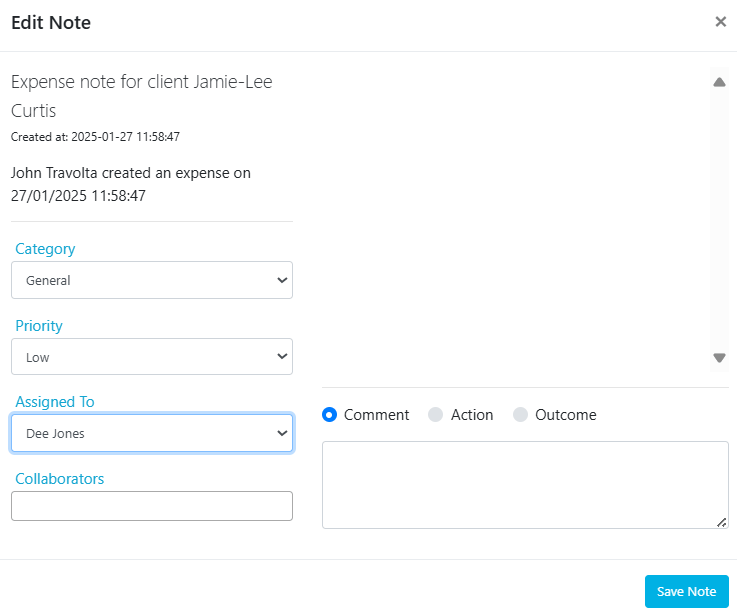
For notes needing action, mark as read then use the **Edit** button to manage the response.
To update only the **Category** and **Priority**, select them and save.
### Actioning a note
For notes needing action, mark as read then use the **Edit** button to manage the response.
To update only the **Category** and **Priority**, select them and save.
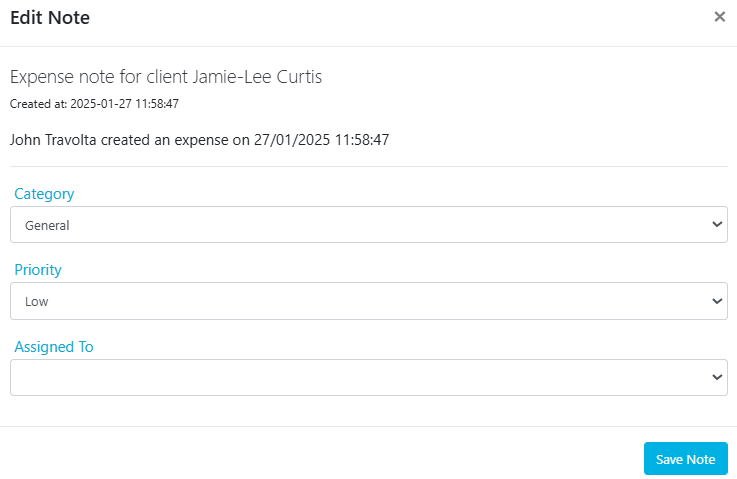 To create a task, select a user from the **Assigned To** list.
 ## Running into issues?
See [Client management troubleshooting](/troubleshooting/general) for common errors and fixes.
## Related articles
Record detailed progress notes for clients
Create shift checklists for workers
Upload and manage documents on the client profile
## Running into issues?
See [Client management troubleshooting](/troubleshooting/general) for common errors and fixes.
## Related articles
Record detailed progress notes for clients
Create shift checklists for workers
Upload and manage documents on the client profile