> ## Documentation Index
> Fetch the complete documentation index at: https://support.visualcare.com.au/llms.txt
> Use this file to discover all available pages before exploring further.
# Client preferences
> Set preferred and non-preferred workers for a client based on personal, skills, and training criteria
The **Preferences** tab on the client profile lets you define which workers are best suited to a client based on personal preferences, skills, and training. These preferences flow through to the rostering area to help match the right worker to each shift.
## Setting up preferences
Open the client profile and navigate to the **Preferences** tab.
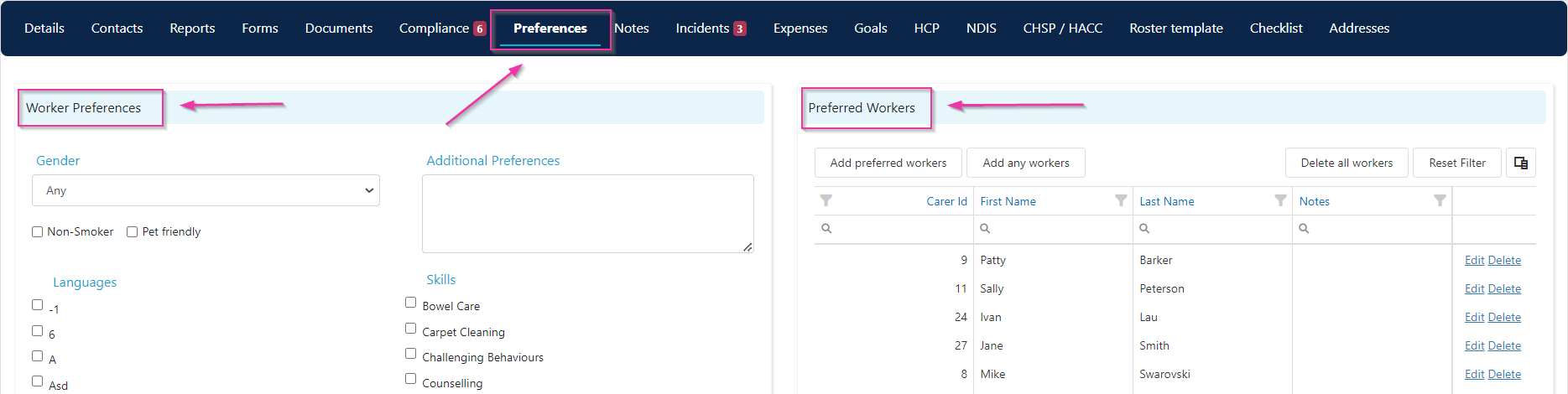
On the left side, select personal, skills, and training preferences using the tick boxes. These filters help narrow down suitable workers.
 ## Adding preferred workers
In the **Preferred Workers** section, click **Add Preferred Workers**. The list is filtered by the preferences you've selected. Choose the workers you want and click **Add Selected Workers**.
You also have the option to add non-preferred workers to flag workers who are not suitable for this client. In the **Non-Preferred Workers** section, click **Add Workers**, select the workers, and click **Add Selected Workers**.
Non-preferred workers cannot be rostered on the client roster. Adding a worker to the non-preferred list blocks them from being assigned to shifts for that client.
## Adding preferred workers
In the **Preferred Workers** section, click **Add Preferred Workers**. The list is filtered by the preferences you've selected. Choose the workers you want and click **Add Selected Workers**.
You also have the option to add non-preferred workers to flag workers who are not suitable for this client. In the **Non-Preferred Workers** section, click **Add Workers**, select the workers, and click **Add Selected Workers**.
Non-preferred workers cannot be rostered on the client roster. Adding a worker to the non-preferred list blocks them from being assigned to shifts for that client.
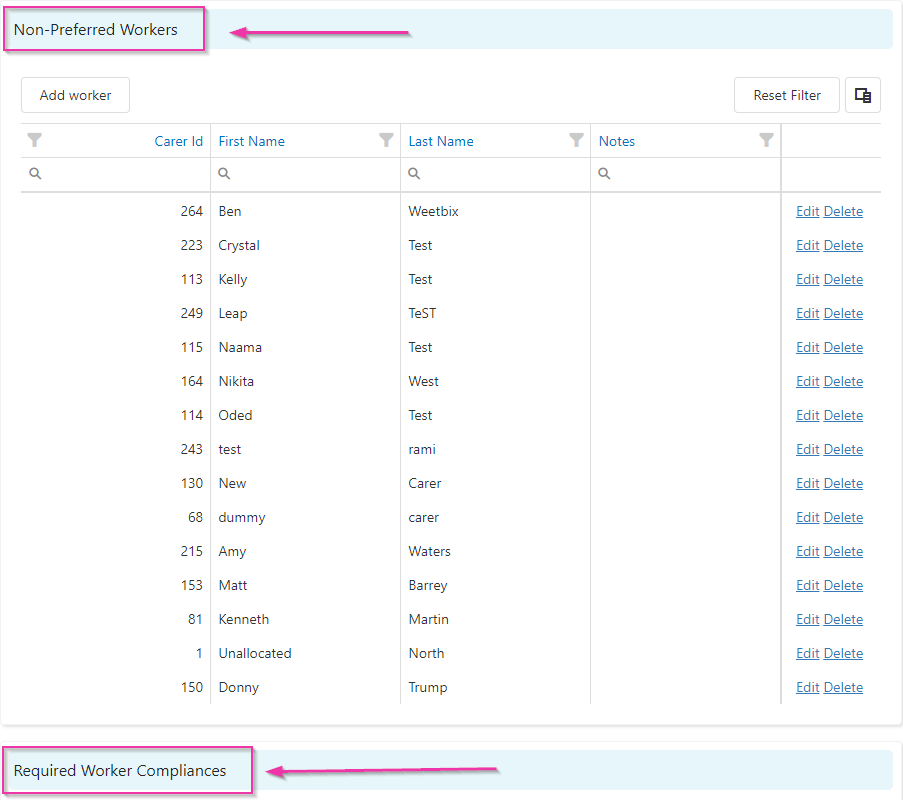 Compliance templates (configured in **Maintenance** → **Clients** → **Client Compliance Template**) let you bulk-add required worker compliance items to this preferences tab. See [Required compliance items](/client-management/required-compliance-items) for details.
## Placing workers on hold
The **Worker Restrictions** section lets you restrict specific workers from being rostered to this client without marking them as non-preferred.
Open the client profile, navigate to the **Preferences** tab, and scroll down to the **Worker Restrictions** section. Click **Edit**, select the worker or workers you want to place on hold, and click **Save selected workers**.
Workers on the on-hold list cannot be rostered for the client. Use this when a worker needs further review or onboarding before being assigned to a client.
## Running into issues?
See [Client management troubleshooting](/troubleshooting/general) for common errors and fixes.
## Related articles
Set up compliance templates that feed into preferences
Set up the client profile that holds preferences
Compliance templates (configured in **Maintenance** → **Clients** → **Client Compliance Template**) let you bulk-add required worker compliance items to this preferences tab. See [Required compliance items](/client-management/required-compliance-items) for details.
## Placing workers on hold
The **Worker Restrictions** section lets you restrict specific workers from being rostered to this client without marking them as non-preferred.
Open the client profile, navigate to the **Preferences** tab, and scroll down to the **Worker Restrictions** section. Click **Edit**, select the worker or workers you want to place on hold, and click **Save selected workers**.
Workers on the on-hold list cannot be rostered for the client. Use this when a worker needs further review or onboarding before being assigned to a client.
## Running into issues?
See [Client management troubleshooting](/troubleshooting/general) for common errors and fixes.
## Related articles
Set up compliance templates that feed into preferences
Set up the client profile that holds preferences