> ## Documentation Index
> Fetch the complete documentation index at: https://support.visualcare.com.au/llms.txt
> Use this file to discover all available pages before exploring further.
# Quotes
> Create, manage, and convert service quotes for clients and leads in Visualcare
Quotes let you generate an estimate of costs for client services. Once created, the quote information is extracted into a customisable Word template that you send to the client as a formal quote or as part of a service agreement. Converting a quote automates the creation of the client agreement, services, roster templates, and budgets.
## Creating a quote
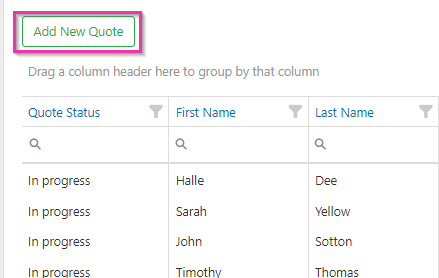
Navigate to **Operations** → **Quotes** → **Quotes** and click **Add New Quote**.
 Three options are available:
* Create a quote for an **existing client**
* Create a quote for a **new client** (no existing profile)
* Create a quote for a **lead** (scroll past clients to see leads)
Three options are available:
* Create a quote for an **existing client**
* Create a quote for a **new client** (no existing profile)
* Create a quote for a **lead** (scroll past clients to see leads)
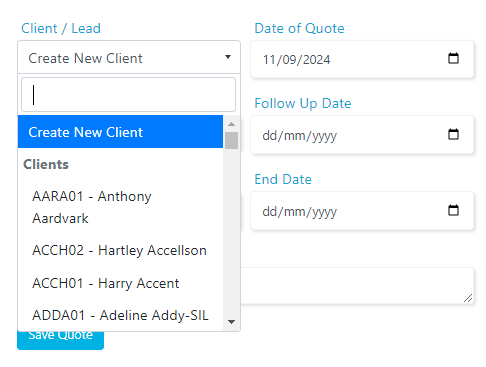 Select the client, lead, or click **Create New Client**. For existing clients and leads, client information populates automatically. For new clients, enter the details manually.
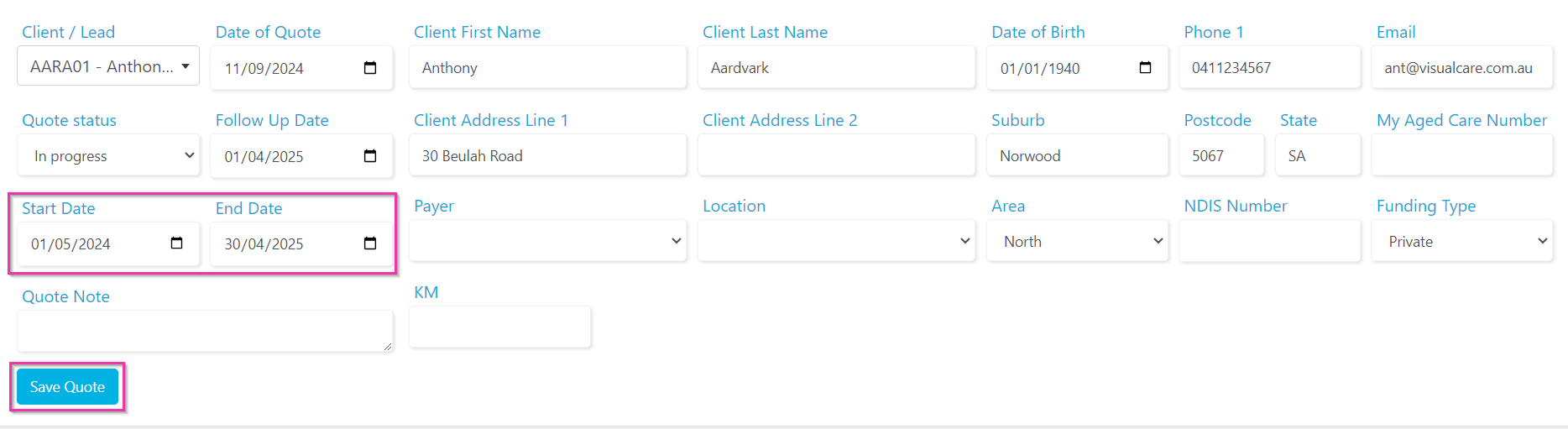
Enter the quote details including start and end date, then click **Save Quote**.
Select the client, lead, or click **Create New Client**. For existing clients and leads, client information populates automatically. For new clients, enter the details manually.
Enter the quote details including start and end date, then click **Save Quote**.
 ## Adding services to a quote
Click **+ Add Service** to add a service line item.
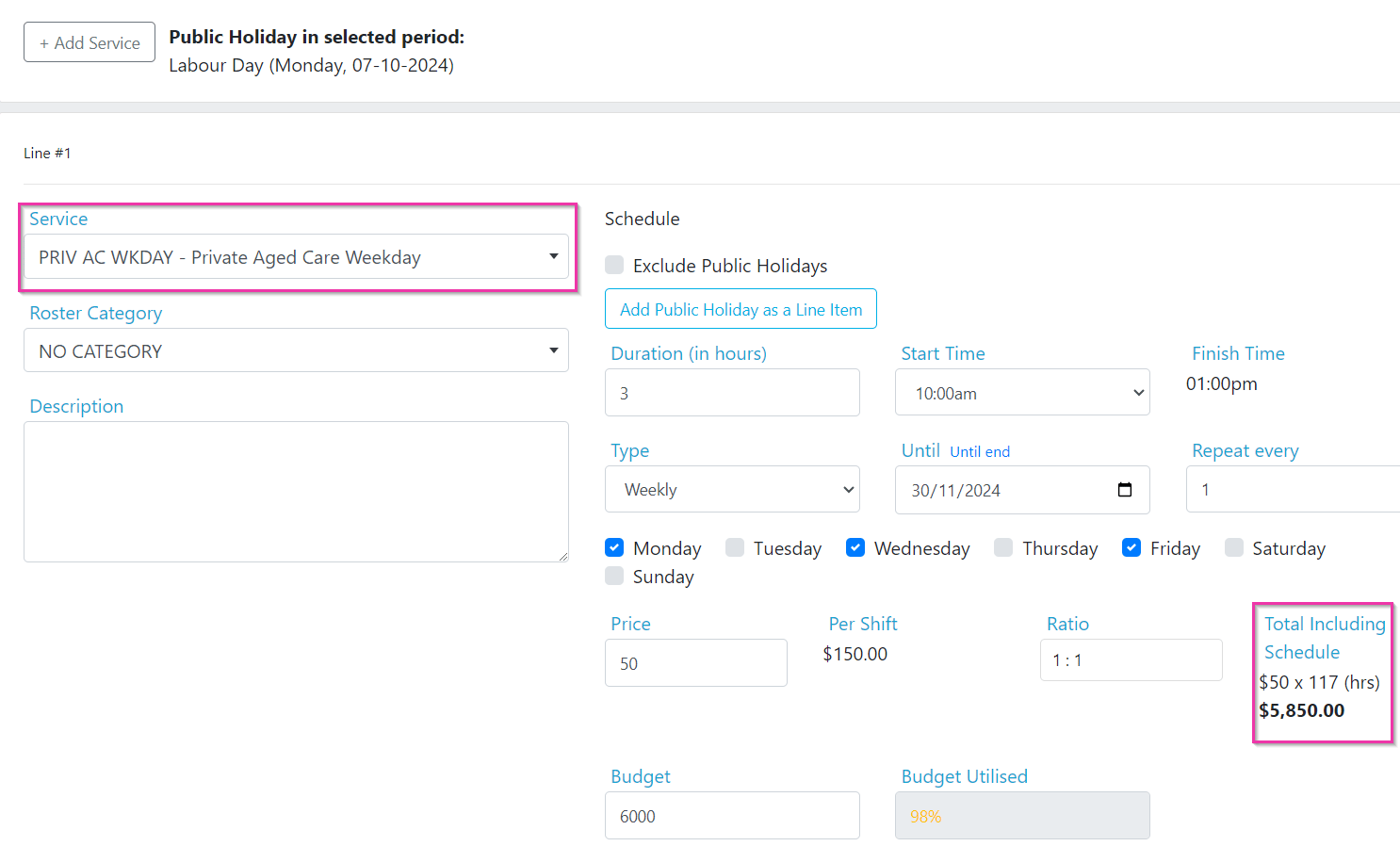
Select the **Service** from the drop-down and enter details including any recurring shifts.
For clients needing services on public holidays, click **Add Public Holiday as a Line Item** and select the public holiday service. Tick **Exclude Public Holidays** to remove public holiday shifts from the calculation for that line item.
The **Total Including Schedule** calculates the estimated cost for each service line. You also have a **Budget** field available for each line.
## Adding services to a quote
Click **+ Add Service** to add a service line item.
Select the **Service** from the drop-down and enter details including any recurring shifts.
For clients needing services on public holidays, click **Add Public Holiday as a Line Item** and select the public holiday service. Tick **Exclude Public Holidays** to remove public holiday shifts from the calculation for that line item.
The **Total Including Schedule** calculates the estimated cost for each service line. You also have a **Budget** field available for each line.
 Continue adding service lines until the quote is complete, then click **Save Quote**.
## Finalising a quote
Once the quote is complete, send it for client approval using one of these methods:
* **Email** it to the client
* **Download** the quote and send it manually
* Make it visible on the **vAboutMe** mobile app by ticking **Visible to client** (for existing clients)
Continue adding service lines until the quote is complete, then click **Save Quote**.
## Finalising a quote
Once the quote is complete, send it for client approval using one of these methods:
* **Email** it to the client
* **Download** the quote and send it manually
* Make it visible on the **vAboutMe** mobile app by ticking **Visible to client** (for existing clients)
 ## Converting a quote
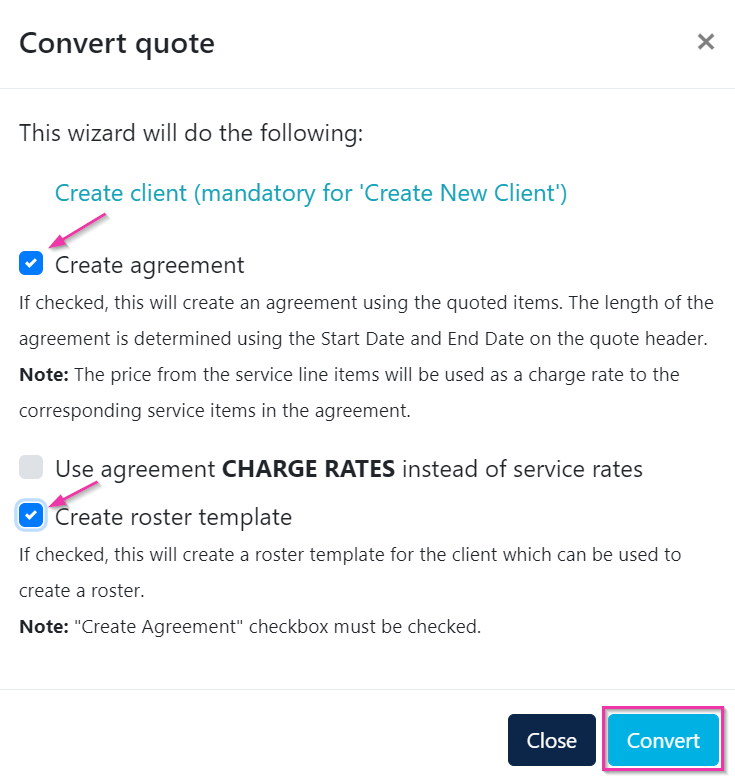
Once approved, click **Convert Quote** to action it.
For leads or new client quotes, converting creates a new client profile automatically.
You also have the option to create an agreement and roster template during conversion.
## Converting a quote
Once approved, click **Convert Quote** to action it.
For leads or new client quotes, converting creates a new client profile automatically.
You also have the option to create an agreement and roster template during conversion.
 ## Other quote options
After completing a quote, you also have the ability to:
* **Delete** the quote
* **Clone** the quote (useful for creating similar quotes for other clients)
## Other quote options
After completing a quote, you also have the ability to:
* **Delete** the quote
* **Clone** the quote (useful for creating similar quotes for other clients)
 ## Creating a quote template for HCP quotes
HCP quotes use a Word document template populated with data tags from Visualcare. You build the template once, upload it to Maintenance, and then download completed quotes as Word documents or PDFs.
### Setting up the template
Navigate to **Maintenance** → **Word Export Tags** → **HCP Quote** tab to see all available data tags.
You can also download the reference template from this page as a starting point.
Create your quote document in Microsoft Word. Insert data tags where you want Visualcare to populate values. For example:
| Tag | Inserts |
| -------------- | ---------------------------------- |
| `${TSC_Mon}` | Monthly total service cost |
| `${UP_An}` | Annual unallocated package amount |
| `${UP_Mon}` | Monthly unallocated package amount |
| `${UP_Daily}` | Daily unallocated package amount |
| `${CMF_Daily}` | Daily case management fee |
The **Unallocated Package** tags (`${UP_Daily}`, `${UP_Mon}`, `${UP_An}`) represent the remaining package funds after services are accounted for.
Save the file as `hcp_quote_template.docx`.
Navigate to **Maintenance** → **Documents** and upload the template file.
### Downloading an HCP quote
Once the template is uploaded, go to **Operations** → **Quotes** → **HCP Quotes**, open the relevant quote, and click **Download Quote**. Choose **Word Document** or **PDF**.
## Running into issues?
See [Client management troubleshooting](/troubleshooting/general) for common errors and fixes.
## Related articles
Manage leads and the client onboarding pipeline
SAH-specific quoting functionality
Set up agreements after converting a quote
## Creating a quote template for HCP quotes
HCP quotes use a Word document template populated with data tags from Visualcare. You build the template once, upload it to Maintenance, and then download completed quotes as Word documents or PDFs.
### Setting up the template
Navigate to **Maintenance** → **Word Export Tags** → **HCP Quote** tab to see all available data tags.
You can also download the reference template from this page as a starting point.
Create your quote document in Microsoft Word. Insert data tags where you want Visualcare to populate values. For example:
| Tag | Inserts |
| -------------- | ---------------------------------- |
| `${TSC_Mon}` | Monthly total service cost |
| `${UP_An}` | Annual unallocated package amount |
| `${UP_Mon}` | Monthly unallocated package amount |
| `${UP_Daily}` | Daily unallocated package amount |
| `${CMF_Daily}` | Daily case management fee |
The **Unallocated Package** tags (`${UP_Daily}`, `${UP_Mon}`, `${UP_An}`) represent the remaining package funds after services are accounted for.
Save the file as `hcp_quote_template.docx`.
Navigate to **Maintenance** → **Documents** and upload the template file.
### Downloading an HCP quote
Once the template is uploaded, go to **Operations** → **Quotes** → **HCP Quotes**, open the relevant quote, and click **Download Quote**. Choose **Word Document** or **PDF**.
## Running into issues?
See [Client management troubleshooting](/troubleshooting/general) for common errors and fixes.
## Related articles
Manage leads and the client onboarding pipeline
SAH-specific quoting functionality
Set up agreements after converting a quote