> ## Documentation Index
> Fetch the complete documentation index at: https://support.visualcare.com.au/llms.txt
> Use this file to discover all available pages before exploring further.
# Required compliance items
> Configure client compliance items, templates, client types, and funding types in Maintenance
The **Maintenance** → **Clients** area lets you configure compliance items, compliance templates, client types, funding types, and disability categories. These settings control what appears on client profiles throughout VCore.
## Client compliance
The compliance items list defines what compliance is tracked across client profiles. Items added here appear on the [Client Profile → Compliance](/client-management/managing-client-compliance) tab.
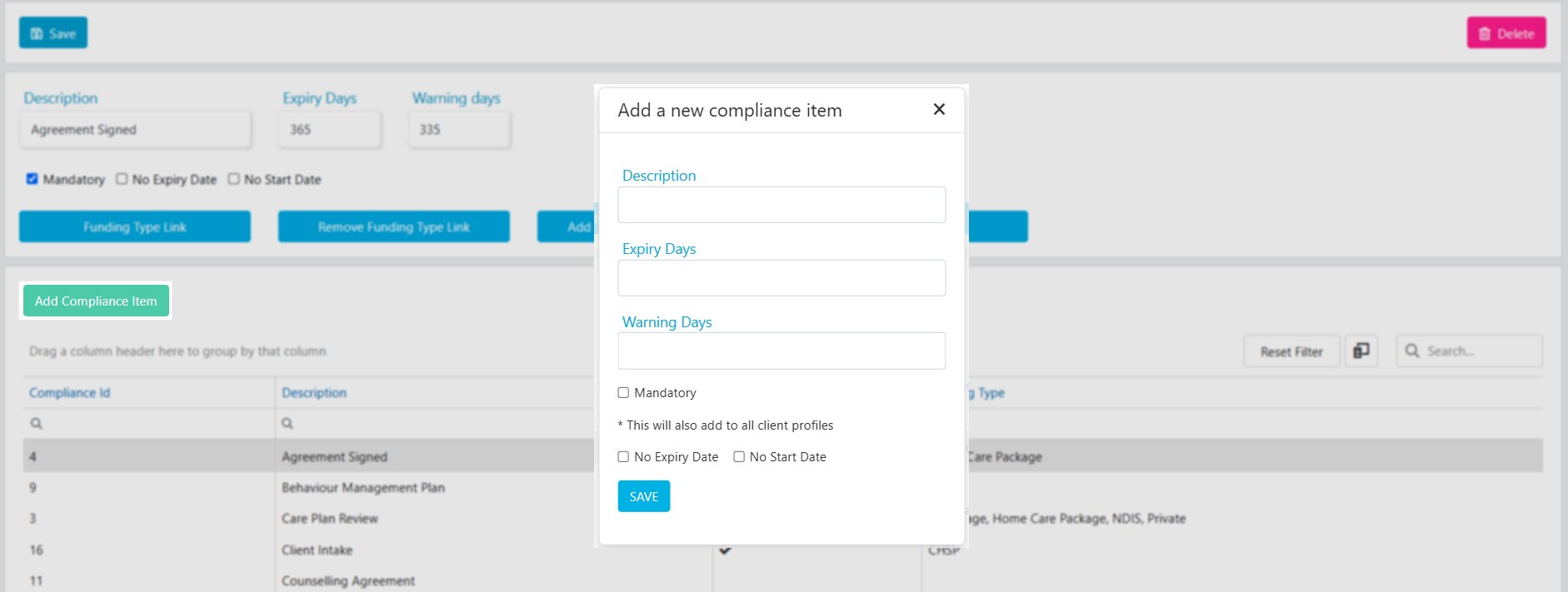
Click **Add Compliance Item** and enter the details. Edit existing items by clicking on them in the list.
 ### Linking to funding types
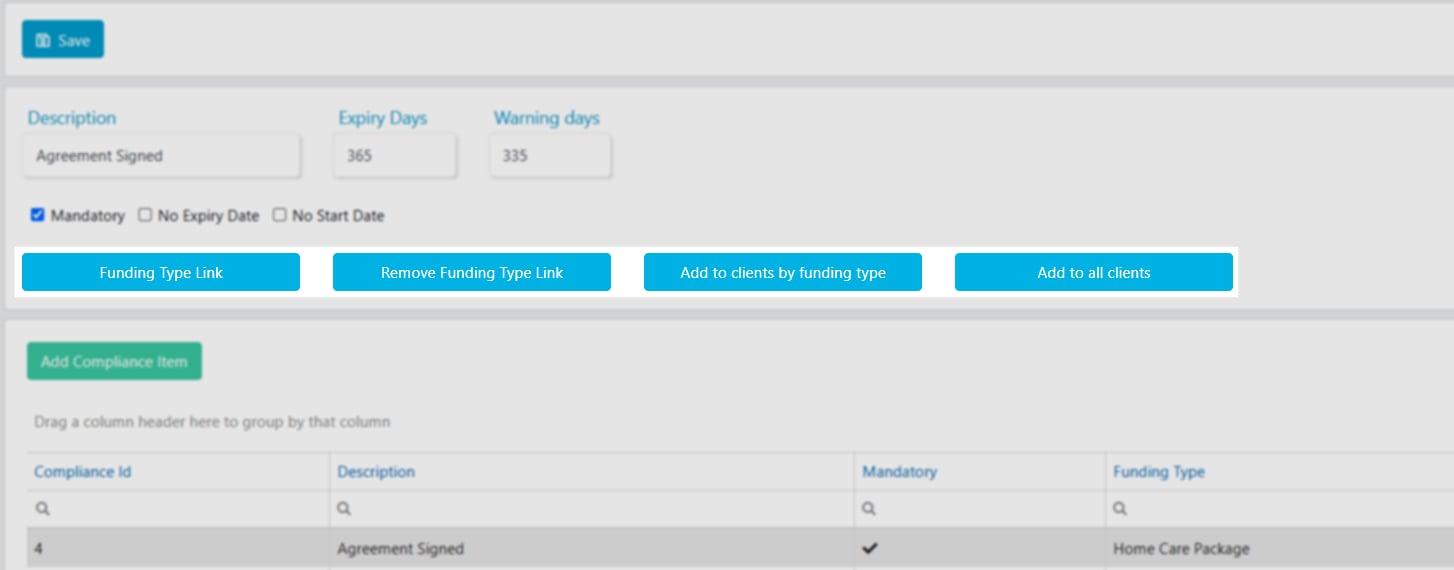
There are several ways to connect compliance items with client profiles:
* Link the compliance item directly to a funding type
* Add the compliance item to clients by their funding type
* Add the compliance item to all clients regardless of funding type
### Linking to funding types
There are several ways to connect compliance items with client profiles:
* Link the compliance item directly to a funding type
* Add the compliance item to clients by their funding type
* Add the compliance item to all clients regardless of funding type
 If compliance items are not linked to any funding types, all items are automatically added to new client profiles on creation.
## Client compliance templates
Compliance templates let you add multiple **required worker compliances** to the [Client Profile → Preferences](/client-management/preferences) tab in one action. This controls which worker compliance items are checked when rostering workers for the client.
### Setting up a compliance template
1. Click **Add Compliance Template**, enter the **Template Name**, and click **Save**
2. Add worker compliance items by clicking **Add Compliance Item**, selecting items from the drop-down, and clicking **Save**
3. Assign clients to the template by clicking **Add Clients**, ticking the clients, and clicking **Save**
If compliance items are not linked to any funding types, all items are automatically added to new client profiles on creation.
## Client compliance templates
Compliance templates let you add multiple **required worker compliances** to the [Client Profile → Preferences](/client-management/preferences) tab in one action. This controls which worker compliance items are checked when rostering workers for the client.
### Setting up a compliance template
1. Click **Add Compliance Template**, enter the **Template Name**, and click **Save**
2. Add worker compliance items by clicking **Add Compliance Item**, selecting items from the drop-down, and clicking **Save**
3. Assign clients to the template by clicking **Add Clients**, ticking the clients, and clicking **Save**
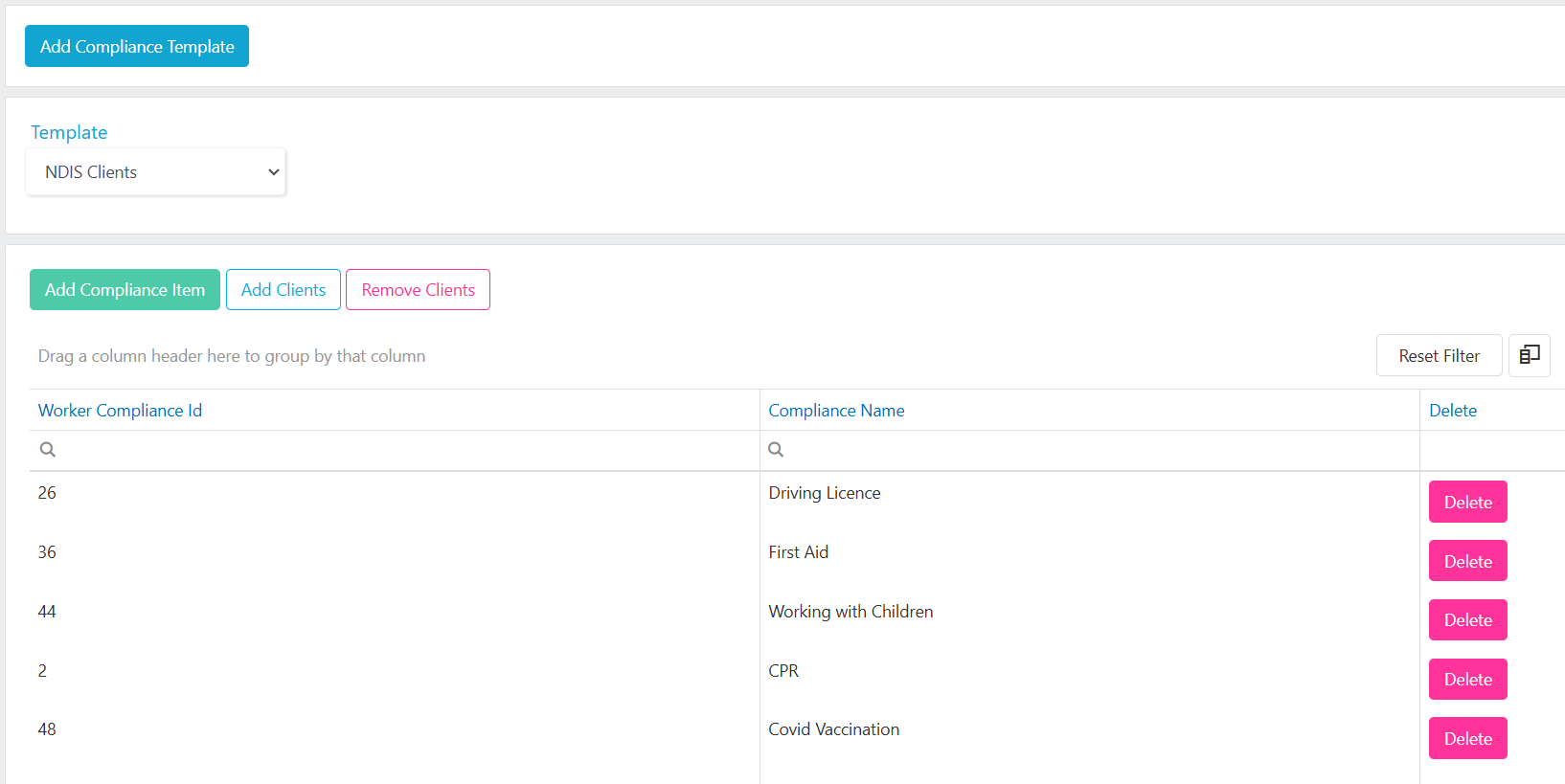 The **Add Clients** list only shows clients who don't already have this template. The **Remove Clients** list only shows clients who already have it.
## Client types
Use client types as an additional filtering layer for client lists. Add types by clicking **Add Type**, entering the detail, and clicking **Add**.
The **Add Clients** list only shows clients who don't already have this template. The **Remove Clients** list only shows clients who already have it.
## Client types
Use client types as an additional filtering layer for client lists. Add types by clicking **Add Type**, entering the detail, and clicking **Add**.
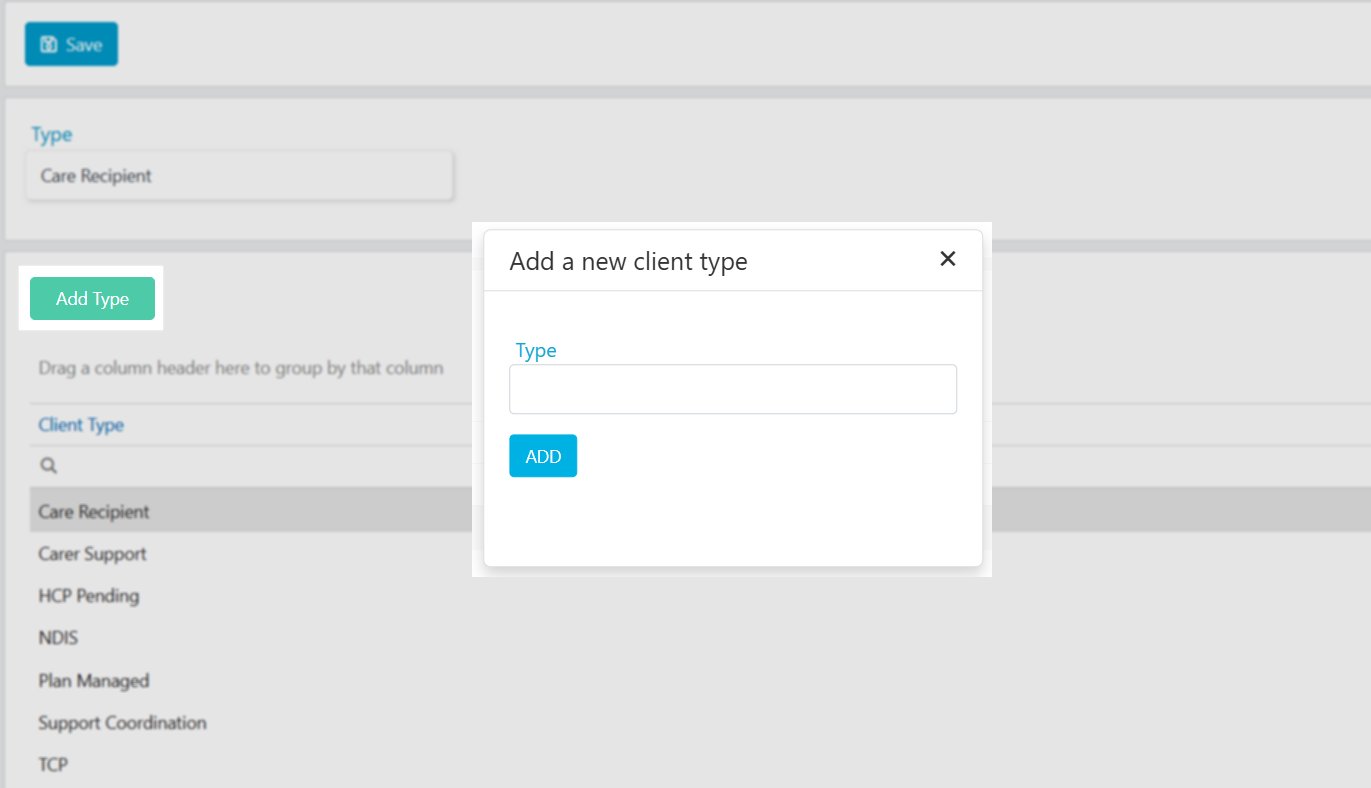 Once created, select the client type in **Client Profile** → **Details** → **Service Status** → **Client Type**.
## Funding types
Funding types are available for selection on the client profile, as the **Agreement Type** in client agreements, and as the **Service Type** in services.
Add types by clicking **Add Type**, entering the detail, and clicking **Add**.
Once created, select the client type in **Client Profile** → **Details** → **Service Status** → **Client Type**.
## Funding types
Funding types are available for selection on the client profile, as the **Agreement Type** in client agreements, and as the **Service Type** in services.
Add types by clicking **Add Type**, entering the detail, and clicking **Add**.
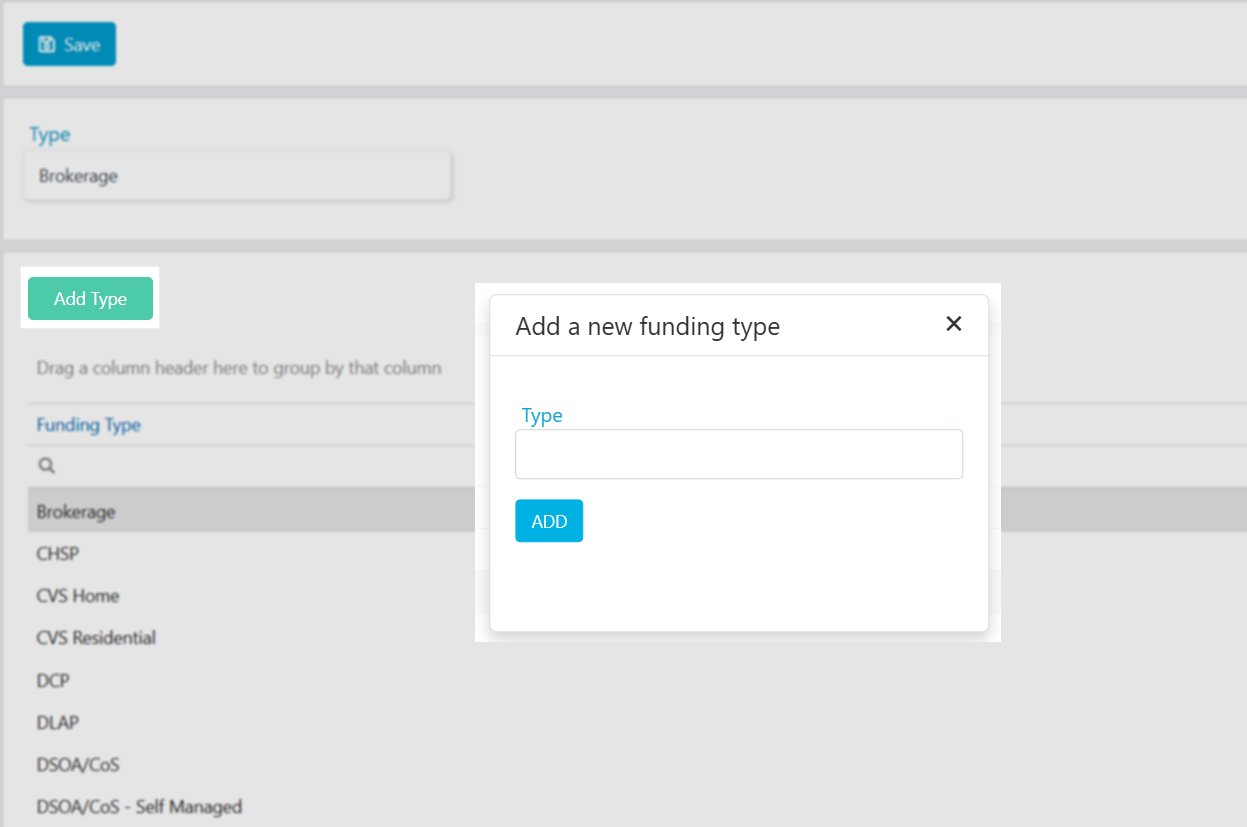 Some funding types use Visualcare standard names to enable specific system functionality. These include: **NDIS**, **Home Care Package**, **CHSP**, **HACC**, and **DVA**.
## Disability categories
Customise the drop-down list of client disabilities that appears on the client profile. Add new disabilities by clicking **Add Disability**, entering the detail, and clicking **Add**.
Some funding types use Visualcare standard names to enable specific system functionality. These include: **NDIS**, **Home Care Package**, **CHSP**, **HACC**, and **DVA**.
## Disability categories
Customise the drop-down list of client disabilities that appears on the client profile. Add new disabilities by clicking **Add Disability**, entering the detail, and clicking **Add**.
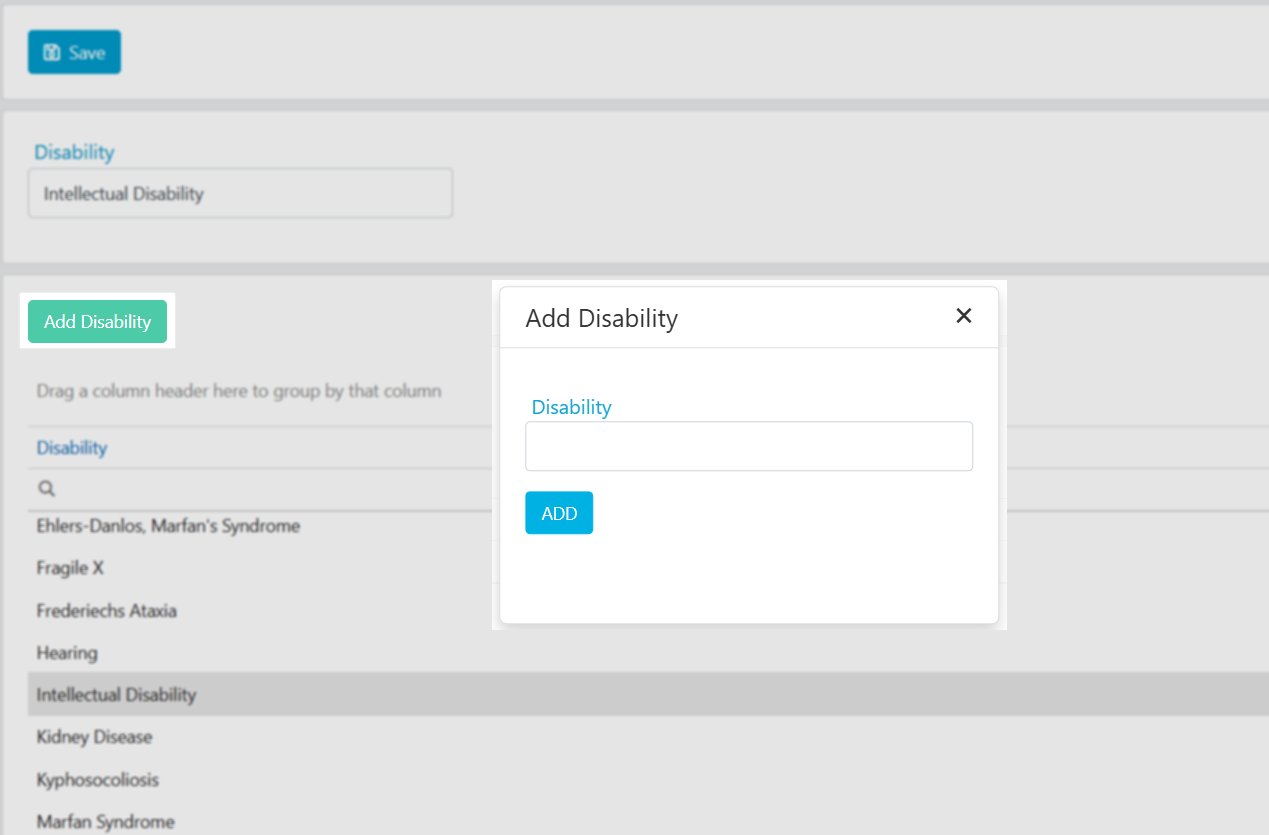 Once added, the disability is available in **Client Profile** → **Details** → **Health** → **Primary Disability** and **Secondary Disability**.
## Running into issues?
See [Client management troubleshooting](/troubleshooting/general) for common errors and fixes.
## Related articles
Set up compliance items and link to funding types
Track compliance on individual client profiles
Set preferred and non-preferred workers for a client
Once added, the disability is available in **Client Profile** → **Details** → **Health** → **Primary Disability** and **Secondary Disability**.
## Running into issues?
See [Client management troubleshooting](/troubleshooting/general) for common errors and fixes.
## Related articles
Set up compliance items and link to funding types
Track compliance on individual client profiles
Set preferred and non-preferred workers for a client