> ## Documentation Index
> Fetch the complete documentation index at: https://support.visualcare.com.au/llms.txt
> Use this file to discover all available pages before exploring further.
# MessageMedia integration
> How to set up and send SMS notifications to clients using MessageMedia in Visualcare
Visualcare integrates with MessageMedia (previously known as Wholesale SMS) to send SMS notifications to clients about upcoming shifts. Once configured, you compile shift messages for a selected date range and send them in bulk.
## Set up
Before using the SMS feature, the integration needs to be activated for your database and your MessageMedia credentials entered.
If you already have an account with MessageMedia, you're ready to connect. Otherwise, create an account at [MessageMedia](https://messagemedia.com/au/).
Update the API key and API secret (password) in **Settings** → **Rostering** → **SMS**.
Make sure clients have a valid SMS phone number with the correct area code in the SMS field on their client profile.
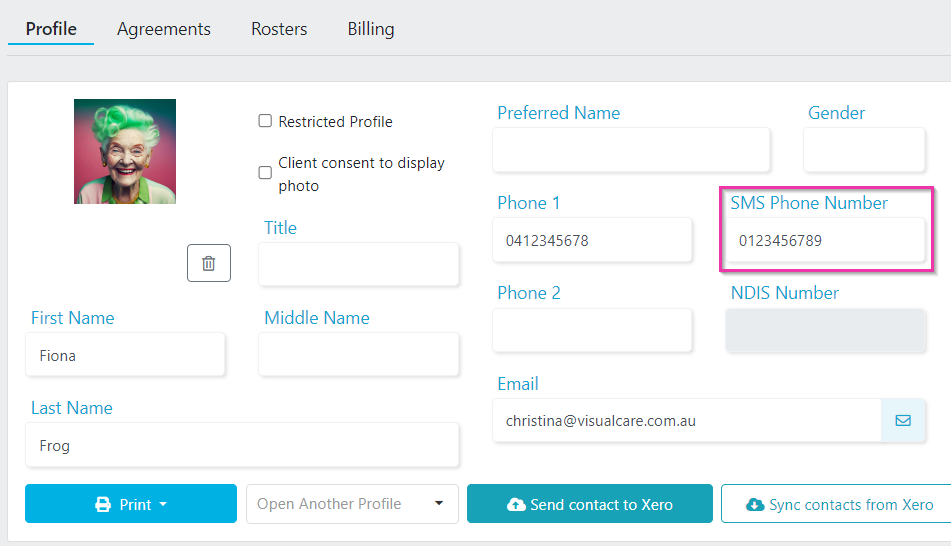 The **Operations** → **SMS** option is only available if SMS has been activated for your database and credentials have been provided.
## Sending SMS notifications
Go to **Operations** → **SMS**.
Select the dates for the system to compile the messages, then click **Run**.
The **Operations** → **SMS** option is only available if SMS has been activated for your database and credentials have been provided.
## Sending SMS notifications
Go to **Operations** → **SMS**.
Select the dates for the system to compile the messages, then click **Run**.
 A list of all valid clients and shifts displays with a prefilled message. You select messages individually or all at once.
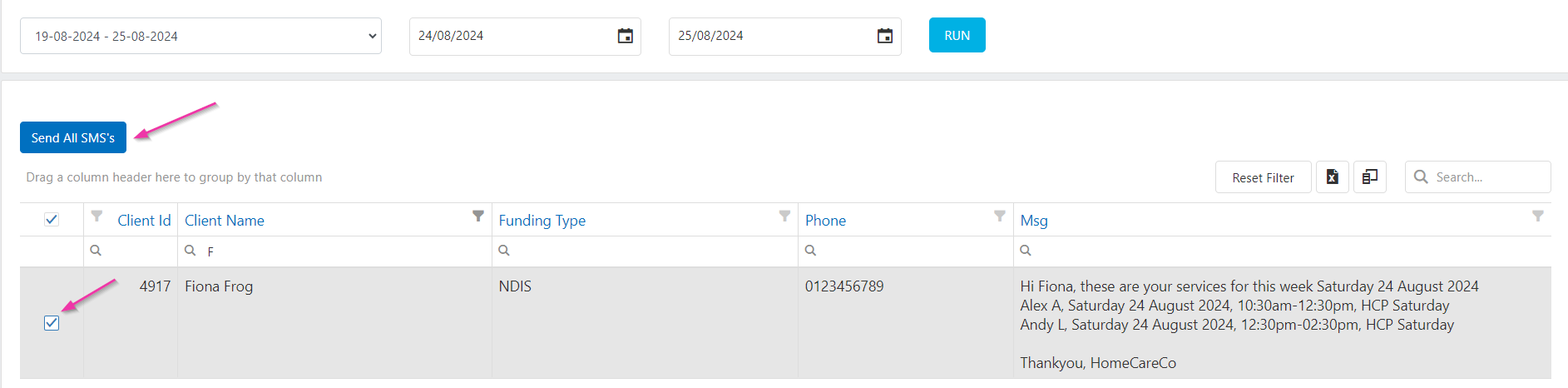 When ready, click **Send All SMS's**.
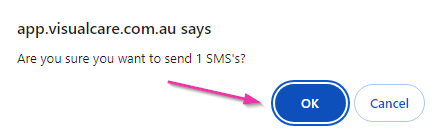
Once you click **OK** on the confirmation prompt, the operation cannot be cancelled.
When ready, click **Send All SMS's**.
Once you click **OK** on the confirmation prompt, the operation cannot be cancelled.
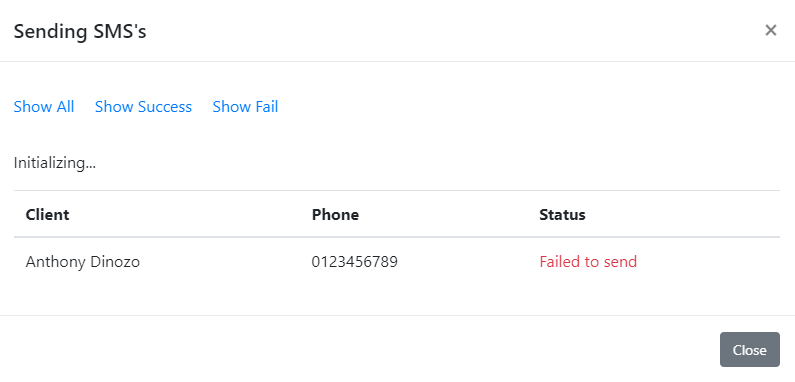
 The status column displays a Send ID from MessageMedia when sent successfully. A failed message displays if the send was unsuccessful.
 ## Running into issues?
See [Integration troubleshooting](/troubleshooting/integration-issues) for common errors and fixes.
## Related articles
Full list of integrations supported by Visualcare
Connect Visualcare to Xero for invoice and payroll export
## Running into issues?
See [Integration troubleshooting](/troubleshooting/integration-issues) for common errors and fixes.
## Related articles
Full list of integrations supported by Visualcare
Connect Visualcare to Xero for invoice and payroll export