> ## Documentation Index
> Fetch the complete documentation index at: https://support.visualcare.com.au/llms.txt
> Use this file to discover all available pages before exploring further.
# Automated workflows
> Set up automated email notifications and task creation triggered by events in Visualcare
Automated workflows let you trigger actions in Visualcare based on a set condition, without manual intervention. When a trigger occurs (for example, a client agreement reaching its alert date), the system can automatically send emails or create tasks for your team.
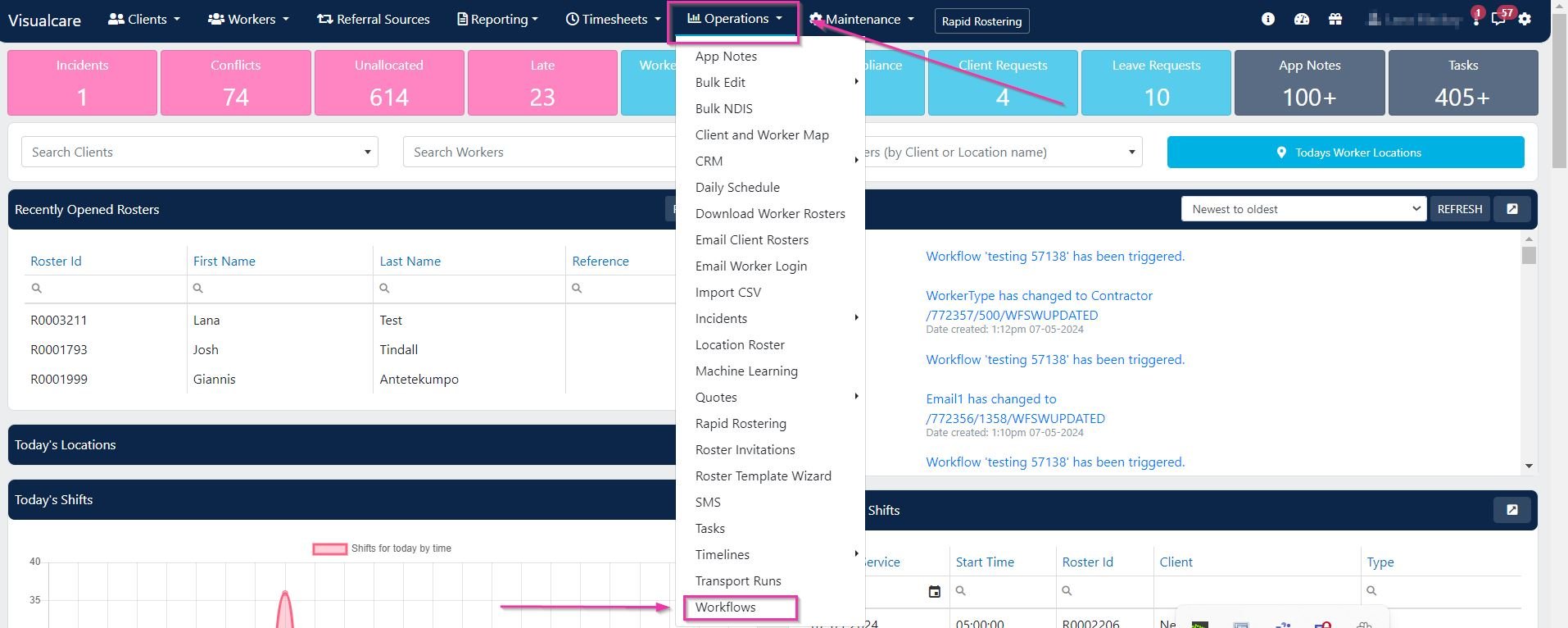
Workflows are managed from **Operations** → **Workflows**.
## Setting up a workflow
Go to **Operations** → **Workflows**.
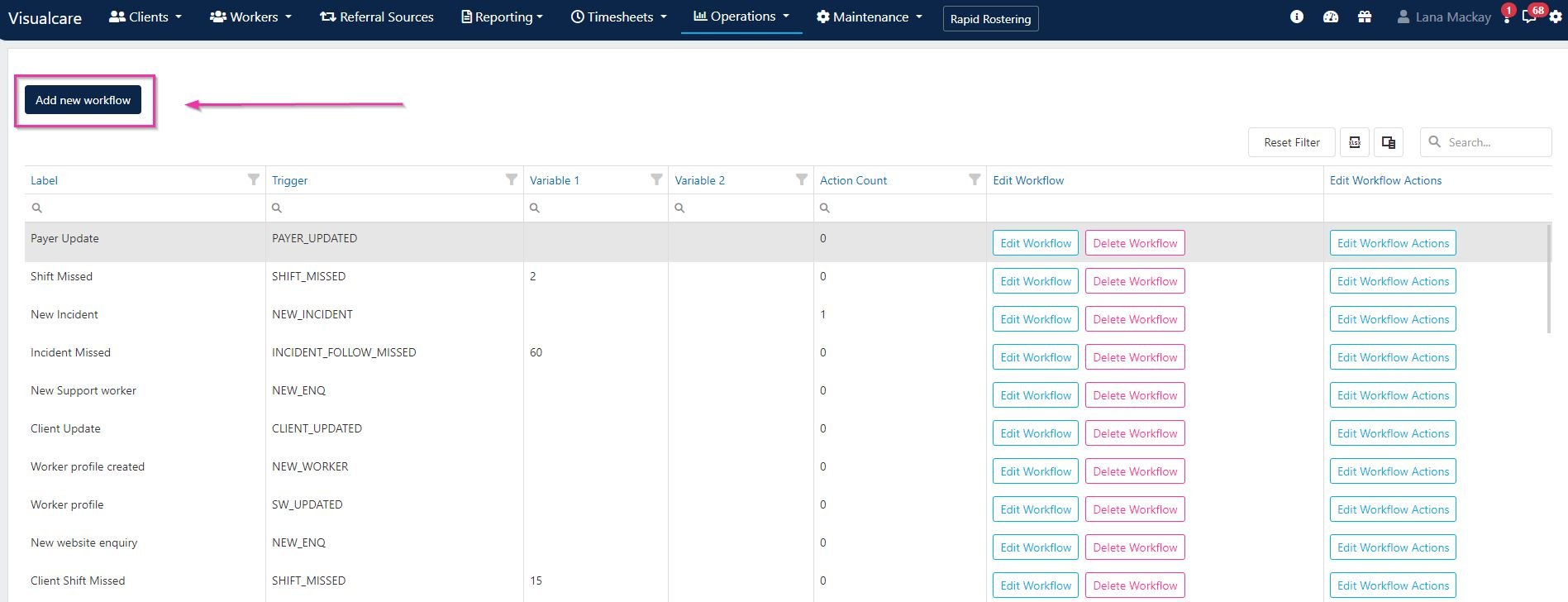
 Click **Add New Workflow**.
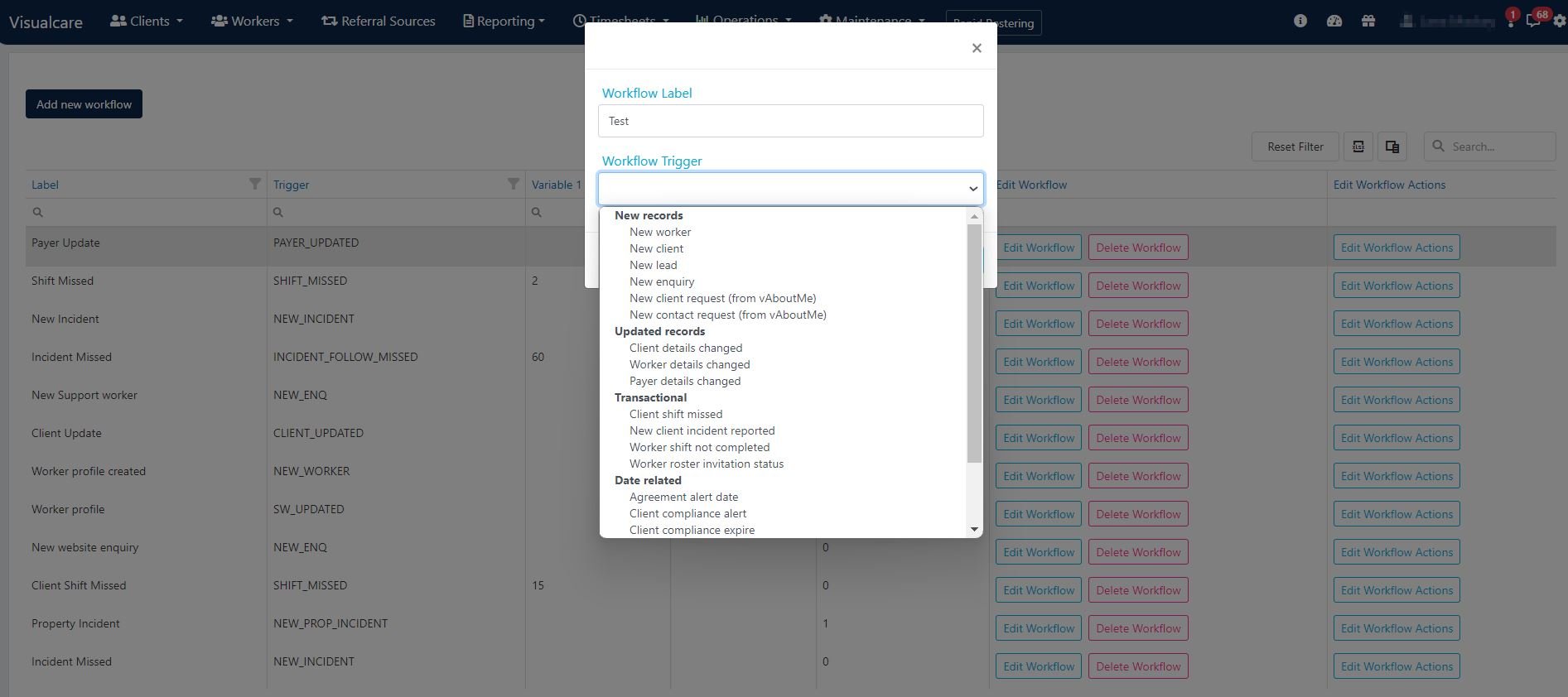
 Enter a name in the **Workflow Label** field and select a workflow trigger from the drop-down menu. The trigger is the condition that starts the workflow (for example, "Client Agreement has reached its Alert Date").
 Once the workflow is saved, click **Edit Workflow Actions**, then click **Add Action**.
 Choose an action from the drop-down menu:
| Action | Description |
| ----------------------------------------- | ------------------------------------------------------------------------------------------------------------------------ |
| **Send an email to up to two recipients** | Enter email addresses in **Variable 1** and **Variable 2**. At least one email address must be entered in **Variable 1** |
| **Send an email to Case Manager 1** | Automatically emails the client's first case manager |
| **Send an email to Case Manager 2** | Automatically emails the client's second case manager |
| **Create a task** | Choose up to two users from the drop-down menus in **Variable 1** and **Variable 2** |
| **Create a task for Case Manager 1** | Creates a task for the client's first case manager |
| **Create a task for Case Manager 2** | Creates a task for the client's second case manager |
Choose an action from the drop-down menu:
| Action | Description |
| ----------------------------------------- | ------------------------------------------------------------------------------------------------------------------------ |
| **Send an email to up to two recipients** | Enter email addresses in **Variable 1** and **Variable 2**. At least one email address must be entered in **Variable 1** |
| **Send an email to Case Manager 1** | Automatically emails the client's first case manager |
| **Send an email to Case Manager 2** | Automatically emails the client's second case manager |
| **Create a task** | Choose up to two users from the drop-down menus in **Variable 1** and **Variable 2** |
| **Create a task for Case Manager 1** | Creates a task for the client's first case manager |
| **Create a task for Case Manager 2** | Creates a task for the client's second case manager |
 Once active, the workflow runs automatically each time the trigger condition is met.
## Managing workflows
Existing workflows can be edited or deleted from the workflows page.
Once active, the workflow runs automatically each time the trigger condition is met.
## Managing workflows
Existing workflows can be edited or deleted from the workflows page.
 Workflows work across many areas of Visualcare — the same engine covers rostering, agreements, incidents, and more. Browse the trigger drop-down to see the full list of events you can automate against. For example, set up a workflow to automatically notify case managers when shifts are added, changed, or cancelled.
## Running into issues?
See [General troubleshooting](/troubleshooting/general) for common errors and fixes.
## Related articles
Create and assign tasks from notes
Find, filter, and manage tasks assigned to office users
Workflows work across many areas of Visualcare — the same engine covers rostering, agreements, incidents, and more. Browse the trigger drop-down to see the full list of events you can automate against. For example, set up a workflow to automatically notify case managers when shifts are added, changed, or cancelled.
## Running into issues?
See [General troubleshooting](/troubleshooting/general) for common errors and fixes.
## Related articles
Create and assign tasks from notes
Find, filter, and manage tasks assigned to office users