> ## Documentation Index
> Fetch the complete documentation index at: https://support.visualcare.com.au/llms.txt
> Use this file to discover all available pages before exploring further.
# Roster Navigation
How to navigate the client roster
## Roster navigation
The client roster screen includes several quick-access features at the top of the page.
### Hyperlinks
Click on the hyperlinks at the top of the roster screen to quickly access related information:
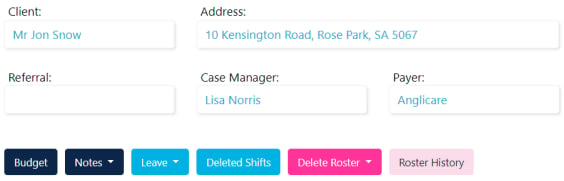
* **Client Name** - opens the client profile page
* **Address** - shows the location on Google Maps
* **Email** - opens a new email to the client
 ### Toolbar
The toolbar provides access to budget, notes, leave, deleted shifts, and roster history.
### Toolbar
The toolbar provides access to budget, notes, leave, deleted shifts, and roster history.
 ### Publish toggle
* **Publish ON** - workers see their shifts and get notifications as shifts are updated, added, or deleted
* **Publish OFF** - workers don't see any shifts on their phone. Make changes without triggering notifications
### Complete a roster
When a roster is finished (for example, the client has ceased services), click **Complete**. Then filter out completed rosters in your roster list.
### Publish toggle
* **Publish ON** - workers see their shifts and get notifications as shifts are updated, added, or deleted
* **Publish OFF** - workers don't see any shifts on their phone. Make changes without triggering notifications
### Complete a roster
When a roster is finished (for example, the client has ceased services), click **Complete**. Then filter out completed rosters in your roster list.
 ## Roster notes
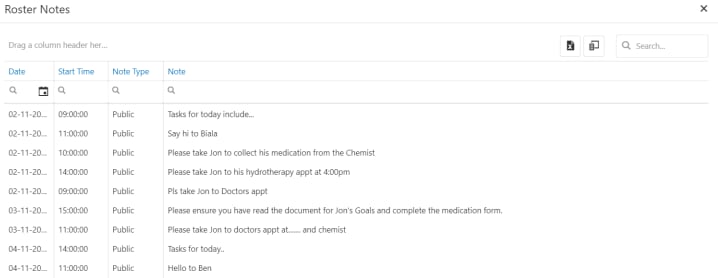
Click the **Notes** icon in the toolbar to view notes in the roster area.
## Roster notes
Click the **Notes** icon in the toolbar to view notes in the roster area.
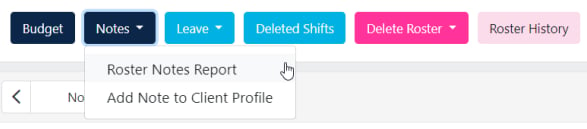 Produce a roster notes report by selecting a date range and clicking **Submit**.
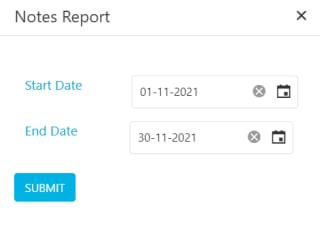 The report lists all roster notes entered when creating a shift or shift repeat. Export to Excel if needed.
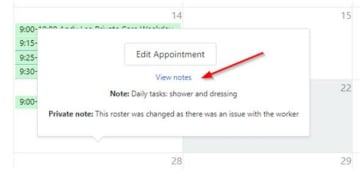
 To view notes for a specific shift, left-click on the shift and select **View Notes**.