> ## Documentation Index
> Fetch the complete documentation index at: https://support.visualcare.com.au/llms.txt
> Use this file to discover all available pages before exploring further.
# Budget information while rostering
> How to view and monitor client budget information while working in the roster
Visualcare provides real-time budget visibility while you're rostering, letting you track spend against client agreements without leaving the roster screen. Budget information is available from within the client roster and from the client reports tab.
## Viewing budget in the client roster
Click the **Budget** button in the roster toolbar to view the client's budget. This pulls through from the budget set up in the client's agreement.
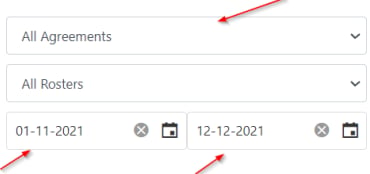 ### Filtering options
The budget view offers several ways to narrow down the information:
* **Agreement** - select all agreements or a specific agreement
* **Roster** - select this roster or all rosters
* **Date range** - select a specific date range
The budget figures update based on your selections.
### Budget columns
The budget display shows both hours and dollar values:
### Filtering options
The budget view offers several ways to narrow down the information:
* **Agreement** - select all agreements or a specific agreement
* **Roster** - select this roster or all rosters
* **Date range** - select a specific date range
The budget figures update based on your selections.
### Budget columns
The budget display shows both hours and dollar values:
 | Column | What it shows |
| --------------------- | ----------------------------------------------- |
| **Actual \$/Hours** | Confirmed timesheet items |
| **Rostered \$/Hours** | Currently rostered items |
| **Budget \$/Hours** | Client budget calculated from agreement details |
## Funding and operational balances
The client reports tab (**Client Profile** → **Reports**) provides a broader view of budget information. This table reports on client budgets set up in the agreement tab, based on roster and confirmed timesheet data.
| Column | What it shows |
| --------------------- | ----------------------------------------------- |
| **Actual \$/Hours** | Confirmed timesheet items |
| **Rostered \$/Hours** | Currently rostered items |
| **Budget \$/Hours** | Client budget calculated from agreement details |
## Funding and operational balances
The client reports tab (**Client Profile** → **Reports**) provides a broader view of budget information. This table reports on client budgets set up in the agreement tab, based on roster and confirmed timesheet data.
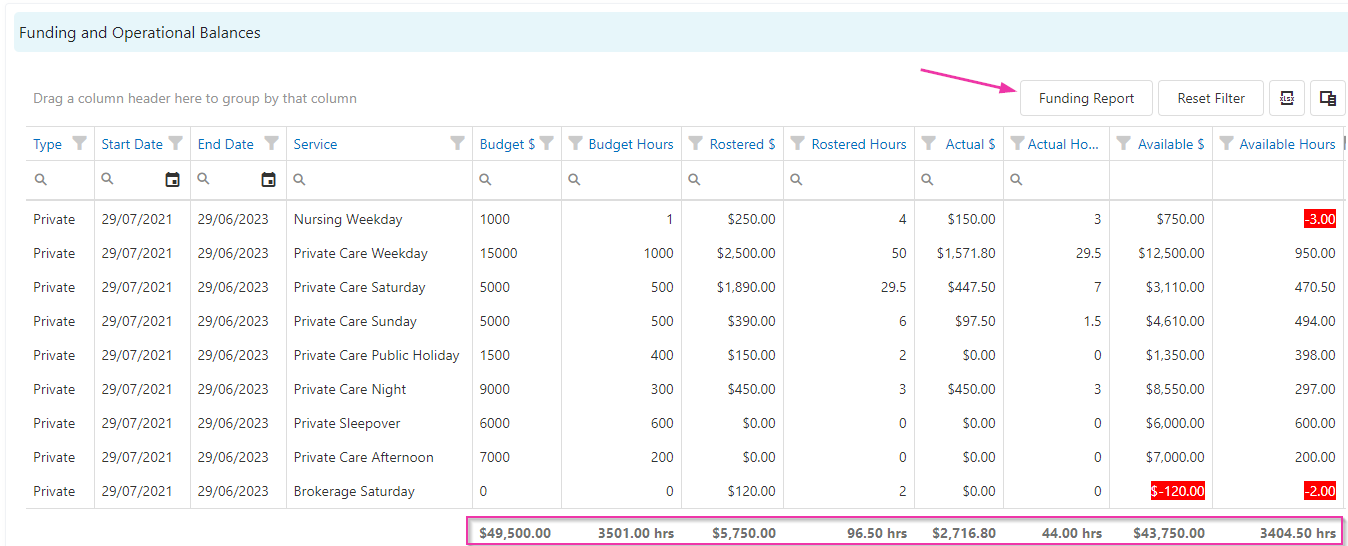 * **Rostered hours** come from the client roster
* **Budget hours** come from the client agreement
* **Actual hours** come from confirmed timesheets
* Totals are displayed at the bottom
### Funding report
Click **Funding Report** to run a detailed funding breakdown. Enter your criteria including date range, funding type, funding amount, and service selection, then click **Reload** to generate the report.
* **Rostered hours** come from the client roster
* **Budget hours** come from the client agreement
* **Actual hours** come from confirmed timesheets
* Totals are displayed at the bottom
### Funding report
Click **Funding Report** to run a detailed funding breakdown. Enter your criteria including date range, funding type, funding amount, and service selection, then click **Reload** to generate the report.
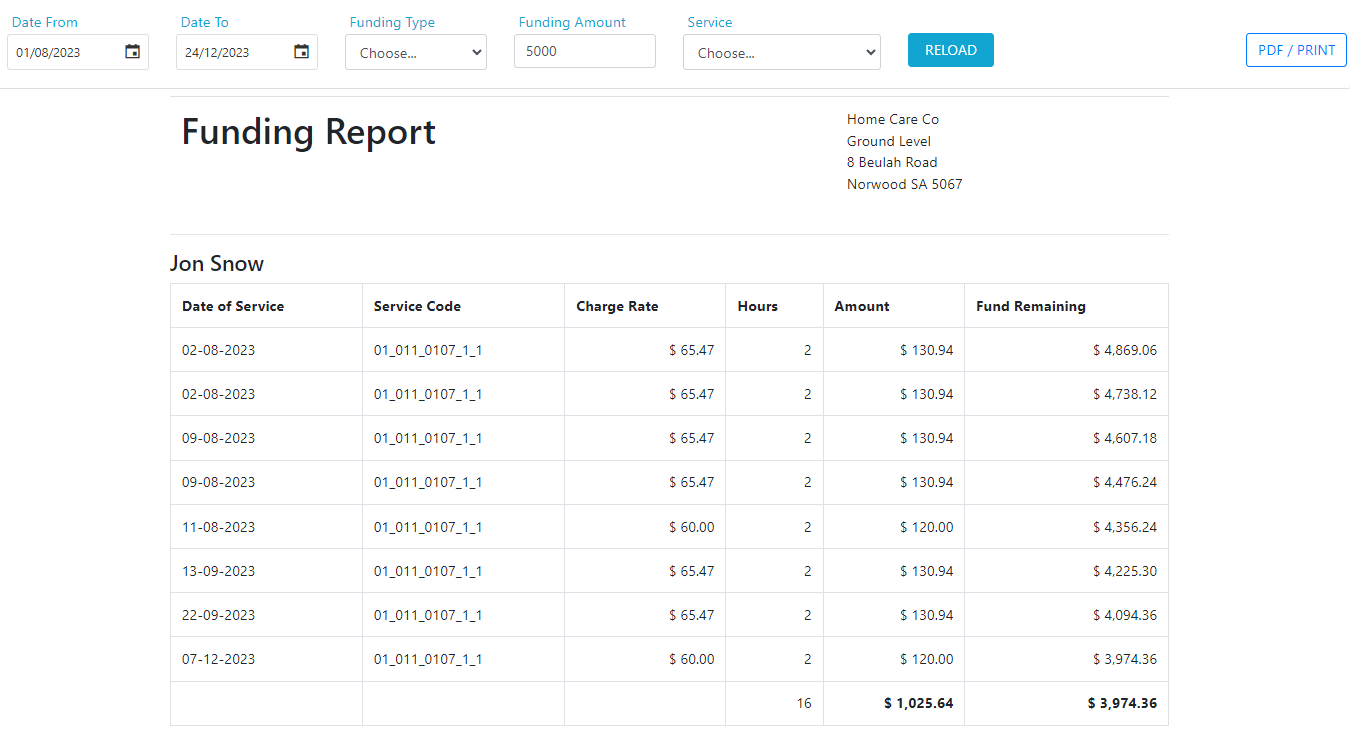 Leave the funding type blank to include all funding types in the report.
## Running into issues?
See [Scheduling troubleshooting](/troubleshooting/rostering-issues) for common errors and fixes.
## Related articles
Set up a client roster and create individual shifts
Edit one-off shifts, series, and manage leave
Leave the funding type blank to include all funding types in the report.
## Running into issues?
See [Scheduling troubleshooting](/troubleshooting/rostering-issues) for common errors and fixes.
## Related articles
Set up a client roster and create individual shifts
Edit one-off shifts, series, and manage leave