> ## Documentation Index
> Fetch the complete documentation index at: https://support.visualcare.com.au/llms.txt
> Use this file to discover all available pages before exploring further.
# Creating new shifts
> How to set up a client roster and create new shifts in Visualcare
Before you create shifts, you need a client roster. This page covers setting up a new roster and adding shifts to it.
## What you'll need
* A client profile with at least a first name and last name
* An active agreement with a start date, end date, and at least one service
## Setting up a new client roster
Go to **Client Rosters** and click **Create New Roster**. This step is only needed once per client - if a roster already exists, skip ahead to creating a shift.
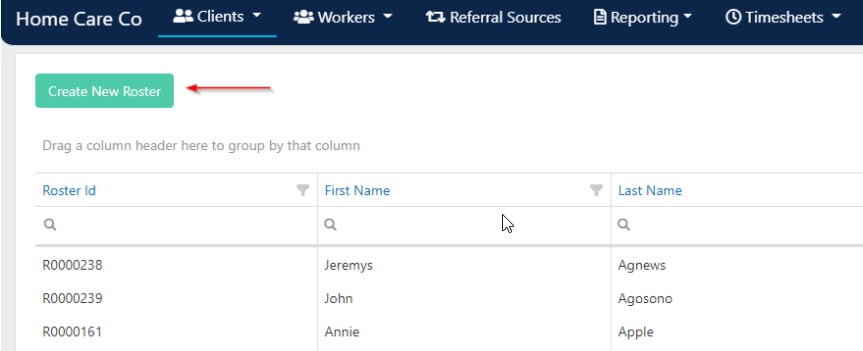 Use the search filters to find the client you want to roster for.
 Once the client is selected, a blank roster opens where you can begin adding shifts.
## Creating a shift
Double-click on the day you want the shift to start on. The roster screen opens.
Once the client is selected, a blank roster opens where you can begin adding shifts.
## Creating a shift
Double-click on the day you want the shift to start on. The roster screen opens.
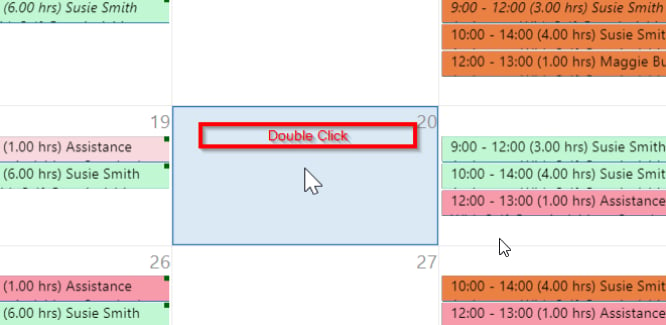 Complete the following fields:
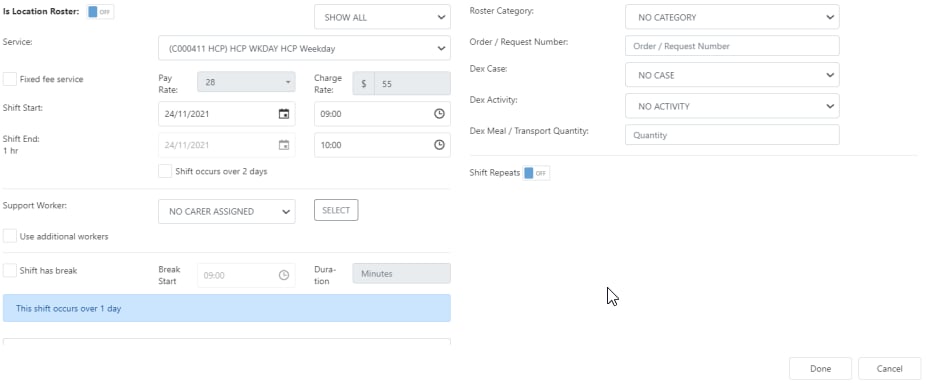 | Field | Description |
| --------------------------------- | ------------------------------------------------------------------------------------------------------------------------------------------------------------------------------------------------------------------------------------------------------------------------------------------------------------------------------------------------------ |
| **Service** | Select the main service rate. If your rate link is set up correctly in **Maintenance** → **Services**, the correct service code is automatically assigned based on the day and time of the shift (for example, Saturday, Sunday, night time, public holiday). If rate link is not configured, select the correct service for the day and time manually |
| **Is location roster** | Toggle to **Yes** to allocate the client to a location roster instead of selecting a worker |
| **Pay Rate** | Automatically pulls through once a worker is selected, based on the worker's pay rate level and the service code |
| **Charge Rate** | Automatically pulls through based on the service item selected |
| **Shift Start** | The date the shift is due to start |
| **Shift End** | The date the shift is due to end |
| **Time (clock icon)** | Select the start and finish time of the shift |
| **This shift occurs over 2 days** | Tick this for overnight shifts. The system only allows you to select the day following the shift as the end date |
| **Support Worker** | Select a worker from the drop-down list, or use the **Select** button for filtered searching (see [Worker select button](/scheduling/worker-select-button)) |
| **Use additional workers** | Tick to assign up to four workers to one client for the same shift |
| **Shift Repeats** | Turn on for recurring rosters (see [Creating recurring shifts](/scheduling/creating-recurring-shifts)) |
| **Notes** | Notes added here flow through to the Vworker mobile app and appear in the client roster shift detail |
| **Notes - Private** | This note stays in the client roster shift detail only and is not visible on Vworker |
Once all details are entered, click **Done**. The shift appears on the roster and is sent to the assigned worker via the Vworker mobile app.
## Fixed fee shifts
Fixed fee shifts let you charge a fixed amount for the entire shift regardless of duration.
Open a client roster, enter a shift, and select the time and worker first.
You need to select the time and worker before clicking **Fixed Fee**. If you don't follow this order, the charge rate reverts to the standard service charge rate.
Click **Fixed Fee** and enter the charge rate for the fixed amount.
| Field | Description |
| --------------------------------- | ------------------------------------------------------------------------------------------------------------------------------------------------------------------------------------------------------------------------------------------------------------------------------------------------------------------------------------------------------ |
| **Service** | Select the main service rate. If your rate link is set up correctly in **Maintenance** → **Services**, the correct service code is automatically assigned based on the day and time of the shift (for example, Saturday, Sunday, night time, public holiday). If rate link is not configured, select the correct service for the day and time manually |
| **Is location roster** | Toggle to **Yes** to allocate the client to a location roster instead of selecting a worker |
| **Pay Rate** | Automatically pulls through once a worker is selected, based on the worker's pay rate level and the service code |
| **Charge Rate** | Automatically pulls through based on the service item selected |
| **Shift Start** | The date the shift is due to start |
| **Shift End** | The date the shift is due to end |
| **Time (clock icon)** | Select the start and finish time of the shift |
| **This shift occurs over 2 days** | Tick this for overnight shifts. The system only allows you to select the day following the shift as the end date |
| **Support Worker** | Select a worker from the drop-down list, or use the **Select** button for filtered searching (see [Worker select button](/scheduling/worker-select-button)) |
| **Use additional workers** | Tick to assign up to four workers to one client for the same shift |
| **Shift Repeats** | Turn on for recurring rosters (see [Creating recurring shifts](/scheduling/creating-recurring-shifts)) |
| **Notes** | Notes added here flow through to the Vworker mobile app and appear in the client roster shift detail |
| **Notes - Private** | This note stays in the client roster shift detail only and is not visible on Vworker |
Once all details are entered, click **Done**. The shift appears on the roster and is sent to the assigned worker via the Vworker mobile app.
## Fixed fee shifts
Fixed fee shifts let you charge a fixed amount for the entire shift regardless of duration.
Open a client roster, enter a shift, and select the time and worker first.
You need to select the time and worker before clicking **Fixed Fee**. If you don't follow this order, the charge rate reverts to the standard service charge rate.
Click **Fixed Fee** and enter the charge rate for the fixed amount.
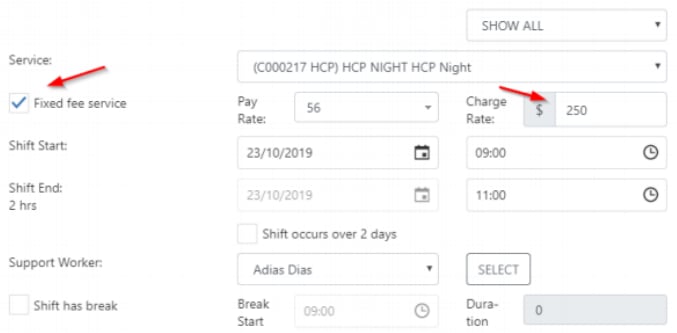 The fixed fee flows through to timesheets and appears in the **Charge Rate** column. You can add the **Is Fixed Fee** column in timesheets from the column chooser to easily identify which shifts have fixed fees.
Fixed fee timesheet items export on an invoice line as a quantity of one, regardless of duration.
## Cancelling a shift
To cancel a shift without deleting it from the roster, right-click the shift and select **Mark This Shift as On Leave**. Then fill in the following fields:
| Field | Description |
| ------------------------- | ----------------------------------------------------------------------------------------------------------------------- |
| **Leave Type** | The type of leave to record against the shift |
| **Leave Code** | The service code to charge for the cancelled shift, or select **No Code** if no charge applies |
| **Cancellation Charge %** | The percentage of the service rate to charge for the cancelled shift |
| **Pay Hours** | Set to normal hours if the worker is still to be paid, or **0** if the worker is not being paid for the cancelled shift |
Click **Save**. The shift changes to the cancelled colour on the roster.
## Roster tools
The top of the roster contains several tools for managing the roster as a whole:
| Tool | What it does |
| -------------------- | ------------------------------------------------------------------------------------------------------------- |
| **Budget** | Shows agreement budget details for the client, so you can see how much funding has been used and what remains |
| **Add Client Leave** | Blocks the client out for a period, preventing new shifts from being created during that time |
| **Deleted Shifts** | Lists any shifts that have been deleted from the roster, with an option to reinstate them |
| **Delete Roster** | Removes the entire roster |
If a client is no longer receiving services, mark the roster as **Completed** rather than deleting it. This preserves the historical record.
## Running into issues?
See [Scheduling troubleshooting](/troubleshooting/rostering-issues) for common errors and fixes.
## Related articles
Set up repeating shift patterns and split shifts
Use the select button to filter and find the right worker
Edit one-off shifts, series, and manage leave
Configure break settings for shifts
The fixed fee flows through to timesheets and appears in the **Charge Rate** column. You can add the **Is Fixed Fee** column in timesheets from the column chooser to easily identify which shifts have fixed fees.
Fixed fee timesheet items export on an invoice line as a quantity of one, regardless of duration.
## Cancelling a shift
To cancel a shift without deleting it from the roster, right-click the shift and select **Mark This Shift as On Leave**. Then fill in the following fields:
| Field | Description |
| ------------------------- | ----------------------------------------------------------------------------------------------------------------------- |
| **Leave Type** | The type of leave to record against the shift |
| **Leave Code** | The service code to charge for the cancelled shift, or select **No Code** if no charge applies |
| **Cancellation Charge %** | The percentage of the service rate to charge for the cancelled shift |
| **Pay Hours** | Set to normal hours if the worker is still to be paid, or **0** if the worker is not being paid for the cancelled shift |
Click **Save**. The shift changes to the cancelled colour on the roster.
## Roster tools
The top of the roster contains several tools for managing the roster as a whole:
| Tool | What it does |
| -------------------- | ------------------------------------------------------------------------------------------------------------- |
| **Budget** | Shows agreement budget details for the client, so you can see how much funding has been used and what remains |
| **Add Client Leave** | Blocks the client out for a period, preventing new shifts from being created during that time |
| **Deleted Shifts** | Lists any shifts that have been deleted from the roster, with an option to reinstate them |
| **Delete Roster** | Removes the entire roster |
If a client is no longer receiving services, mark the roster as **Completed** rather than deleting it. This preserves the historical record.
## Running into issues?
See [Scheduling troubleshooting](/troubleshooting/rostering-issues) for common errors and fixes.
## Related articles
Set up repeating shift patterns and split shifts
Use the select button to filter and find the right worker
Edit one-off shifts, series, and manage leave
Configure break settings for shifts