> ## Documentation Index
> Fetch the complete documentation index at: https://support.visualcare.com.au/llms.txt
> Use this file to discover all available pages before exploring further.
# Vehicle rostering
> How to set up vehicles and assign them to client roster shifts
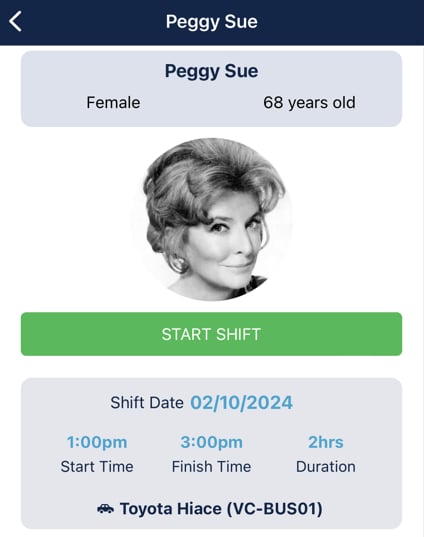
The vehicle rostering feature lets you assign vehicles from your fleet to client roster shifts. Vehicle assignments flow through to the Vworker app so workers know which vehicle to use.
## Setting up vehicles
Before you can roster vehicles, they need to be added to the vehicle list.
From the menu bar, go to **Maintenance** → **Vehicles**. This shows a list of existing vehicles with their details.
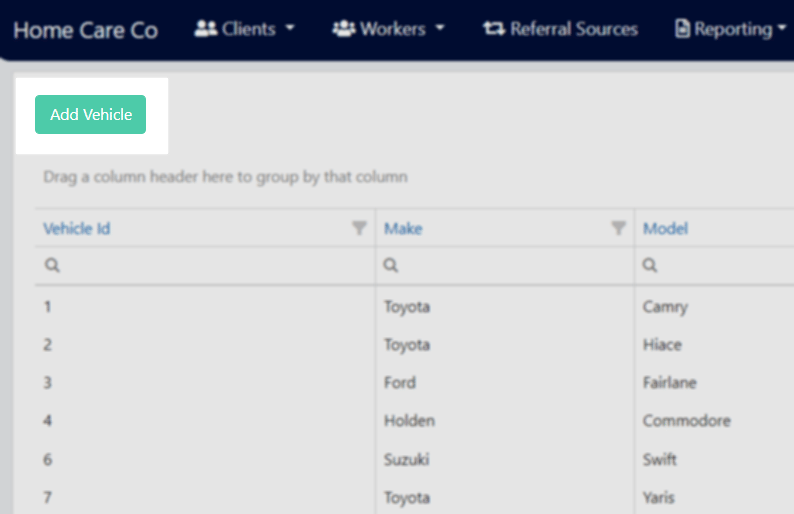
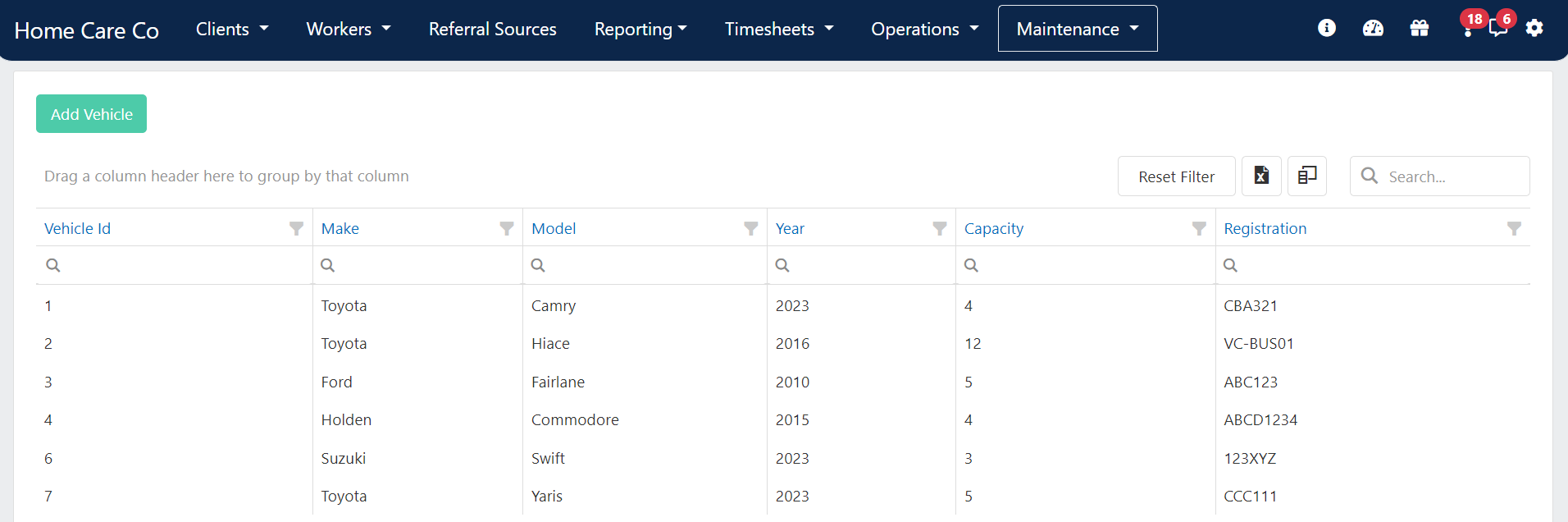 Click **Add Vehicle** in the top left of the screen.
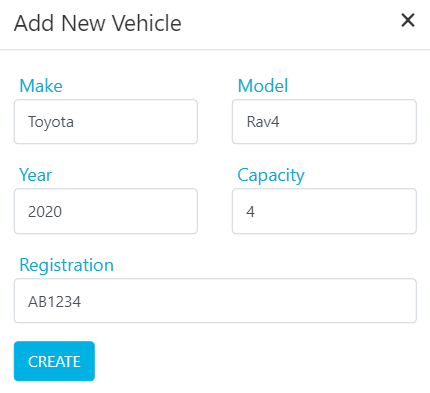
 In the pop-up window, enter the vehicle make, model, year, capacity (number of seats), and registration number. Click **Create**.
 Double-click the vehicle in the list to open its profile. From here you can:
* Update vehicle information and **Save**
* Add **Documents** related to the vehicle
* Complete **Forms** for the vehicle
* Add or read **Notes** about the vehicle
* **Delete** the vehicle profile if needed
Double-click the vehicle in the list to open its profile. From here you can:
* Update vehicle information and **Save**
* Add **Documents** related to the vehicle
* Complete **Forms** for the vehicle
* Add or read **Notes** about the vehicle
* **Delete** the vehicle profile if needed
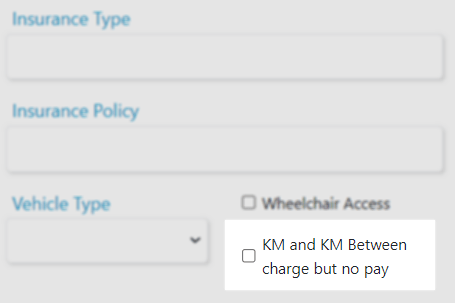
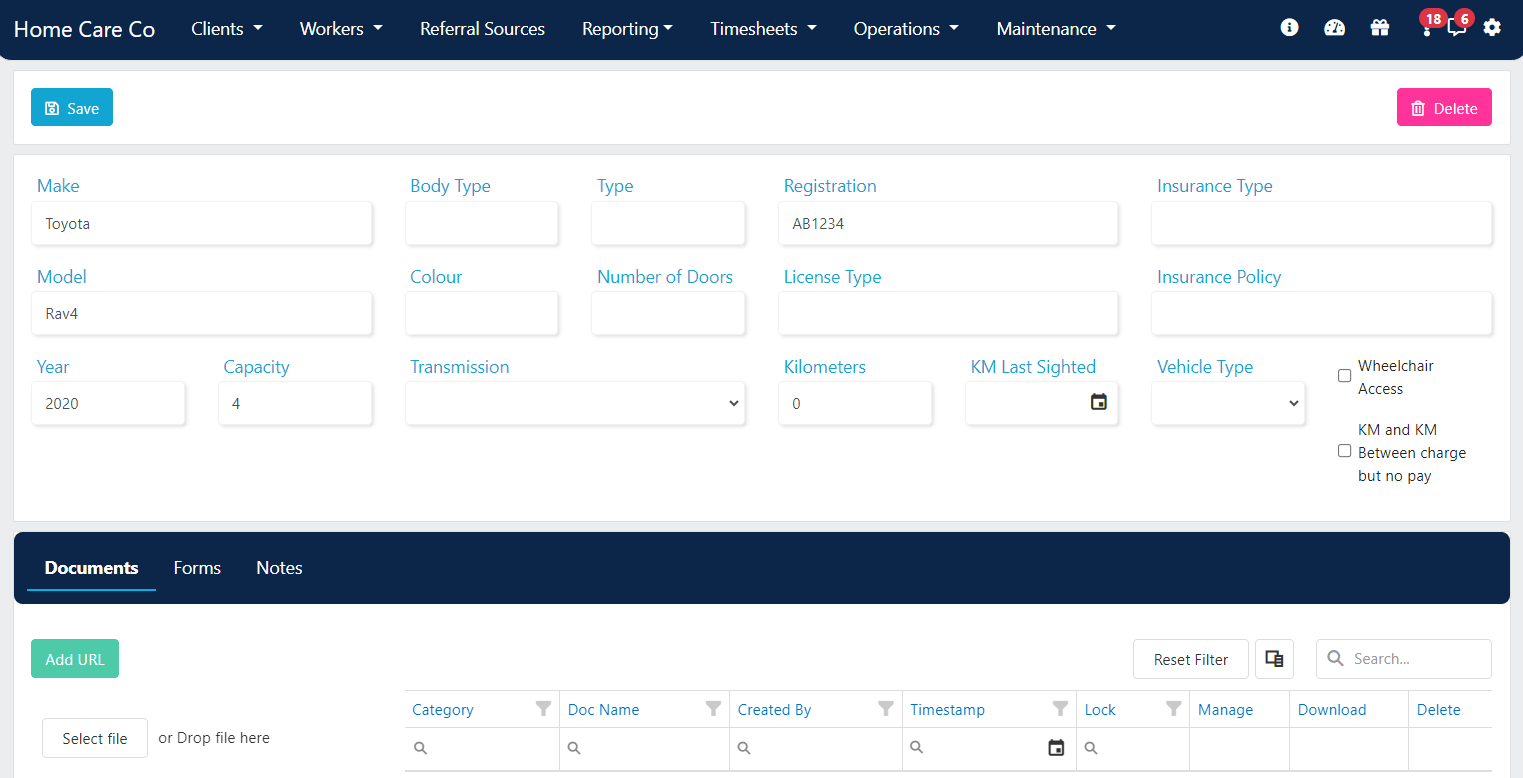 If the vehicle is a company car and kilometres associated with it should be charged to the client but not paid to the worker, use the tick box on the right side of the vehicle profile page.
When ticked, this applies to both the **KM** and **KM Between** fields, meaning kilometres added for shifts with this vehicle rostered are not included in the worker pay export.
If the vehicle is a company car and kilometres associated with it should be charged to the client but not paid to the worker, use the tick box on the right side of the vehicle profile page.
When ticked, this applies to both the **KM** and **KM Between** fields, meaning kilometres added for shifts with this vehicle rostered are not included in the worker pay export.
 ## Assigning vehicles to shifts
From the menu bar, go to **Operations** → **Vehicle Rostering**. This shows a list of shifts for today.
## Assigning vehicles to shifts
From the menu bar, go to **Operations** → **Vehicle Rostering**. This shows a list of shifts for today.
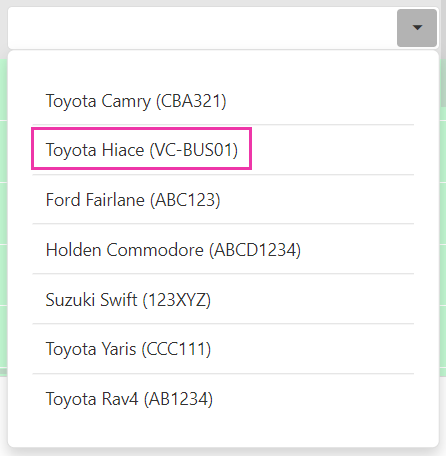
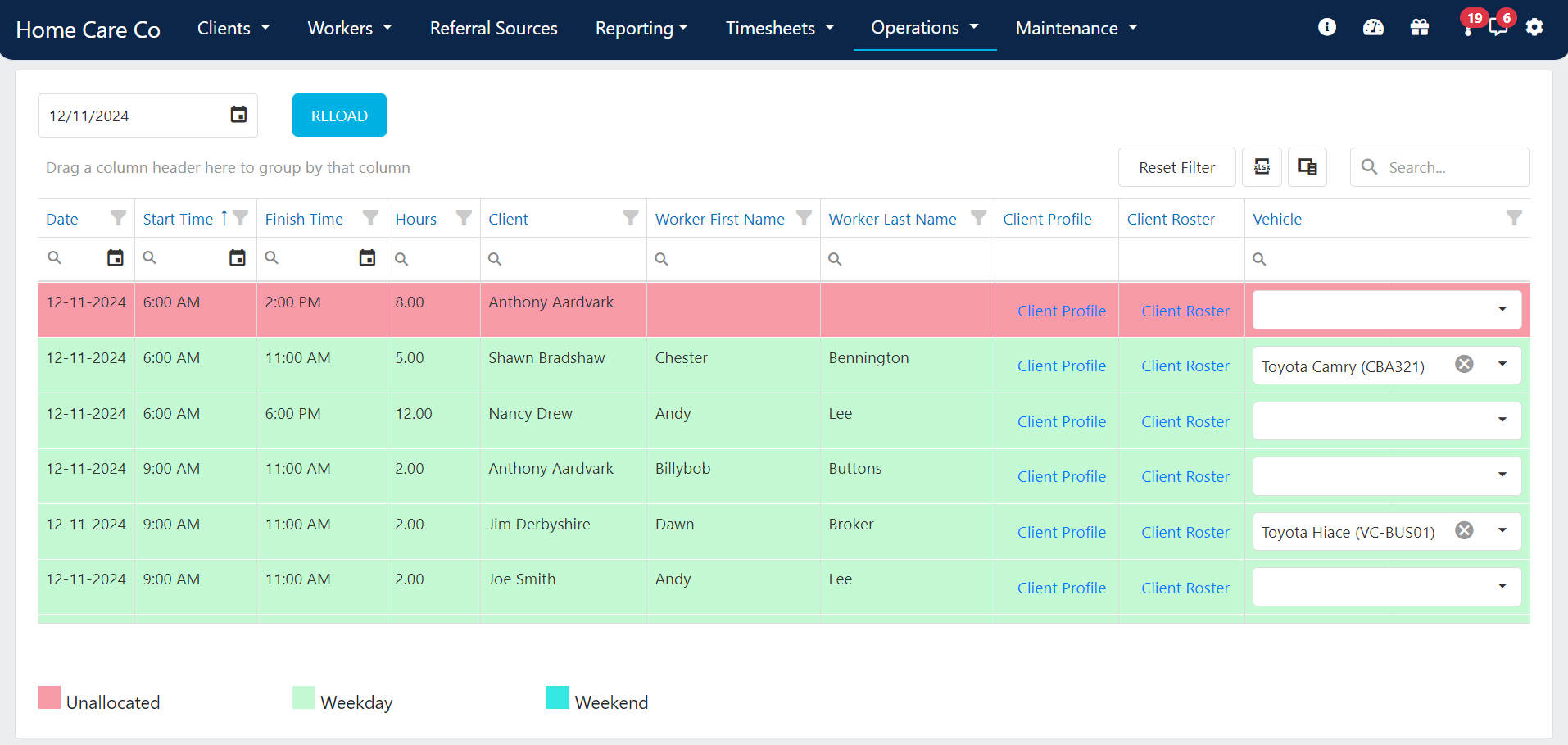 In the vehicle drop-down menu on the right side of the page, select the vehicle to assign to the shift.
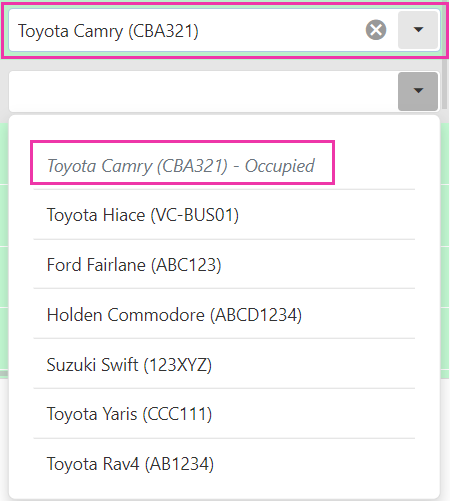
 If a vehicle name appears in grey italics, that vehicle is already rostered at that time and cannot be selected.
 The rostered vehicle is visible to the worker within shift information on the Vworker app.
 Vehicle rostering is currently not available for location roster shifts.
## Running into issues?
See [Scheduling troubleshooting](/troubleshooting/rostering-issues) for common errors and fixes.
## Related articles
Schedule and manage community bus runs
Create shifts in a client roster
View client and worker locations on a map
Vehicle rostering is currently not available for location roster shifts.
## Running into issues?
See [Scheduling troubleshooting](/troubleshooting/rostering-issues) for common errors and fixes.
## Related articles
Schedule and manage community bus runs
Create shifts in a client roster
View client and worker locations on a map