> ## Documentation Index
> Fetch the complete documentation index at: https://support.visualcare.com.au/llms.txt
> Use this file to discover all available pages before exploring further.
# Travel time and kilometres
> How Visualcare captures and manages transport kilometres and between-visit kilometres
Visualcare captures kilometres in two ways: transport kilometres charged to clients, and between-visit kilometres paid to workers. Understanding the difference is important for accurate billing and payroll.
## Types of kilometres
### Transport kilometres
Transport kilometres are recorded when a worker transports a client as part of a shift. These are:
* Recorded by the worker in the Vworker app, or manually entered into the timesheet area
* Charged back to the client
* Reimbursed to the worker
* Displayed in the **KM** column in timesheets
You can override the kilometres entered by the worker from the Vworker app if needed.
### Between-visit kilometres
Between-visit kilometres cover the distance a worker travels from one client to the next. These are:
* Automatically calculated based on client addresses and time between shifts (configured in settings)
* Paid to the worker
* Not charged to the client by default (controlled by the **KM Between Charge / Pay** setting)
* Displayed in the **KM No Charge** column in timesheets
## Calculating between-visit kilometres
To calculate between-visit kilometres:
1. Open the worker's timesheets by going to **Timesheets** → **Timesheets** and clicking **Edit** next to the worker
2. Find the **KM No Charge** column using the column chooser if it's not visible
3. Click the **Calc KM** button at the bottom of the screen
 The system calculates the distance between shifts and populates the **KM No Charge** column.
You can override the calculated kilometres at any time. After making changes, tick the box in the **Lock KM No Charge** column to prevent the values reverting when you click **Calc KM** again in the future.
Click **Save Changes** after calculating or making changes.
## Reviewing timesheets after confirmation
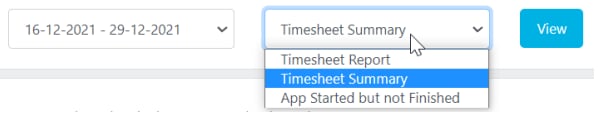
Once all timesheets have been confirmed, you can create a timesheet report and timesheet summary to review them.
The system calculates the distance between shifts and populates the **KM No Charge** column.
You can override the calculated kilometres at any time. After making changes, tick the box in the **Lock KM No Charge** column to prevent the values reverting when you click **Calc KM** again in the future.
Click **Save Changes** after calculating or making changes.
## Reviewing timesheets after confirmation
Once all timesheets have been confirmed, you can create a timesheet report and timesheet summary to review them.
 ## Configuring travel time for export
Before travel time data exports to your accounting software, configure the settings in **Settings** → **Finance** → **Kilometre** section.
| Setting | What it does |
| ------------------------------ | ------------------------------------------------------------------------------------ |
| **Max minutes between shifts** | Travel exceeding this limit on a single shift is skipped during calculation |
| **Pay Code (Travel Time)** | The pay code from your accounting software used when exporting travel time |
| **Travel Time Charge / Pay** | Controls whether the client is charged and/or the worker is paid (see options below) |
| **Export Travel Time** | Tick this checkbox to include travel time in exports |
The **Travel Time Charge / Pay** options are:
* **Charge and Pay** - the client is charged and the worker is paid
* **No Charge but Pay** - the worker is paid but the client is not charged
* **Charge but No Pay** - the client is charged but the worker is not paid
* **No Charge No Pay** - neither charged nor paid
Run **Calc KM** before each pay run or invoicing run. Travel time is only included in an export after Calc KM has been run and saved for that period.
## Configuring between-visit kilometres for export
Between-visit kilometre export also requires configuration in **Settings** → **Finance** → **Kilometre** section.
| Setting | What it does |
| ------------------------------------ | ---------------------------------------------------------------------------------------------- |
| **Max KM Warning** | Distances exceeding this threshold trigger a warning for review |
| **Pay Code (KM Between, No Charge)** | The pay code from your accounting software used when exporting between-visit kilometres |
| **KM Between Charge / Pay** | Controls whether the client is charged and/or the worker is paid (same options as travel time) |
Calc KM skips the first shift of each day for each worker, since there's no previous shift to measure distance from. Only shifts where a worker sees two or more clients on the same day generate between-visit kilometres.
## Running into issues?
See [Timesheet troubleshooting](/troubleshooting/timesheet-issues) for common errors and fixes.
## Related articles
Confirm travel time entries for payroll processing
Configure shift timing, late shift thresholds, and roster behaviours
Configure kilometre charge rates, pay codes and export settings
Edit confirmed timesheet entries including times and rates
## Configuring travel time for export
Before travel time data exports to your accounting software, configure the settings in **Settings** → **Finance** → **Kilometre** section.
| Setting | What it does |
| ------------------------------ | ------------------------------------------------------------------------------------ |
| **Max minutes between shifts** | Travel exceeding this limit on a single shift is skipped during calculation |
| **Pay Code (Travel Time)** | The pay code from your accounting software used when exporting travel time |
| **Travel Time Charge / Pay** | Controls whether the client is charged and/or the worker is paid (see options below) |
| **Export Travel Time** | Tick this checkbox to include travel time in exports |
The **Travel Time Charge / Pay** options are:
* **Charge and Pay** - the client is charged and the worker is paid
* **No Charge but Pay** - the worker is paid but the client is not charged
* **Charge but No Pay** - the client is charged but the worker is not paid
* **No Charge No Pay** - neither charged nor paid
Run **Calc KM** before each pay run or invoicing run. Travel time is only included in an export after Calc KM has been run and saved for that period.
## Configuring between-visit kilometres for export
Between-visit kilometre export also requires configuration in **Settings** → **Finance** → **Kilometre** section.
| Setting | What it does |
| ------------------------------------ | ---------------------------------------------------------------------------------------------- |
| **Max KM Warning** | Distances exceeding this threshold trigger a warning for review |
| **Pay Code (KM Between, No Charge)** | The pay code from your accounting software used when exporting between-visit kilometres |
| **KM Between Charge / Pay** | Controls whether the client is charged and/or the worker is paid (same options as travel time) |
Calc KM skips the first shift of each day for each worker, since there's no previous shift to measure distance from. Only shifts where a worker sees two or more clients on the same day generate between-visit kilometres.
## Running into issues?
See [Timesheet troubleshooting](/troubleshooting/timesheet-issues) for common errors and fixes.
## Related articles
Confirm travel time entries for payroll processing
Configure shift timing, late shift thresholds, and roster behaviours
Configure kilometre charge rates, pay codes and export settings
Edit confirmed timesheet entries including times and rates