> ## Documentation Index
> Fetch the complete documentation index at: https://support.visualcare.com.au/llms.txt
> Use this file to discover all available pages before exploring further.
# Vworker: Menu overview
> Overview of all features available in the Vworker app menu
The Vworker app menu gives workers access to features beyond their daily shift list, including documents, leave requests, timesheets, incidents, forms, availability and their ID card.
To open the menu, tap the menu icon on the Vworker home page.
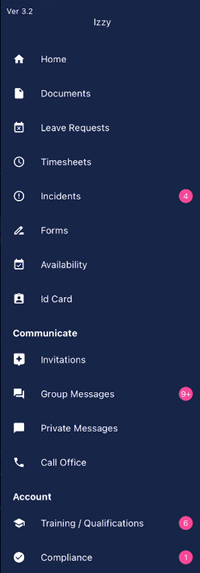 ## Home
Takes you back to the list of shifts for today.
## Documents
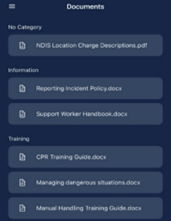
Lists the documents and policies that have been uploaded for the worker's viewing.
## Home
Takes you back to the list of shifts for today.
## Documents
Lists the documents and policies that have been uploaded for the worker's viewing.
 ## Leave requests
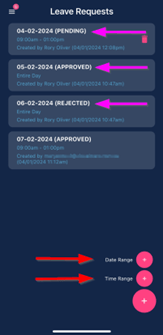
Workers can enter leave requests for approval by the office and view any pending requests. To submit a new leave request, tap the **+** button at the bottom right of the page. Choose to enter as a date range or time range.
## Leave requests
Workers can enter leave requests for approval by the office and view any pending requests. To submit a new leave request, tap the **+** button at the bottom right of the page. Choose to enter as a date range or time range.
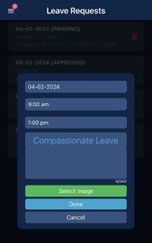
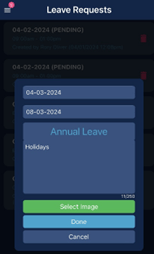 Select the type of leave, add any notes or reasons and upload an image if needed (for example, a medical certificate for sick leave). Tap **Done** to send the request to the office for approval or decline.
## Timesheets
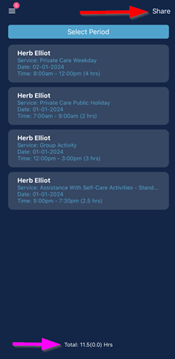
Workers can generate a list of completed shifts for a selected period, along with total hours and pay. These can be shared by email or another format.
Tap **Select period** to choose the date range, then tap **Share** and choose from the phone's sharing options (email, text or other apps) to export the generated CSV file.
Select the type of leave, add any notes or reasons and upload an image if needed (for example, a medical certificate for sick leave). Tap **Done** to send the request to the office for approval or decline.
## Timesheets
Workers can generate a list of completed shifts for a selected period, along with total hours and pay. These can be shared by email or another format.
Tap **Select period** to choose the date range, then tap **Share** and choose from the phone's sharing options (email, text or other apps) to export the generated CSV file.
 ## Incidents
Workers can view and manage incidents by tapping **Incidents** from the menu. Tap **Select period** to filter incidents by date range.
## Incidents
Workers can view and manage incidents by tapping **Incidents** from the menu. Tap **Select period** to filter incidents by date range.
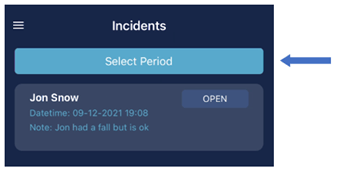 To edit and complete an incident, tap **Open** on the incident in the list, then select **Edit** to complete the form.
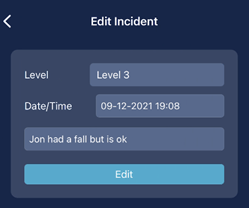 The office does not receive notification of the incident until it has been marked as completed. Once completed, the incident is no longer visible in the Vworker app.
## Forms
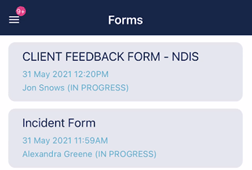
Under the **Forms** tab, workers can view and edit all incomplete client forms created by the office in VCore or by workers in the Vworker app.
The office does not receive notification of the incident until it has been marked as completed. Once completed, the incident is no longer visible in the Vworker app.
## Forms
Under the **Forms** tab, workers can view and edit all incomplete client forms created by the office in VCore or by workers in the Vworker app.
 ## Availability
Workers can update their availability from the menu. Tap **Availability**, then select the day to edit.
## Availability
Workers can update their availability from the menu. Tap **Availability**, then select the day to edit.
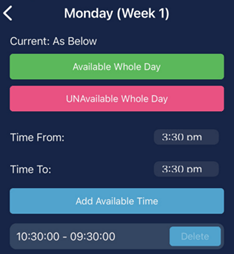
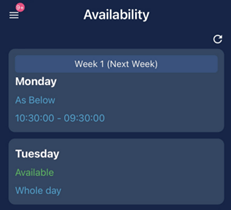 Update availability as needed. Workers can mark themselves as available all day or only for specific time ranges. To add multiple available times in one day, tap **Add Available Time** on any day.
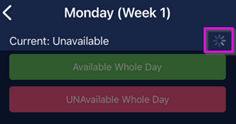
 An icon appears while the availability is updating. Workers should stay on the screen until it disappears.
 Some organisations only allow workers to update availability when there are no shifts assigned within a set timeframe. Workers should check with their employer for specific rules.
## ID card
Tap **ID Card** to display the worker's ID badge on screen, wherever it's needed.
Some organisations only allow workers to update availability when there are no shifts assigned within a set timeframe. Workers should check with their employer for specific rules.
## ID card
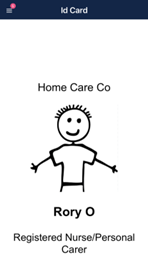
Tap **ID Card** to display the worker's ID badge on screen, wherever it's needed.
 ## Messages
Workers can send and receive messages from the **Messages** section of the menu. **Group Messages** lets workers message the office or team, while **Private Messages** are direct one-to-one messages to the office. Workers can attach photos or files to messages. New messages appear as notifications on the Vworker home screen.
## Shift invitations
If the office has offered a worker a shift through roster invitations, the invitation appears in the **Shift Invitations** section. Workers tap the invitation to view the shift details, then choose to accept or decline and add any comments. Accepted shifts appear on the worker's roster.
## Training, qualifications, and compliance
Workers can view their training records and qualification expiry dates under this section. Items that are nearing expiry show notification indicators, and expired items are highlighted in pink.
## My account
Workers can upload or change their profile picture from **My Account**. If a worker is set up across more than one organisation in Visualcare, they can also switch between companies from this screen.
## Running into issues?
See [Timesheet troubleshooting](/troubleshooting/timesheet-issues) for common errors and fixes.
## Related articles
How workers start and complete shifts through the app
Add notes, photos and view client information during shifts
Download and log in to the Vworker app
Set up and send Vworker login details to workers
## Messages
Workers can send and receive messages from the **Messages** section of the menu. **Group Messages** lets workers message the office or team, while **Private Messages** are direct one-to-one messages to the office. Workers can attach photos or files to messages. New messages appear as notifications on the Vworker home screen.
## Shift invitations
If the office has offered a worker a shift through roster invitations, the invitation appears in the **Shift Invitations** section. Workers tap the invitation to view the shift details, then choose to accept or decline and add any comments. Accepted shifts appear on the worker's roster.
## Training, qualifications, and compliance
Workers can view their training records and qualification expiry dates under this section. Items that are nearing expiry show notification indicators, and expired items are highlighted in pink.
## My account
Workers can upload or change their profile picture from **My Account**. If a worker is set up across more than one organisation in Visualcare, they can also switch between companies from this screen.
## Running into issues?
See [Timesheet troubleshooting](/troubleshooting/timesheet-issues) for common errors and fixes.
## Related articles
How workers start and complete shifts through the app
Add notes, photos and view client information during shifts
Download and log in to the Vworker app
Set up and send Vworker login details to workers