> ## Documentation Index
> Fetch the complete documentation index at: https://support.visualcare.com.au/llms.txt
> Use this file to discover all available pages before exploring further.
# Worker compliance configuration
> Understand how compliance items flow from Maintenance settings to worker profiles in Visualcare
Compliance items in Visualcare flow from the Maintenance area to individual worker profiles. Once configured in Maintenance, compliance items appear automatically on worker profiles based on how your organisation has set them up, including links to worker roles and worker types.
## How compliance items flow to profiles
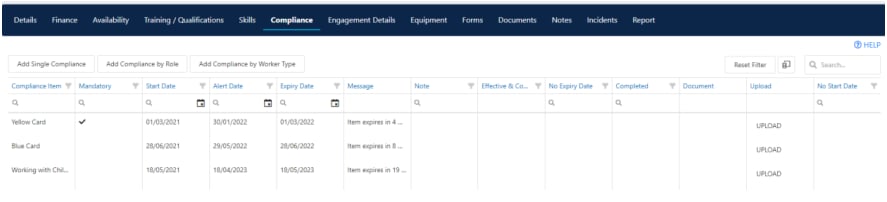
Compliance items configured in **Maintenance** → **Workers** → **Worker Compliance** appear on each worker's **Compliance** tab. The items that appear depend on the configuration:
* **Mandatory items** are added to all worker profiles automatically
* **Role-linked items** are added to workers assigned to specific roles
* **Type-linked items** are added to workers assigned to specific worker types
* Items added via **Add to All Workers** appear on every profile
 ## Role-based compliance
Roles link specific compliance items to groups of workers. Only workers assigned to a particular role see the compliance items tied to that role.
### Setting up roles
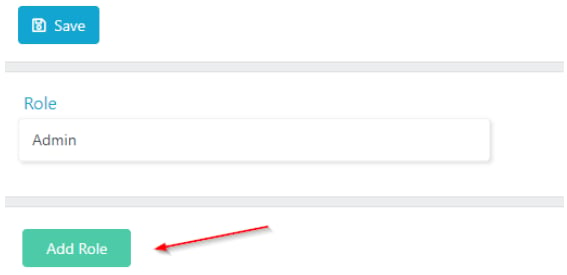
1. Go to **Maintenance** → **Workers** → **Worker Roles**
2. Click **Add Role** to create a new role
## Role-based compliance
Roles link specific compliance items to groups of workers. Only workers assigned to a particular role see the compliance items tied to that role.
### Setting up roles
1. Go to **Maintenance** → **Workers** → **Worker Roles**
2. Click **Add Role** to create a new role
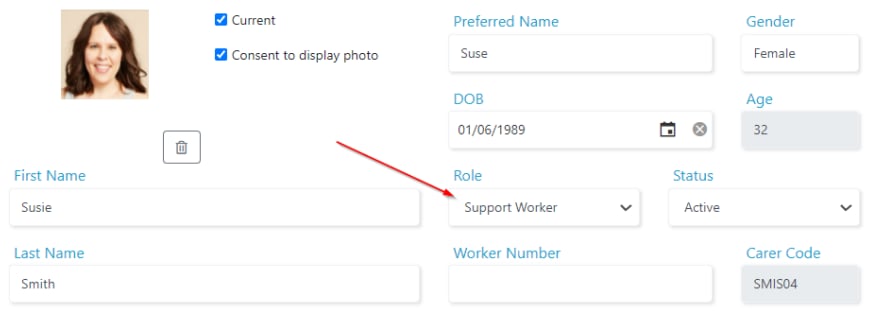
 3. Open the worker's profile and select the relevant role
 ### Linking roles to compliance items
1. Go to **Maintenance** → **Workers** → **Worker Compliance**
2. Highlight the compliance item
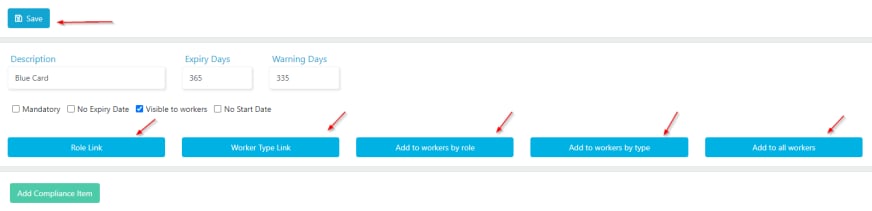
3. Click **Role Link** and select the role(s) to associate with this item (you have the option to select multiple roles)
### Linking roles to compliance items
1. Go to **Maintenance** → **Workers** → **Worker Compliance**
2. Highlight the compliance item
3. Click **Role Link** and select the role(s) to associate with this item (you have the option to select multiple roles)
 After linking, choose one of the following to push the item to workers:
* **Add to Workers by Role** - adds the item to all workers with the linked roles
* **Add to All Workers** - adds the item to every worker regardless of role
Worker Type works the same way. Highlight the compliance item, click **Worker Type Link**, select the types, and then use **Add to Workers by Type** to push the item.
## Compliance in rostering
When you use the select button to choose a worker for a shift in client rosters, only compliant workers are highlighted by default.
After linking, choose one of the following to push the item to workers:
* **Add to Workers by Role** - adds the item to all workers with the linked roles
* **Add to All Workers** - adds the item to every worker regardless of role
Worker Type works the same way. Highlight the compliance item, click **Worker Type Link**, select the types, and then use **Add to Workers by Type** to push the item.
## Compliance in rostering
When you use the select button to choose a worker for a shift in client rosters, only compliant workers are highlighted by default.
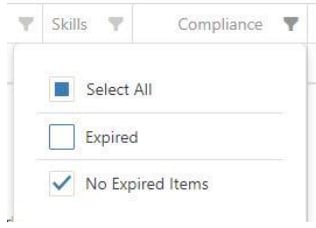 By default, rostering only shows workers with no expired items. To see workers with expired items, select the filter and click **Expired**.
## Running into issues?
See [Worker management troubleshooting](/troubleshooting/general) for common errors and fixes.
## Related articles
Configure compliance items in Maintenance
Day-to-day compliance management on worker profiles
Set up a new worker in Visualcare
By default, rostering only shows workers with no expired items. To see workers with expired items, select the filter and click **Expired**.
## Running into issues?
See [Worker management troubleshooting](/troubleshooting/general) for common errors and fixes.
## Related articles
Configure compliance items in Maintenance
Day-to-day compliance management on worker profiles
Set up a new worker in Visualcare