> ## Documentation Index
> Fetch the complete documentation index at: https://support.visualcare.com.au/llms.txt
> Use this file to discover all available pages before exploring further.
# Compliance workflows and settings
> Configure worker compliance items, roles, skills, and training items in Visualcare Maintenance
The Maintenance area in VCore is where you configure the compliance items, roles, skills, training items, leave types, and statuses that flow through to worker profiles. This article covers the worker-related settings available under **Maintenance** → **Workers**.
## Worker compliance items
Go to **Maintenance** → **Workers** → **Worker Compliance** to manage compliance items.
### Adding a compliance item
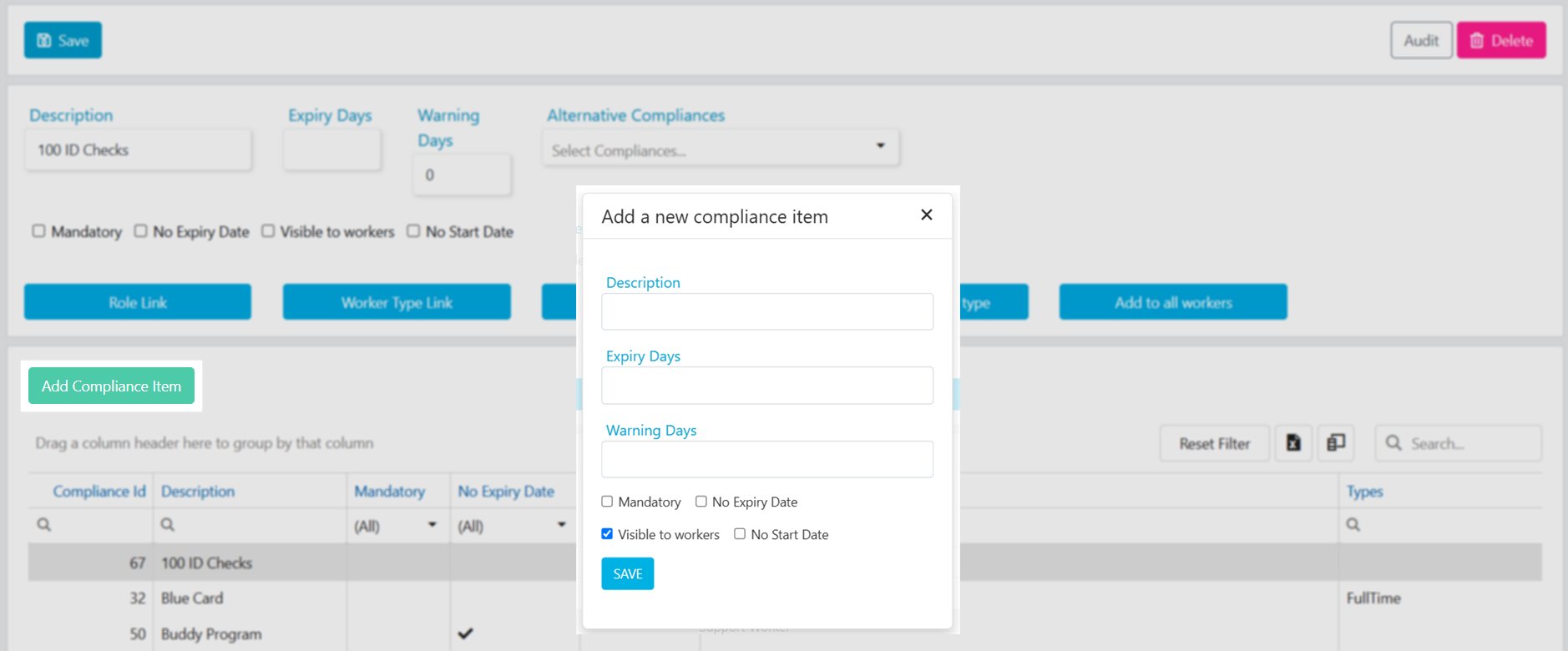
Click **Add Compliance Item**, fill in the fields below, and click **Save**.
| Field | Description |
| ---------------------- | ----------------------------------------------------------------------------------------------------------------- |
| **Description** | The name of the compliance item |
| **Expiry Days** | Number of days from the start date to the expiry date (for example, 365 for annual renewal) |
| **Warning Days** | Number of days from the start date to the alert date (for example, 335 for a 30-day warning before annual expiry) |
| **Mandatory** | Tick if this item is mandatory for all workers |
| **No Expiry Date** | Tick if the item does not expire |
| **Visible to Workers** | Tick to make the item visible to workers in their mobile app or portal |
| **No Start Date** | Tick if the item does not have a start date |
 ### Linking to roles and worker types
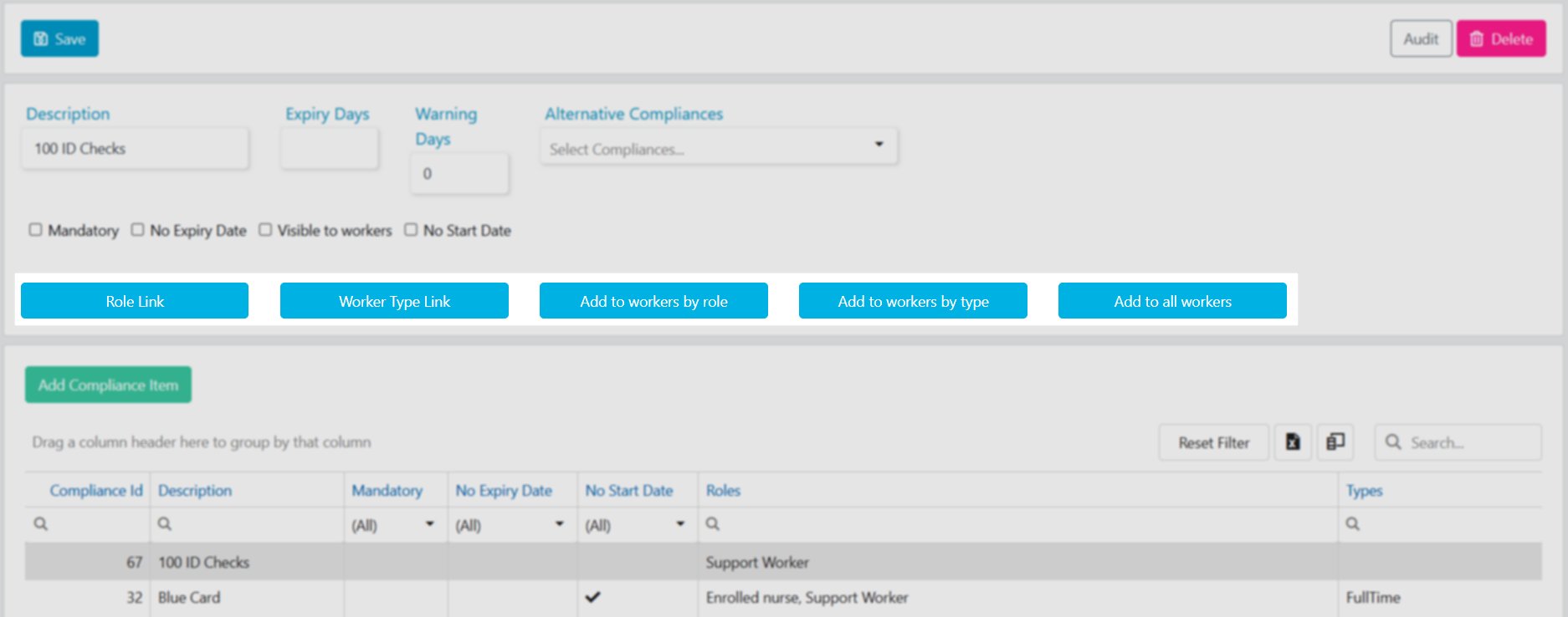
Link compliance items to specific **Worker Roles** or **Worker Types** so that only relevant workers see them. When creating a new compliance item, push it to workers using one of these options:
* **Add to Workers by Role** - adds the item to workers with linked roles
* **Add to Workers by Type** - adds the item to workers with linked types
* **Add to All Workers** - adds the item to every worker
### Linking to roles and worker types
Link compliance items to specific **Worker Roles** or **Worker Types** so that only relevant workers see them. When creating a new compliance item, push it to workers using one of these options:
* **Add to Workers by Role** - adds the item to workers with linked roles
* **Add to Workers by Type** - adds the item to workers with linked types
* **Add to All Workers** - adds the item to every worker
 ## Worker roles
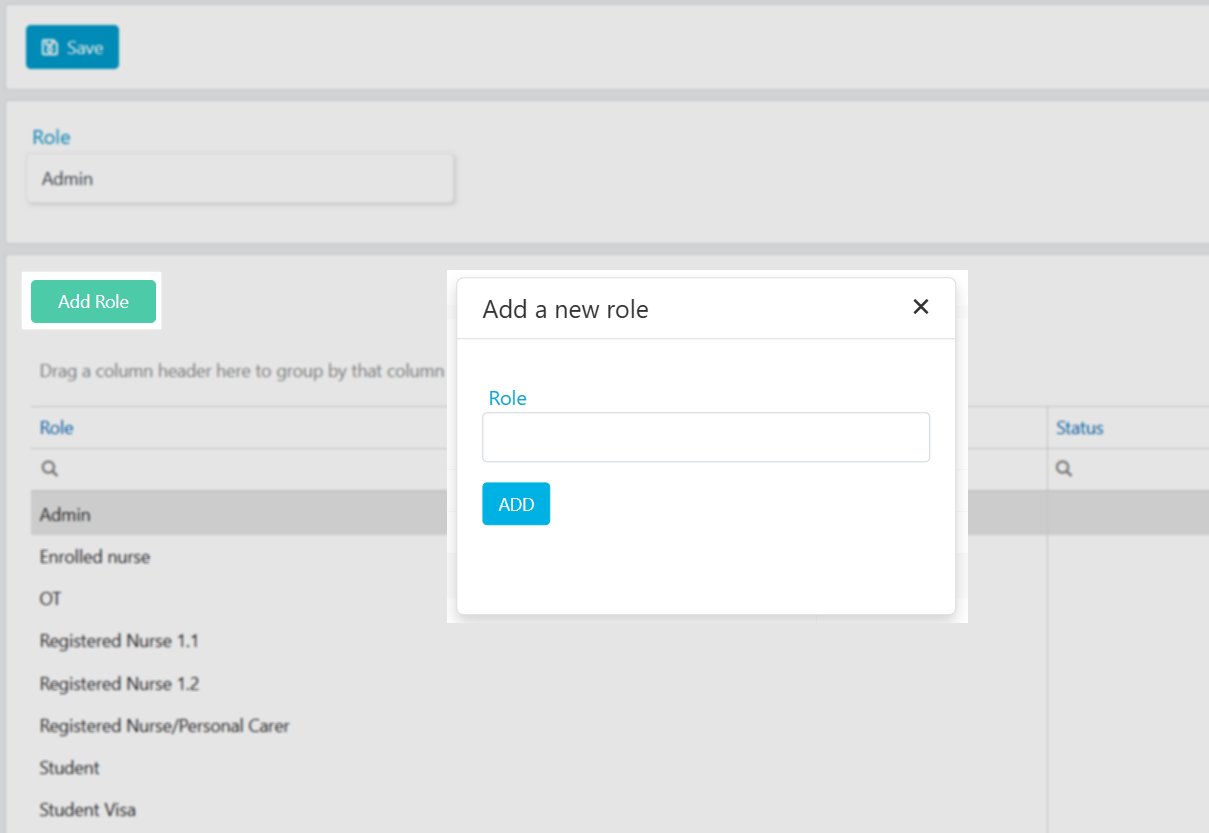
Go to **Maintenance** → **Workers** → **Worker Roles** to manage the list of roles available on worker profiles.
* Click **Add Role**, enter the role name, and click **Add**
* To delete a role, click on it and select **Delete**
## Worker roles
Go to **Maintenance** → **Workers** → **Worker Roles** to manage the list of roles available on worker profiles.
* Click **Add Role**, enter the role name, and click **Add**
* To delete a role, click on it and select **Delete**
 ## Skills
Go to **Maintenance** → **Workers** → **Skills** to manage the skills list. Skills assigned to worker profiles assist in searching for workers when rostering.
* Click **Add Skill**, enter the **Code** and **Description**, and click **Add**
* To edit, click the skill, update the description, and click **Save**
* To delete, click the skill and click **Delete**
## Training items
Go to **Maintenance** → **Workers** → **Training Items** to manage training items.
* Click **Add Training Items**, enter the **Code** and **Description**, and click **Save**
* Link relevant forms to a training item using the **Template** drop-down
* To edit, click the item, update the description, and click **Save**
* To delete, click the item and click **Delete**
## Leave types
Go to **Maintenance** → **Workers** → **Leave Type** to manage the leave types available for worker leave requests.
* Click **Add Leave Type**, enter a **Leave Code** and **Leave Type**, and click **Add**
* To edit, click the leave type, update the description, and click **Save**
* To delete, click the leave type and click **Delete**
Leave types configured here appear in the leave request workflow in both VCore and the Vworker mobile app.
## Worker status
Go to **Maintenance** → **Workers** → **Worker Status** to add an additional filtering layer for worker lists.
* Click **Add Status**, enter the detail, and click **Add**
* To delete, click the status item and select **Delete**
## Running into issues?
See [Worker management troubleshooting](/troubleshooting/general) for common errors and fixes.
## Related articles
How compliance items flow from Maintenance to profiles
Day-to-day compliance management on worker profiles
Add skills to a worker profile
Manage worker leave requests
## Skills
Go to **Maintenance** → **Workers** → **Skills** to manage the skills list. Skills assigned to worker profiles assist in searching for workers when rostering.
* Click **Add Skill**, enter the **Code** and **Description**, and click **Add**
* To edit, click the skill, update the description, and click **Save**
* To delete, click the skill and click **Delete**
## Training items
Go to **Maintenance** → **Workers** → **Training Items** to manage training items.
* Click **Add Training Items**, enter the **Code** and **Description**, and click **Save**
* Link relevant forms to a training item using the **Template** drop-down
* To edit, click the item, update the description, and click **Save**
* To delete, click the item and click **Delete**
## Leave types
Go to **Maintenance** → **Workers** → **Leave Type** to manage the leave types available for worker leave requests.
* Click **Add Leave Type**, enter a **Leave Code** and **Leave Type**, and click **Add**
* To edit, click the leave type, update the description, and click **Save**
* To delete, click the leave type and click **Delete**
Leave types configured here appear in the leave request workflow in both VCore and the Vworker mobile app.
## Worker status
Go to **Maintenance** → **Workers** → **Worker Status** to add an additional filtering layer for worker lists.
* Click **Add Status**, enter the detail, and click **Add**
* To delete, click the status item and select **Delete**
## Running into issues?
See [Worker management troubleshooting](/troubleshooting/general) for common errors and fixes.
## Related articles
How compliance items flow from Maintenance to profiles
Day-to-day compliance management on worker profiles
Add skills to a worker profile
Manage worker leave requests