> ## Documentation Index
> Fetch the complete documentation index at: https://support.visualcare.com.au/llms.txt
> Use this file to discover all available pages before exploring further.
# Leave requests
> Review, approve, and manage worker leave requests in Visualcare
When workers submit leave requests through the Vworker mobile app, they appear on the VCore home page for review. From here you approve or reject requests, unallocate affected shifts, and manage leave types.
## Viewing leave requests
Leave request notifications appear as a KPI on the VCore home page. Click the link to view pending requests.
 The leave requests page defaults to showing all **Pending** items for the next six months. Adjust the filters at the top of the page to change the date range or status.
 To receive email notifications when a worker submits a leave request, assign the relevant office user as **Case Manager 1** or **Case Manager 2** on that worker's profile. Visualcare sends the alert to the assigned case manager.
## Approving or rejecting leave
Click **Approve** or **Reject** on any pending leave request.
To receive email notifications when a worker submits a leave request, assign the relevant office user as **Case Manager 1** or **Case Manager 2** on that worker's profile. Visualcare sends the alert to the assigned case manager.
## Approving or rejecting leave
Click **Approve** or **Reject** on any pending leave request.
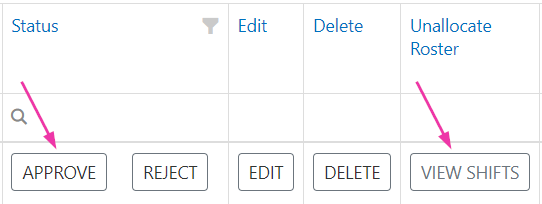 After approving leave, unassign any shifts that fall within the leave period by clicking **View Shifts** and then **Unallocate**.
 ### Bulk editing leave requests
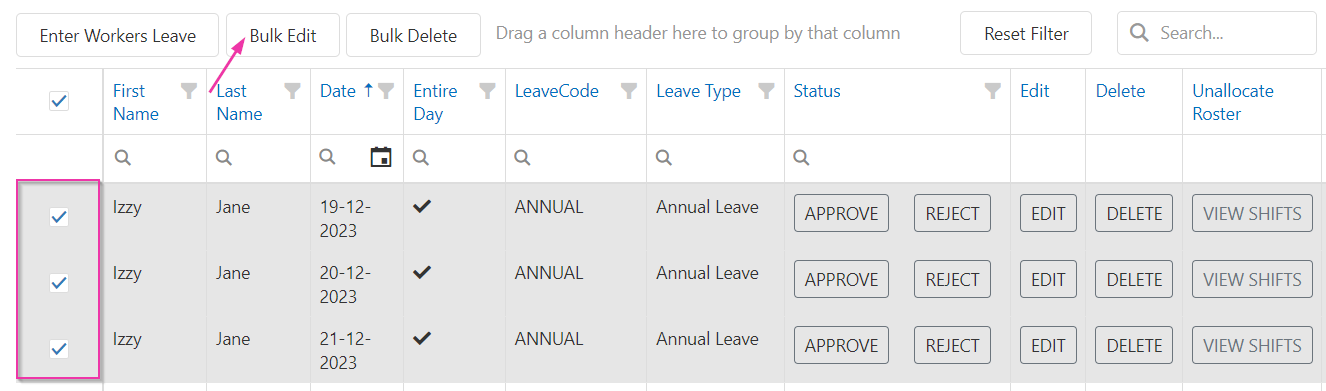
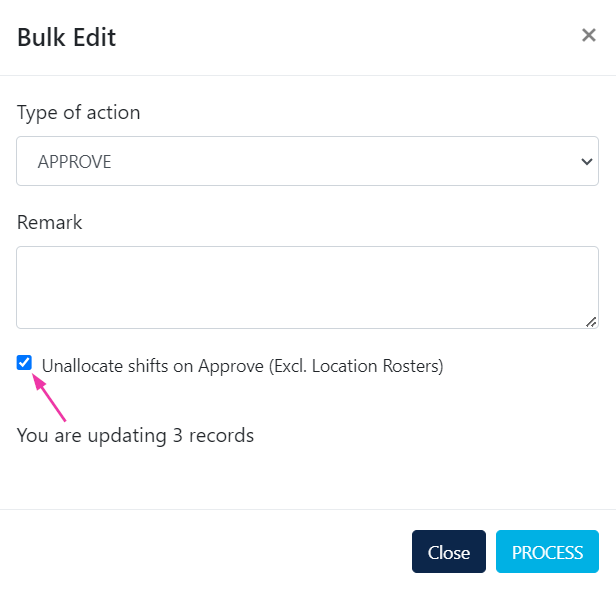
To approve or reject multiple leave days at once, or to unallocate shifts in bulk:
1. Tick the relevant items
2. Click **Bulk Edit**
3. Update the actions needed
4. Click **Save**
### Bulk editing leave requests
To approve or reject multiple leave days at once, or to unallocate shifts in bulk:
1. Tick the relevant items
2. Click **Bulk Edit**
3. Update the actions needed
4. Click **Save**
 ## Editing leave requests
Leave requests submitted by a worker are editable by office users in VCore. Click **Edit** to:
* Assign a leave type
* Add notes
* Delete the leave request if needed
When an office user enters leave directly through VCore, it is automatically approved on save.
## Configuring leave types
Leave types are managed in **Maintenance** → **Workers** → **Leave Type**.
To add a new leave type:
1. Go to **Maintenance** → **Workers** → **Leave Type**
2. Click **Add Leave Type**
3. Enter a **Leave Code** and **Leave Type**
4. Click **Add**
## Editing leave requests
Leave requests submitted by a worker are editable by office users in VCore. Click **Edit** to:
* Assign a leave type
* Add notes
* Delete the leave request if needed
When an office user enters leave directly through VCore, it is automatically approved on save.
## Configuring leave types
Leave types are managed in **Maintenance** → **Workers** → **Leave Type**.
To add a new leave type:
1. Go to **Maintenance** → **Workers** → **Leave Type**
2. Click **Add Leave Type**
3. Enter a **Leave Code** and **Leave Type**
4. Click **Add**
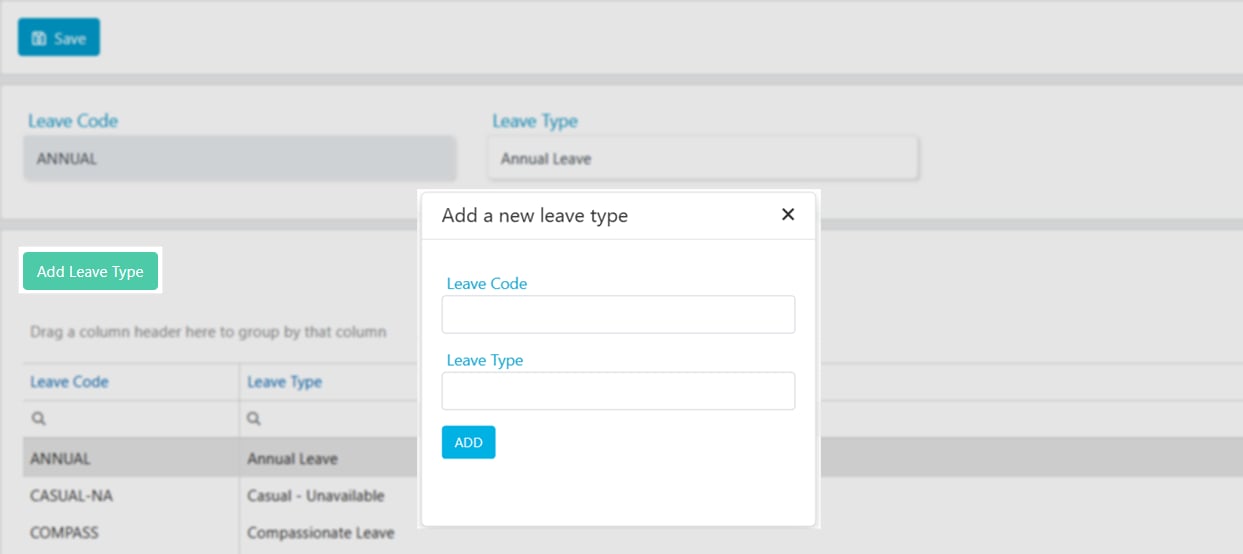 To edit a leave type, click on it in the list, update the description, and click **Save**. To delete, click the item and click **Delete**.
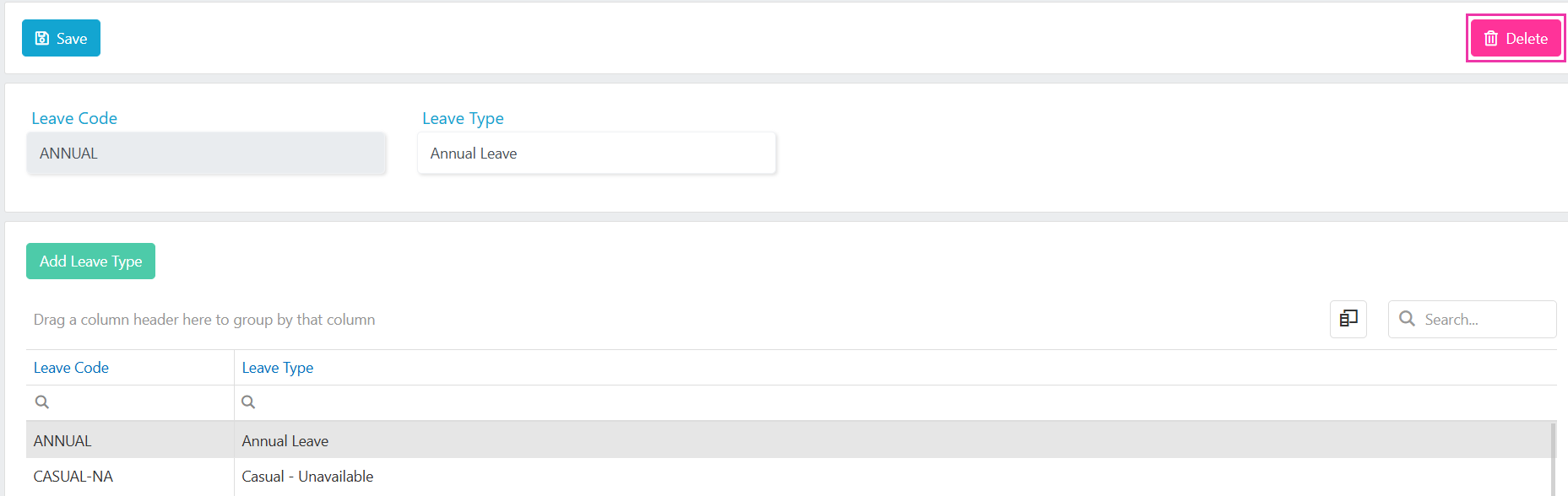 Leave types configured here appear in both VCore and the Vworker mobile app leave request workflow.
## Running into issues?
See [Worker management troubleshooting](/troubleshooting/general) for common errors and fixes.
## Related articles
Set worker availability patterns
Configure leave types and other worker settings
Set up worker access to mobile apps
Leave types configured here appear in both VCore and the Vworker mobile app leave request workflow.
## Running into issues?
See [Worker management troubleshooting](/troubleshooting/general) for common errors and fixes.
## Related articles
Set worker availability patterns
Configure leave types and other worker settings
Set up worker access to mobile apps