> ## Documentation Index
> Fetch the complete documentation index at: https://support.visualcare.com.au/llms.txt
> Use this file to discover all available pages before exploring further.
# Notes and document storage
> Add notes, tasks, and documents to a worker profile in Visualcare
Worker profiles include dedicated tabs for notes (including tasks) and document storage. These help you keep important records, communications, and files attached to the right worker.
## Notes and tasks
Open the worker's profile and navigate to the **Notes** tab. This tab lists all notes and tasks assigned to the worker.
 ### Filtering notes
Use the filters at the top to narrow the list. You also have the option to:
* Click the filter icon on any column header to filter by that column
### Filtering notes
Use the filters at the top to narrow the list. You also have the option to:
* Click the filter icon on any column header to filter by that column
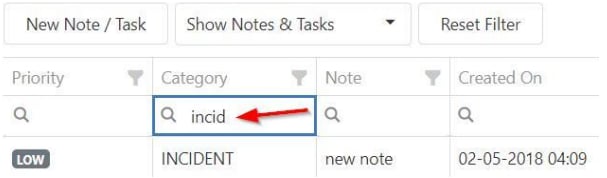
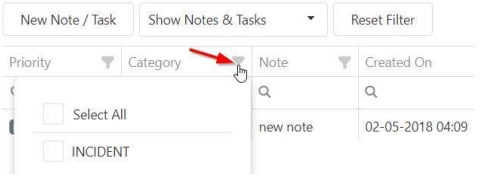 * Type directly in the filter field for a manual search
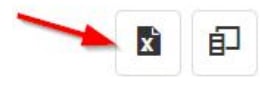
 Export the data to Excel by clicking the **Excel** icon in the top right corner.
 ### Creating a note or task
Click **New Note/Task** to create a new entry.
### Creating a note or task
Click **New Note/Task** to create a new entry.
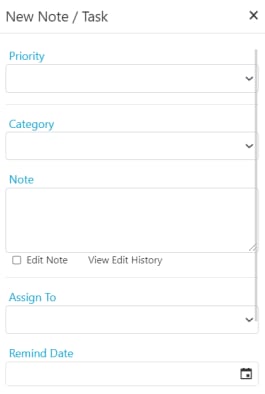 A note becomes a task when a person is assigned to it. If only a priority and category are assigned, it remains as a note. Once it becomes a task, it appears in the task list on the home page.
Use tasks for items that need follow-up or action by a specific person. Use notes for general record-keeping that doesn't need assignment.
### Editing a note or task
Double-click on a note to open and edit it.
## Documents
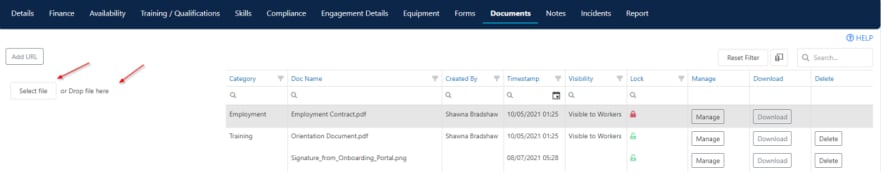
Open the worker's profile and navigate to the **Documents** tab to manage file storage.
### Uploading a document
Click **Select File** to choose a file, then click **Upload** to attach it to the worker's profile.
A note becomes a task when a person is assigned to it. If only a priority and category are assigned, it remains as a note. Once it becomes a task, it appears in the task list on the home page.
Use tasks for items that need follow-up or action by a specific person. Use notes for general record-keeping that doesn't need assignment.
### Editing a note or task
Double-click on a note to open and edit it.
## Documents
Open the worker's profile and navigate to the **Documents** tab to manage file storage.
### Uploading a document
Click **Select File** to choose a file, then click **Upload** to attach it to the worker's profile.
 ### Managing documents
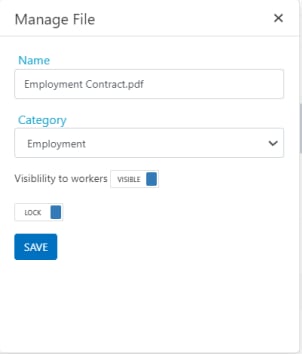
Click **Manage** on a document to open its profile, where you assign a category and lock the file to prevent deletion.
### Managing documents
Click **Manage** on a document to open its profile, where you assign a category and lock the file to prevent deletion.
 | Action | Description |
| ------------------------- | ------------------------------------------------------------------------------------------------ |
| **Manage** | Open the document profile to assign a category and lock or unlock the file |
| **Download** | Download a copy of the file to your downloads folder |
| **Delete** | Delete the file (only available if the file is not locked) |
| **Visibility to Workers** | Mark the document as visible or invisible to workers in the mobile app and the onboarding portal |
Locking a document prevents it from being deleted. Use this for important records that should not be accidentally removed.
### Making a document visible to all workers in Vworker
Documents uploaded to a worker's profile are only visible to that worker. To share a document with all workers through the Vworker app, upload it through **Maintenance** instead.
Navigate to **Maintenance** → **Documents** and upload the file.
Click **Manage** on the uploaded file.
Under **Visibility to Worker**, change the setting to **Visible**.
Click **Save**. The document now appears in the Vworker app for all workers.
## Running into issues?
See [Worker management troubleshooting](/troubleshooting/general) for common errors and fixes.
## Related articles
Set up a new worker in Visualcare
Send and receive messages with workers
Track compliance items on a worker profile
| Action | Description |
| ------------------------- | ------------------------------------------------------------------------------------------------ |
| **Manage** | Open the document profile to assign a category and lock or unlock the file |
| **Download** | Download a copy of the file to your downloads folder |
| **Delete** | Delete the file (only available if the file is not locked) |
| **Visibility to Workers** | Mark the document as visible or invisible to workers in the mobile app and the onboarding portal |
Locking a document prevents it from being deleted. Use this for important records that should not be accidentally removed.
### Making a document visible to all workers in Vworker
Documents uploaded to a worker's profile are only visible to that worker. To share a document with all workers through the Vworker app, upload it through **Maintenance** instead.
Navigate to **Maintenance** → **Documents** and upload the file.
Click **Manage** on the uploaded file.
Under **Visibility to Worker**, change the setting to **Visible**.
Click **Save**. The document now appears in the Vworker app for all workers.
## Running into issues?
See [Worker management troubleshooting](/troubleshooting/general) for common errors and fixes.
## Related articles
Set up a new worker in Visualcare
Send and receive messages with workers
Track compliance items on a worker profile