> ## Documentation Index
> Fetch the complete documentation index at: https://support.visualcare.com.au/llms.txt
> Use this file to discover all available pages before exploring further.
# vOnboard and Vworker access
> How to set up worker access to the vOnboard portal and Vworker mobile app
Visualcare offers two worker-facing applications: the vOnboard portal for onboarding new workers, and the Vworker mobile app for day-to-day shift management. Both are set up from the worker profile in VCore.
## Setting up vOnboard
The vOnboard portal allows workers to enter their own details during onboarding, reducing manual data entry for your office team.
### What you'll need
* A worker profile created in VCore with the following fields completed:
* **First Name** and **Last Name**
* **Web Username**
* **Email**
* **Web Enabled** ticked
* **vOnboard Portal** ticked
### Instructions
Open the worker's profile in VCore. Make sure the required fields above are filled in, and both **Web Enabled** and **vOnboard Portal** are ticked.
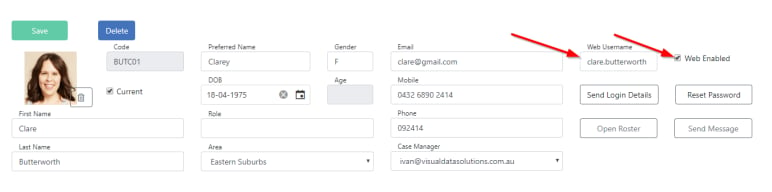 Click **Send Login Details** at the top of the profile. This emails an invite to the worker with instructions to log in and complete their onboarding information.
The first time the worker logs in, they are prompted to create a password.
To receive email notifications when a worker updates their profile through vOnboard, assign a **Case Manager** to the worker in their VCore profile.
Information entered by workers through vOnboard flows directly into their VCore profile, including details on the Finance tab.
## Setting up Vworker
The Vworker app gives workers access to their shifts, leave requests, messaging, and more from their mobile device.
### System requirements
| Platform | Minimum version |
| -------- | --------------- |
| Android | 10 or above |
| iOS | iOS 11 or above |
### Instructions
In the worker's VCore profile, make sure **Web Enabled** is ticked and a **Web Username** is set. Click **Send Login Details** to provide the worker with their credentials.
Workers download **Vworker** from the **App Store** (iPhone) or **Google Play** (Android).
Click **Send Login Details** at the top of the profile. This emails an invite to the worker with instructions to log in and complete their onboarding information.
The first time the worker logs in, they are prompted to create a password.
To receive email notifications when a worker updates their profile through vOnboard, assign a **Case Manager** to the worker in their VCore profile.
Information entered by workers through vOnboard flows directly into their VCore profile, including details on the Finance tab.
## Setting up Vworker
The Vworker app gives workers access to their shifts, leave requests, messaging, and more from their mobile device.
### System requirements
| Platform | Minimum version |
| -------- | --------------- |
| Android | 10 or above |
| iOS | iOS 11 or above |
### Instructions
In the worker's VCore profile, make sure **Web Enabled** is ticked and a **Web Username** is set. Click **Send Login Details** to provide the worker with their credentials.
Workers download **Vworker** from the **App Store** (iPhone) or **Google Play** (Android).
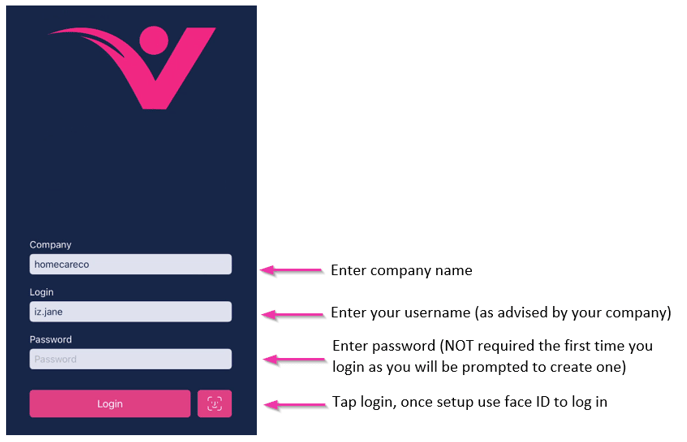 Workers open the app and enter their login details. Once logged in, they need to stay logged in to receive shift notifications.
If a worker logs out of the app, they won't receive push notifications for new shifts or messages. Workers need to remain logged in at all times.
When the app opens for the first time, workers select **Allow** when prompted for notification and location permissions. These settings are also adjustable in the device's **Settings** → **Notifications** → **Vworker**.
Workers open the app and enter their login details. Once logged in, they need to stay logged in to receive shift notifications.
If a worker logs out of the app, they won't receive push notifications for new shifts or messages. Workers need to remain logged in at all times.
When the app opens for the first time, workers select **Allow** when prompted for notification and location permissions. These settings are also adjustable in the device's **Settings** → **Notifications** → **Vworker**.
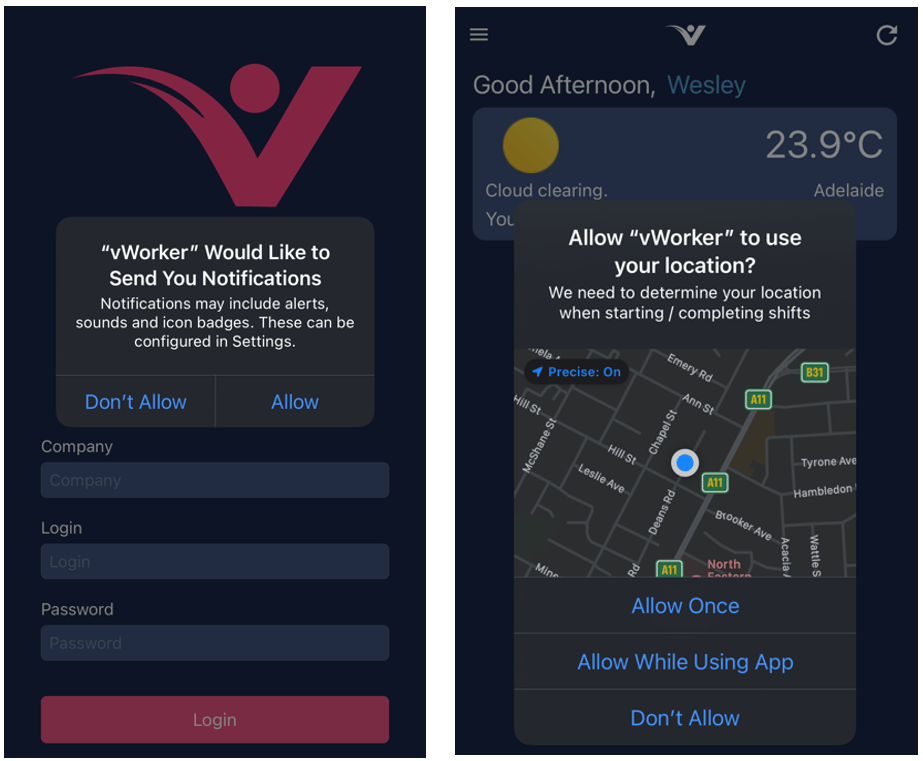 Some organisations need location services enabled at all times. Refer workers to your own policies and procedures for guidance.
### Display settings
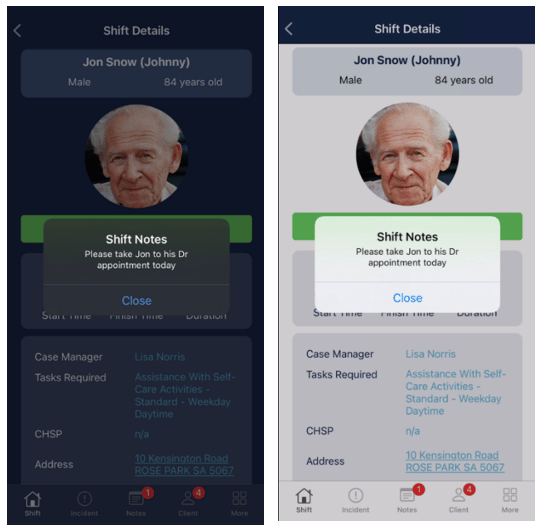
Workers choose between dark and light mode in their device's **Display and Brightness** settings. The app also supports automatic switching based on daylight hours or a custom schedule.
Some organisations need location services enabled at all times. Refer workers to your own policies and procedures for guidance.
### Display settings
Workers choose between dark and light mode in their device's **Display and Brightness** settings. The app also supports automatic switching based on daylight hours or a custom schedule.
 ### Security
For security and privacy purposes, workers should have a passcode on their phone. If a worker's phone is lost or stolen, they need to alert your office immediately so their access is disconnected by unticking **Web Enabled** on their profile.
## Running into issues?
See [Worker management troubleshooting](/troubleshooting/general) for common errors and fixes.
## Related articles
Set up a new worker in Visualcare
Send and receive messages with workers
Steps to offboard a worker from Visualcare
### Security
For security and privacy purposes, workers should have a passcode on their phone. If a worker's phone is lost or stolen, they need to alert your office immediately so their access is disconnected by unticking **Web Enabled** on their profile.
## Running into issues?
See [Worker management troubleshooting](/troubleshooting/general) for common errors and fixes.
## Related articles
Set up a new worker in Visualcare
Send and receive messages with workers
Steps to offboard a worker from Visualcare