
What you’ll need
- Workers set up in VCore with an email address, username and Web enabled ticked on their profile
- Workers with the Vworker app downloaded on their phone
Sending login details in bulk
1
Open the email worker login page
Go to Operations → Email Worker Login.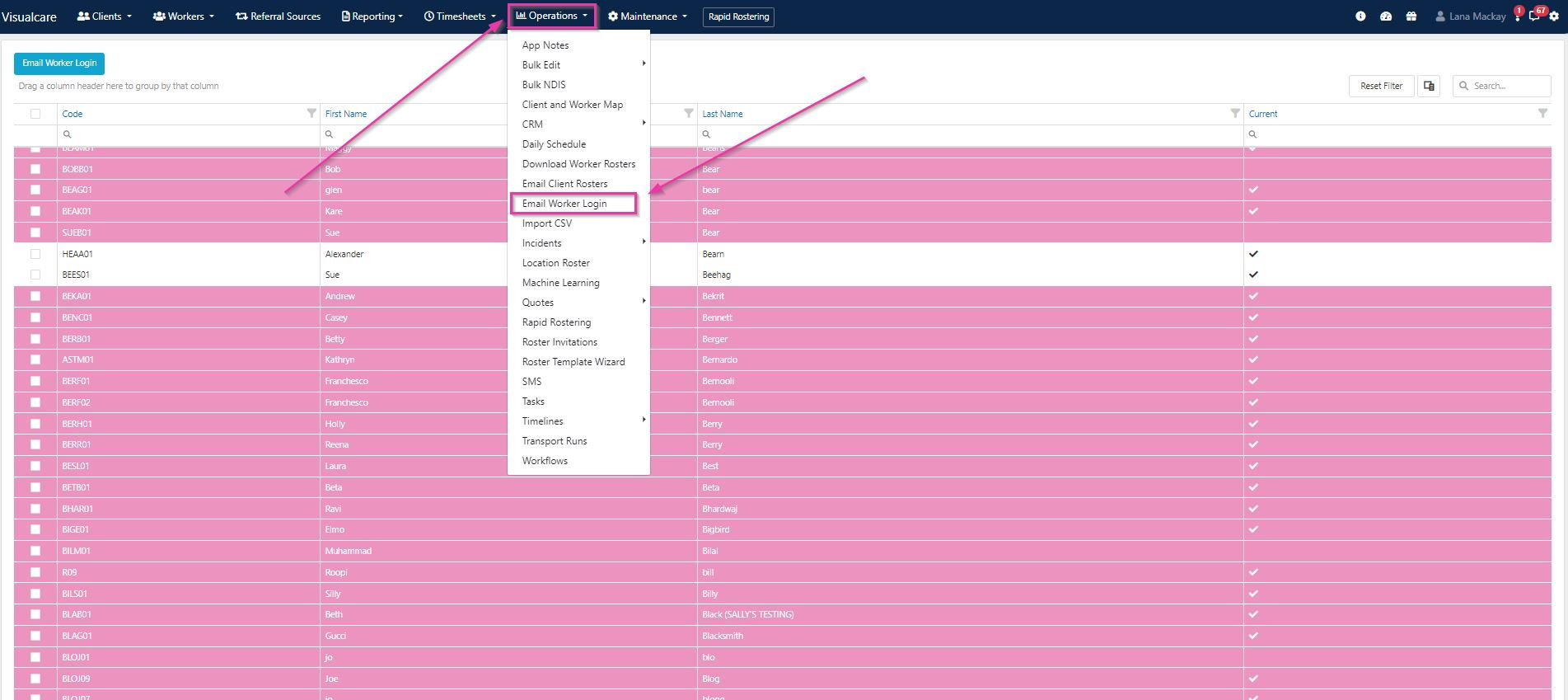
2
Check for ineligible workers
Workers highlighted in pink cannot be sent their login details. This happens when:
- There is no email on their worker profile
- There is no username on their worker profile
- They are not Web enabled on their worker profile
3
Select the workers
Use the tick box at the top left to select all workers, or tick individual workers who need their logins sent.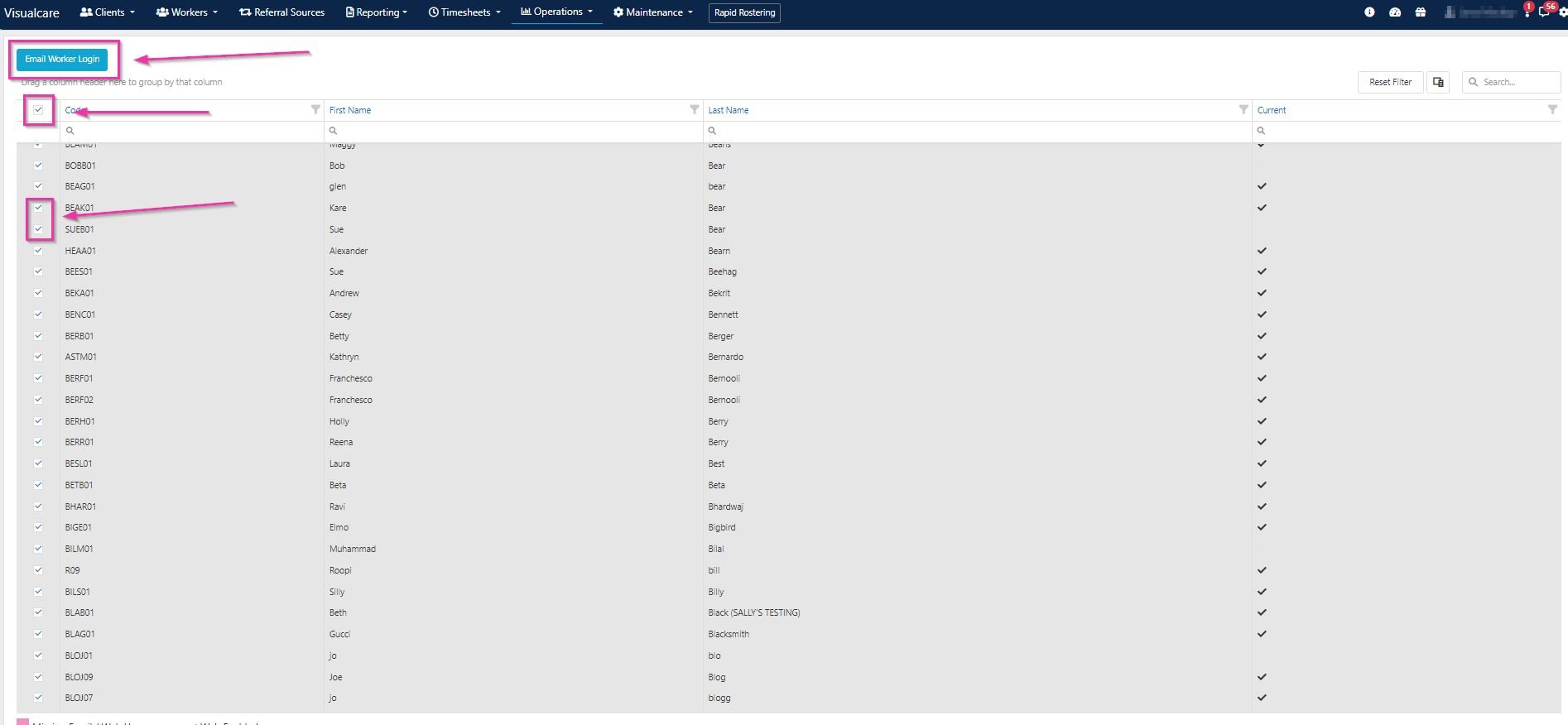
4
Send the email
Click the Email Worker Login button. A confirmation message appears, highlighting any workers who are missing an email address, username or are not web enabled. Click Confirm to send the email to the remaining eligible workers.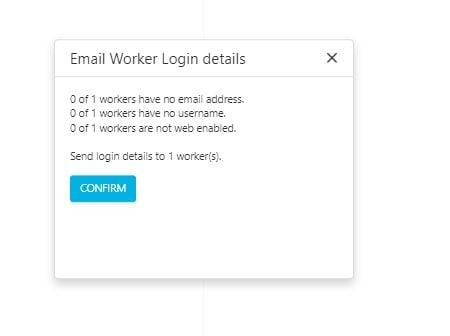
Preventing screenshots in the app
You can stop workers from taking screenshots within the Vworker app:- Go to Settings → Mobile App → General
- Find the Prevent User taking Screenshot setting
- Set it to Yes to block screenshots, or No to allow them
- Click Save
If this setting is set to No and a worker takes a screenshot, Visualcare sends a notification email to the address listed in Settings → Company Info → Email.
Client health information in the app
Client health information entered in VCore flows through to the Vworker app. To update a client’s health details, go to the client’s profile in VCore, open the Details tab and enter the relevant information. Workers see this information under the client profile section in Vworker.Running into issues?
See Timesheet troubleshooting for common errors and fixes.Related articles
Vworker: Logging in
How workers log in to the Vworker app for the first time
Vworker: Clocking in and out
How workers start and complete shifts through the app
Vworker: Menu overview
Overview of all features available in the Vworker app menu