
Running a notes report
Use the drop-down list on the left-hand side to select the type of note. Once loaded, you can sort, filter and export the results to Excel.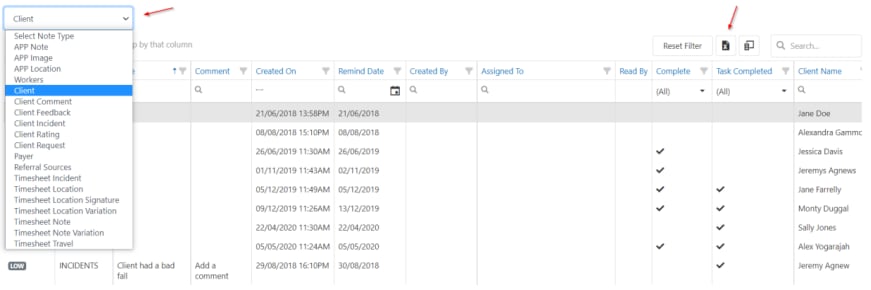
Adding a note to multiple clients
Use Add Bulk Note to add the same note to several clients at once, rather than adding it to each client profile one by one.1
Open the notes report
Go to Reports → Notes Report.
2
Click Add Bulk Note
Click Add Bulk Note. 
3
Select the clients
Tick the box next to each client you want to add the note to.
4
Complete the note details
Fill in the note fields the same way you would when adding a single note. For a description of each field, see Managing a note.
5
Save the note
Click Save Note. The note is added to the Notes tab of each selected client.
Running into issues?
See General troubleshooting for common errors and fixes.Related articles
Progress notes
Record and manage client progress notes
Notes and tasks
Manage notes and tasks on client profiles
Client reports
Run reports on client data