
Linking vCore to Xero
To export any client invoice or worker timesheet data, the API connection between vCore and Xero needs to be established first.1
Open accounting software settings
Go to Settings → Data Export → Accounting Software.
2
Select invoice export
If you want to connect to Xero to invoice clients, select XERO2 from the Invoice Export drop-down and click Save.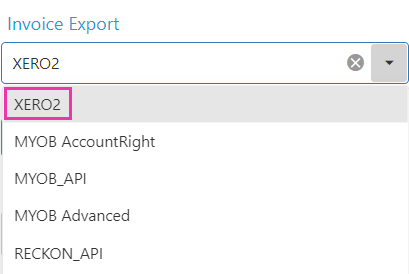
3
Select timesheet export
If you want to connect to Xero to send worker timesheets, select XERO2 / KeyPay from the Timesheet Export drop-down and click Save.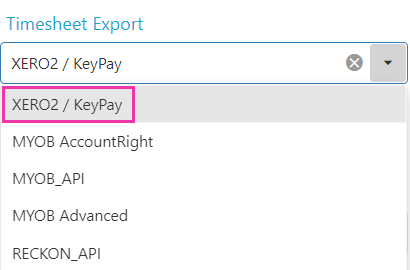
4
Authorise the connection
Once the drop-downs have been selected, click Authorise Xero. Enter the company name when prompted, then proceed to connect to your Xero database.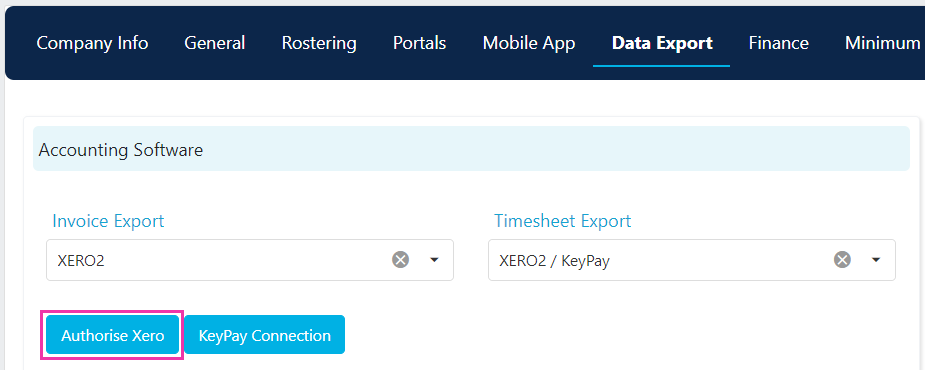
5
Allow access in Xero
If you’re already logged in to Xero, select the organisation to connect and click Allow Access.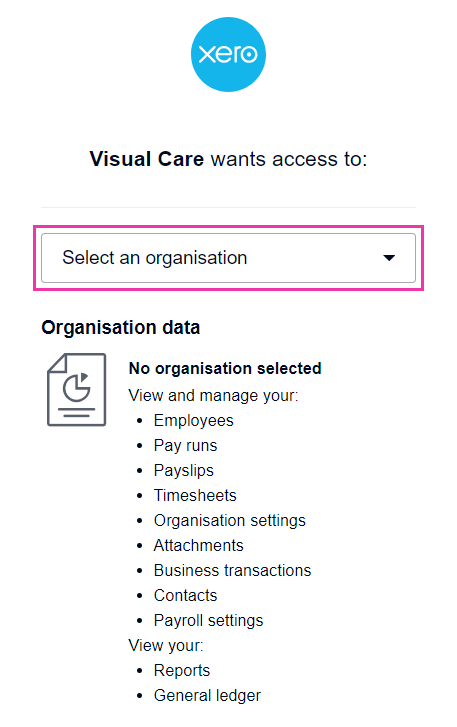
The authorisation screen requests access to several Xero scopes including Reports and Ledger. This access is used to retrieve invoice status from Xero back into Visualcare.
6
Verify the connection
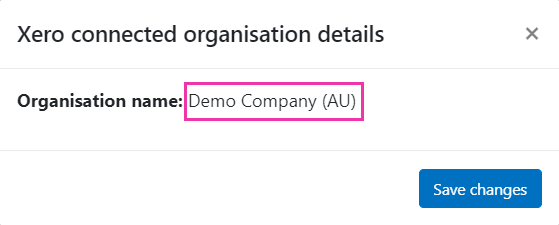
Once connected, you’ll see options to remove the Xero connection or review the connected organisation. Click Show Connected Org Details to check.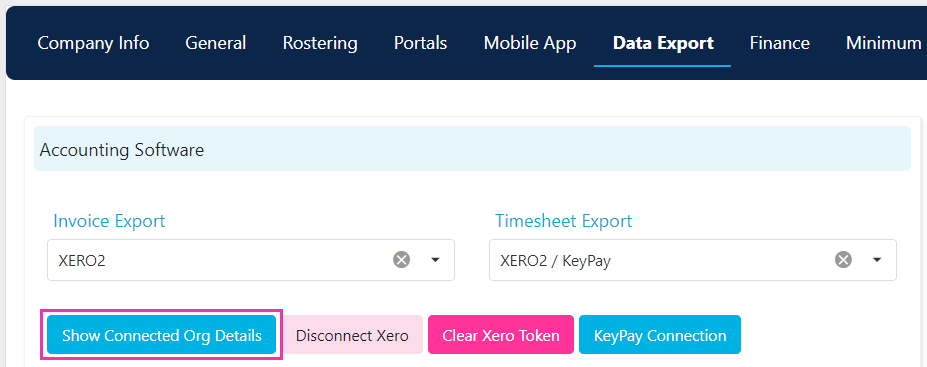
7
Sync items from Xero
After the Xero connection has been established, items need to be synced from Xero into vCore. Under Settings → Data Export → XERO, click each of the sync buttons.
Set up
Payers
Payers link to a client profile or client agreement so that invoices export to the correct Xero contact. Payer profiles are created in Maintenance → Payers. Once created, select an Accounting Code for the payer from the drop-down list in the Contact section. This drop-down is populated with contacts from Xero. Once selected, click Save in the top-left corner.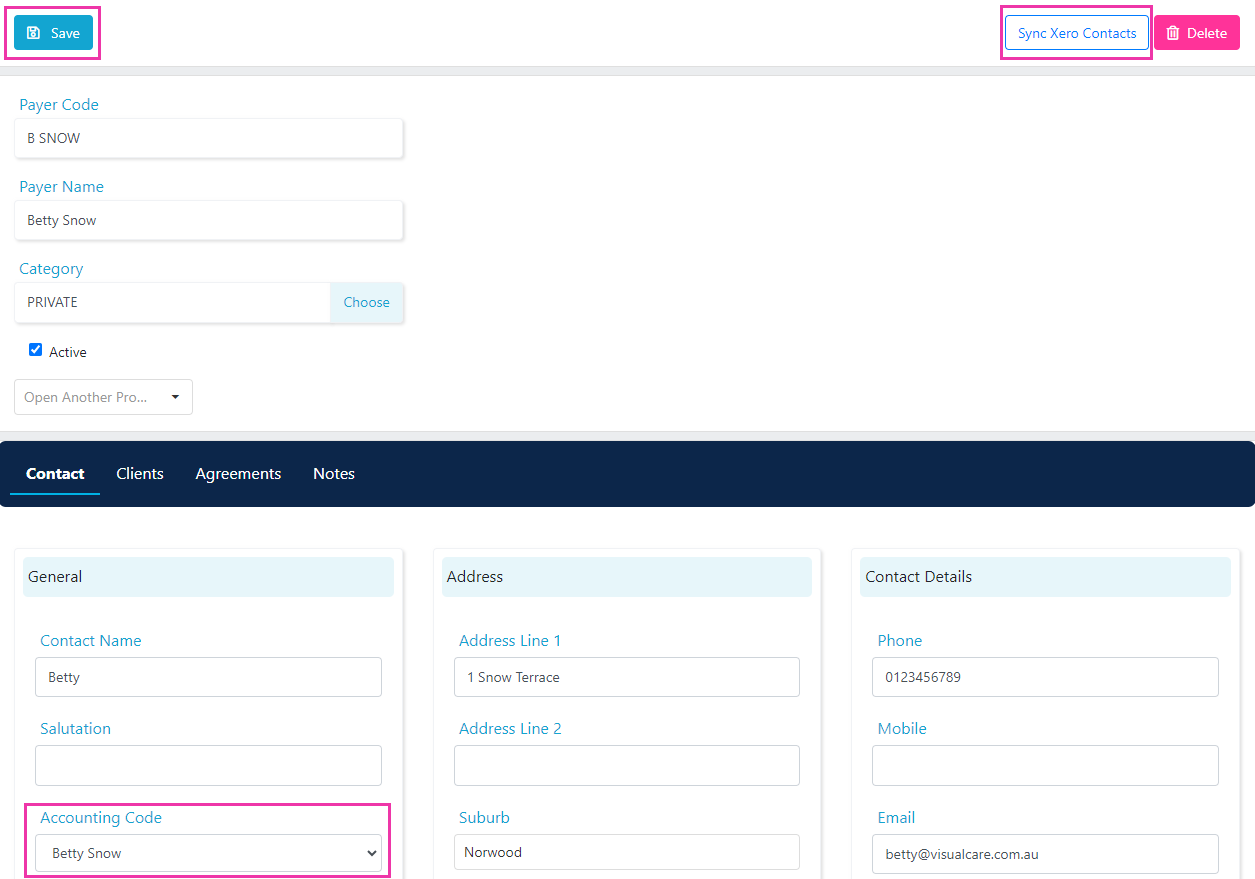
Clients
Once payer profiles are created, you set up client profiles for export. There are three places the system looks to export invoices for a client:- Agreement payer
- Client profile payer
- Client profile accounting code
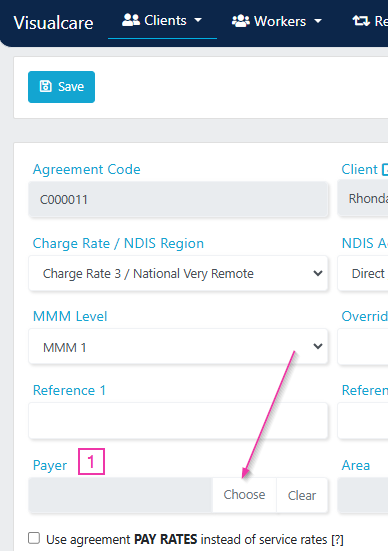
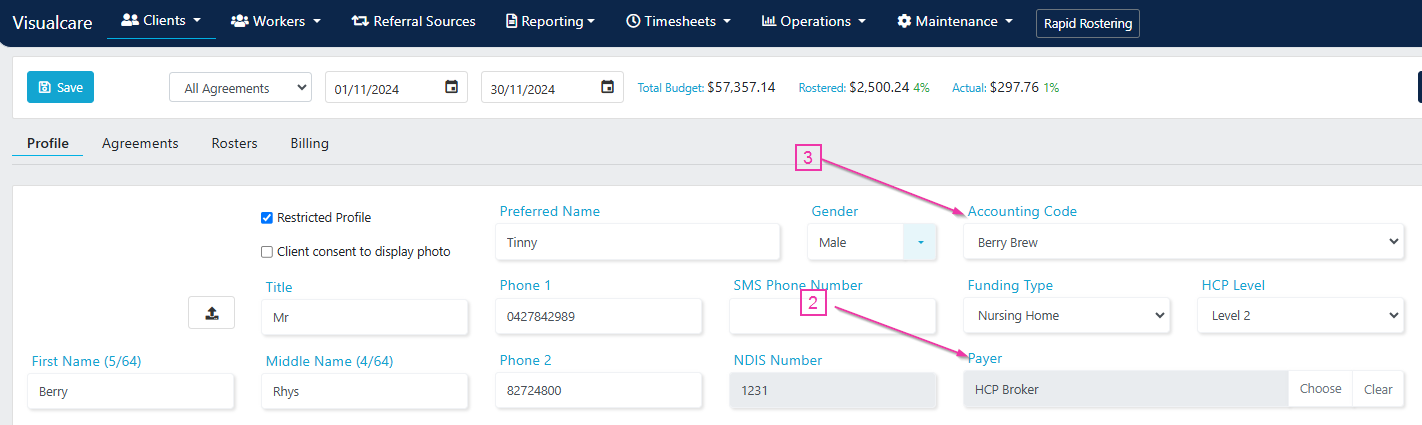
Agency-managed clients are typically routed to an “NDIS” payer profile (created in Maintenance → Payers with the NDIS Xero contact as its accounting code). Providers usually record these invoices in Xero for bookkeeping only and claim them through the Proda PACE upload rather than sending them from Xero.

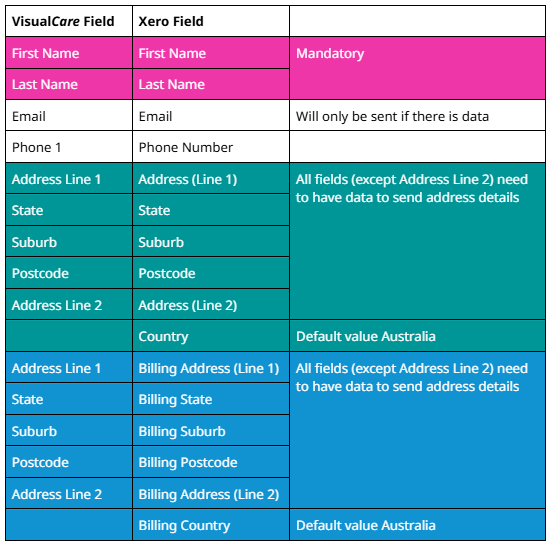
Workers
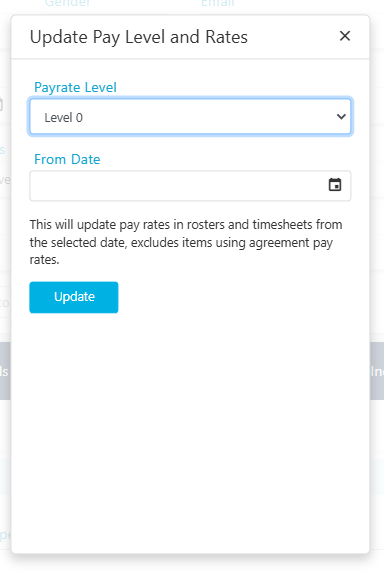
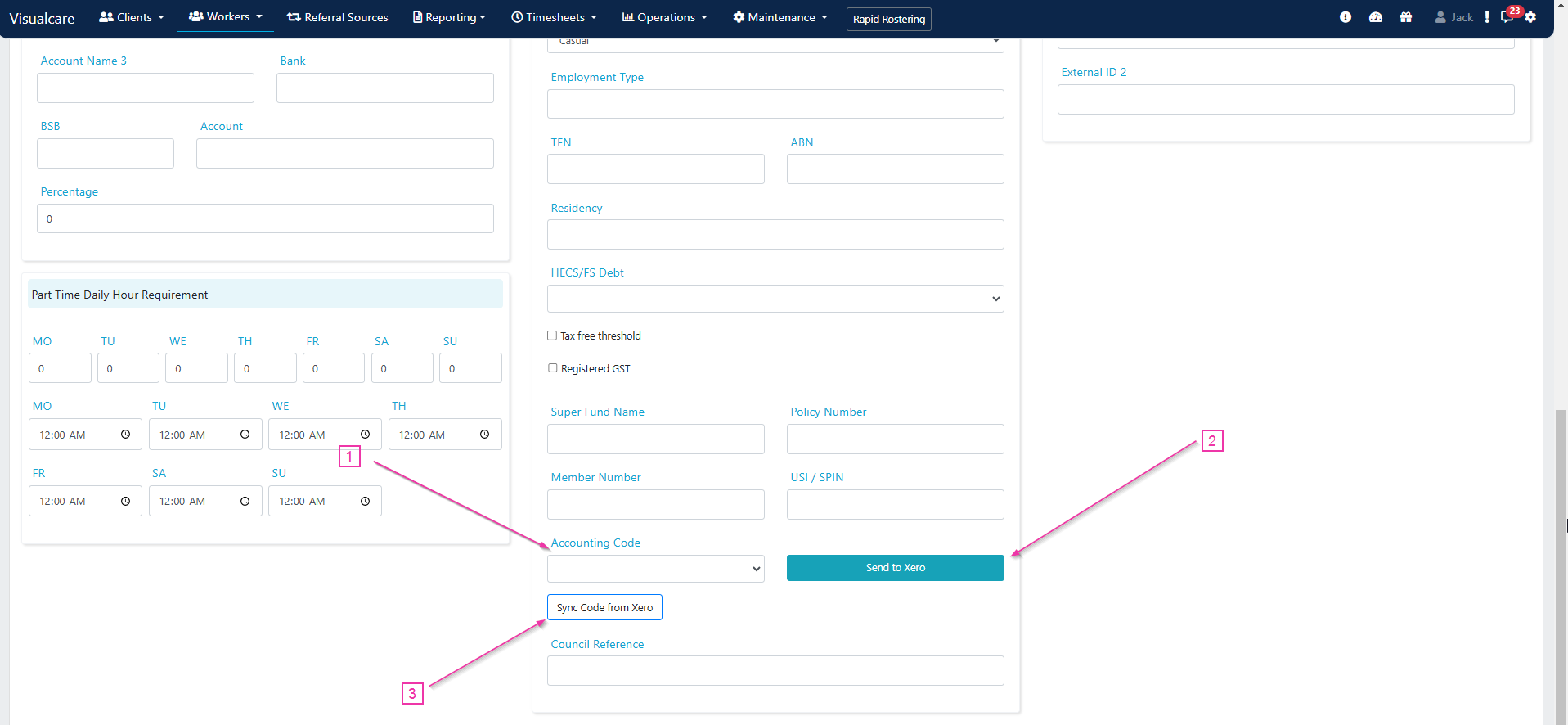
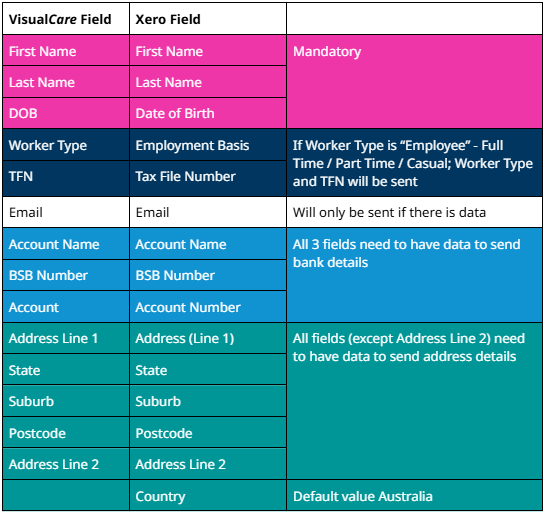
First, make sure the worker has the correct Payrate Level set in Worker Profile → Finance → Worker Details → Update Pay Level and Rates.For suppliers, the Payrate Level needs to be set to 0 for export. For employees, select the applicable Payrate Level.
Setting employees up in Xero first is the recommended approach, since pay templates, tax details, and super are configured there. Send to Xero only creates a snapshot of the Visualcare data.
Services (charge)
The charge amount for a service is set in Maintenance → Services. You also need to select an Accounting Code for the service for export. This is the inventory item you’ve created in Xero. If the item you need is not listed, make sure it is set up in Xero and click Sync Xero Invoice Items in the top-right corner to bring them across. Once the Accounting Code and all other relevant information is updated, click Save in the top-left corner.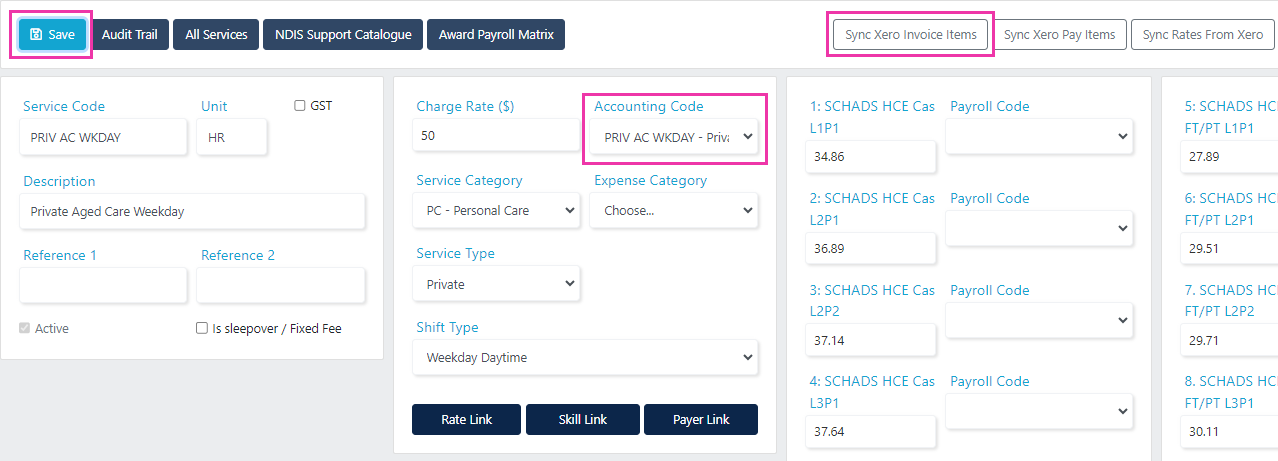
Services (pay)
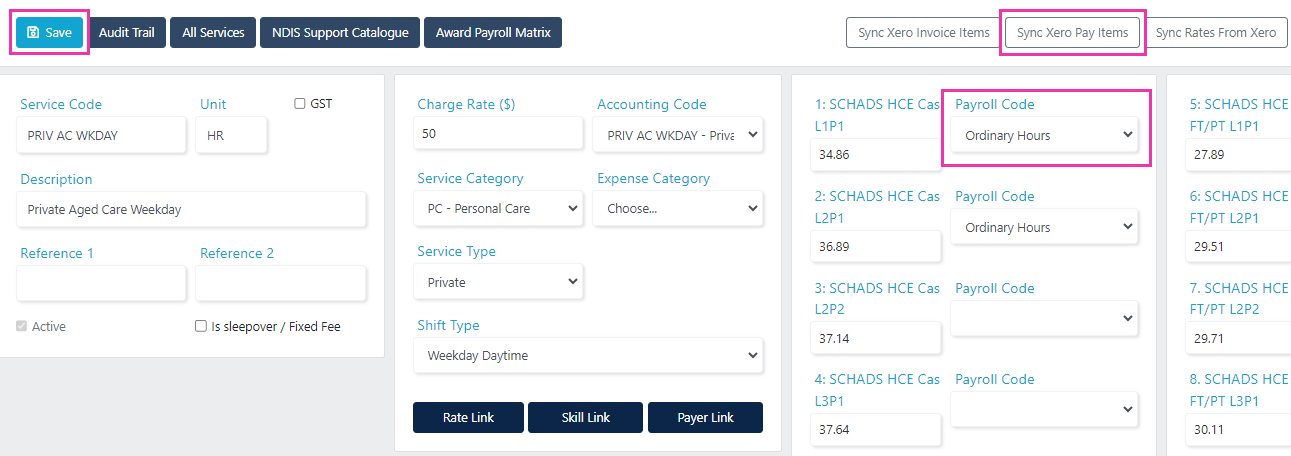
For paying the worker, Visualcare matches the service and the worker payrate level to find the payroll code to export. Payroll codes need to be selected for each service and payrate level when applicable for a successful export. To select a Payroll Code, go to Maintenance → Services, select a service from the bottom table, and choose the Payroll Code from the drop-down for each pay level. Click Save in the top-left corner. If the pay item you need is not listed, make sure it is set up in Xero and click Sync Xero Pay Items in the top-right corner.The pay rate amount listed is not exported for employee payroll. Only the payroll code is sent to Xero. The amount is sent for supplier payments, however.
Tracking categories
Xero tracking categories let you tag invoice and payroll entries with an additional dimension, such as region, funding type, or cost centre, so you can report on them separately in Xero. Visualcare maps a field from its data to a tracking category, so every exported entry carries the correct tracking value. There are two category slots:Configuring tracking categories
1
Open tracking settings
Go to Settings → Data Export and tick the Tracking checkbox. Fields for Category Name and Link to Field appear.
2
Enter the category name
In Category Name, type the exact name of the tracking category as it appears in Xero, for example
Region. Check in Xero under Settings → Accounting → Tracking Categories to confirm the exact name before entering it here.3
Select the linked field
Under Link to Field, choose the Visualcare field whose values populate the tracking category. The available fields differ between Category 1 and Category 2:
The values in the Visualcare field you select must match the tracking category options in Xero exactly. For example, if your Xero “Region” category has the options North, South, East, and West, your Visualcare Area field values need to use those same names.
Limitations
Tracking invoices by client name Xero’s tracking category setup links to a Visualcare field rather than the client record itself, so there’s no direct way to track invoices by participant name using Category 1. As a workaround, you can enter the client name manually in Agreement Reference 1 and link that field to Category 1. This is a manual step per agreement and doesn’t scale well for large client lists. Location roster shifts Location roster shifts have no associated agreement, so fields like Agreement Reference 1 have no value for those shifts. Linking a tracking category to an agreement-based field produces export errors for location roster shifts. Tracking by Area (the worker’s area) is a more reliable option for providers using location rosters, though this maps to the house or location rather than individual participants. Payroll tracking (Category 2) Category 2 for payroll tracking is not active by default. Contact support@visualcare.com.au to have it enabled.When payroll tracking is enabled, Visualcare amalgamates hours to the pay item before applying the tracking value. If a worker has hours under multiple funding types on the same pay item, only the tracking value from the first entry is applied. To track payroll by funding type accurately, separate pay items per funding type are needed.
Running into issues?
Integration error fixes live under Troubleshooting. See Xero export troubleshooting for common Xero export errors and fixes, or Integration troubleshooting for other integration issues.Related articles
KeyPay integration
Connect Visualcare to KeyPay for payroll export
Exporting payroll data
How to export timesheets and payroll data from Visualcare
Invoicing and billing
Overview of billing and claiming in Visualcare
Billing to accounting software
Export invoices from Visualcare to your accounting software