
Summary
Stage 3 adds new service types and reference data in the Data Exchange (DEX). For reporting to line up with these, your organisation data in Visualcare needs to match the latest DEX reference data. You can update this yourself using the CHSP/DEX Org Data tool. For an overview of Stage 3 and the key dates, see CHSP / DEX Stage 3: what is changing and what you need to do Before you start- This applies to CHSP databases.
- Do this once the updated OrganisationData.xml is available from the Data Exchange, around go-live on 11 August 2026. Step 1 covers how to download it.
Step 1: Download the OrganisationData.xml from the Data Exchange
You need to be a Data Exchange Organisation Administrator to do this.- Log in to the Data Exchange portal.
- From the home page, under My Organisation, select Reference data.
- Under Organisation activity and outlet data, select Download Organisation data and save the OrganisationData.xml file.
Step 2: Upload and preview in Visualcare
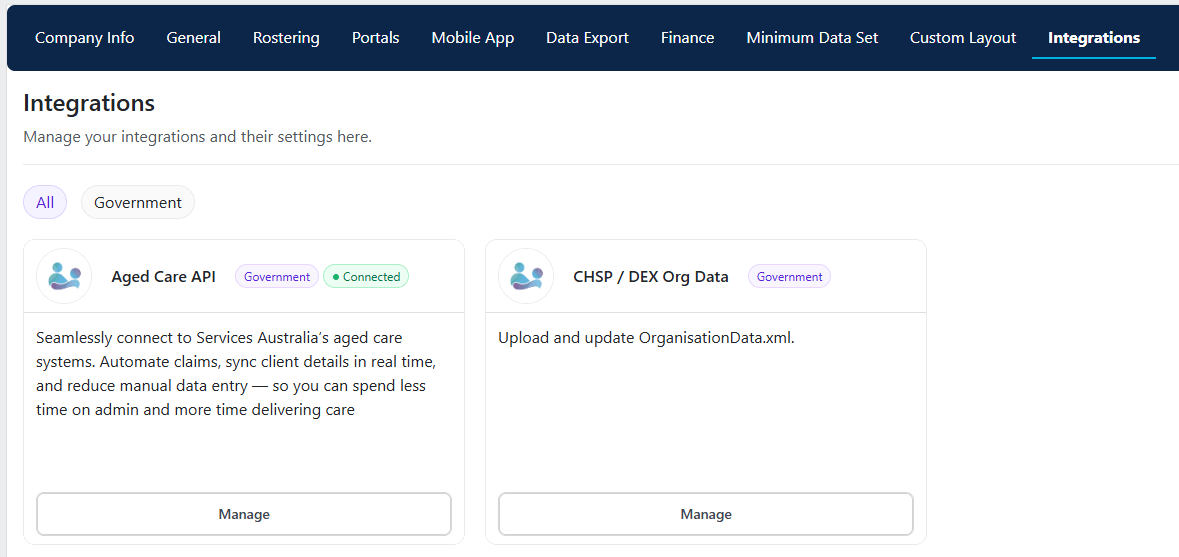
- Go to Settings > Integrations and select the CHSP/DEX Org Data tile.
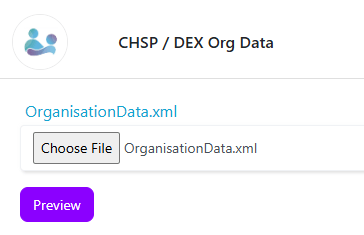
- Select Choose file and select your OrganisationData.xml.
- Select Preview.
- Inserted: new items that will be added to your organisation data.
- Updated: existing items that will be updated with new information from the file.
- Already matches: existing items that already match the file exactly, so nothing changes.
- Kept from existing data: items in your current data that are not in the file. These are kept, not removed.
Step 3: Review and apply
Check the summary to confirm the changes look as expected. When you are satisfied, select Apply update to apply the changes to your organisation data..png?fit=max&auto=format&n=CXcjcgi2jecj_vLT&q=85&s=a601471d0f86ed26181d023bc08c3bfb)