
Creating a quote
Navigate to Operations → Quotes → Quotes and click Add New Quote.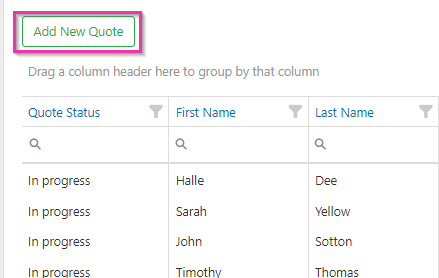
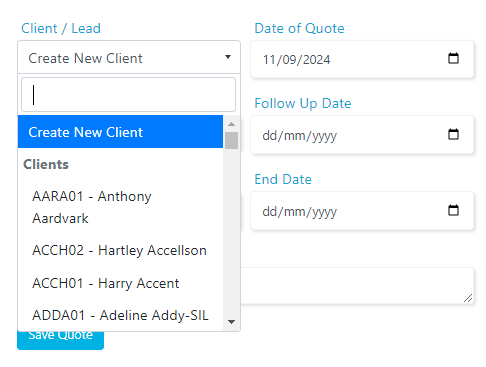
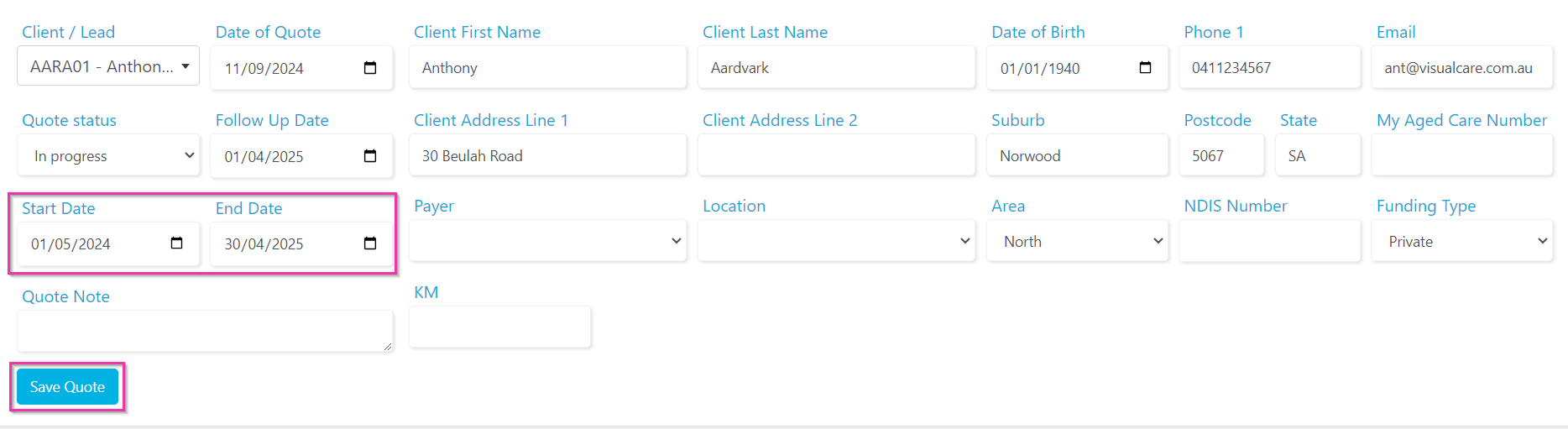
- Create a quote for an existing client
- Create a quote for a new client (no existing profile)
- Create a quote for a lead (scroll past clients to see leads)
Adding services to a quote
Click + Add Service to add a service line item. Select the Service from the drop-down and enter details including any recurring shifts. For clients needing services on public holidays, click Add Public Holiday as a Line Item and select the public holiday service. Tick Exclude Public Holidays to remove public holiday shifts from the calculation for that line item. The Total Including Schedule calculates the estimated cost for each service line. You also have a Budget field available for each line.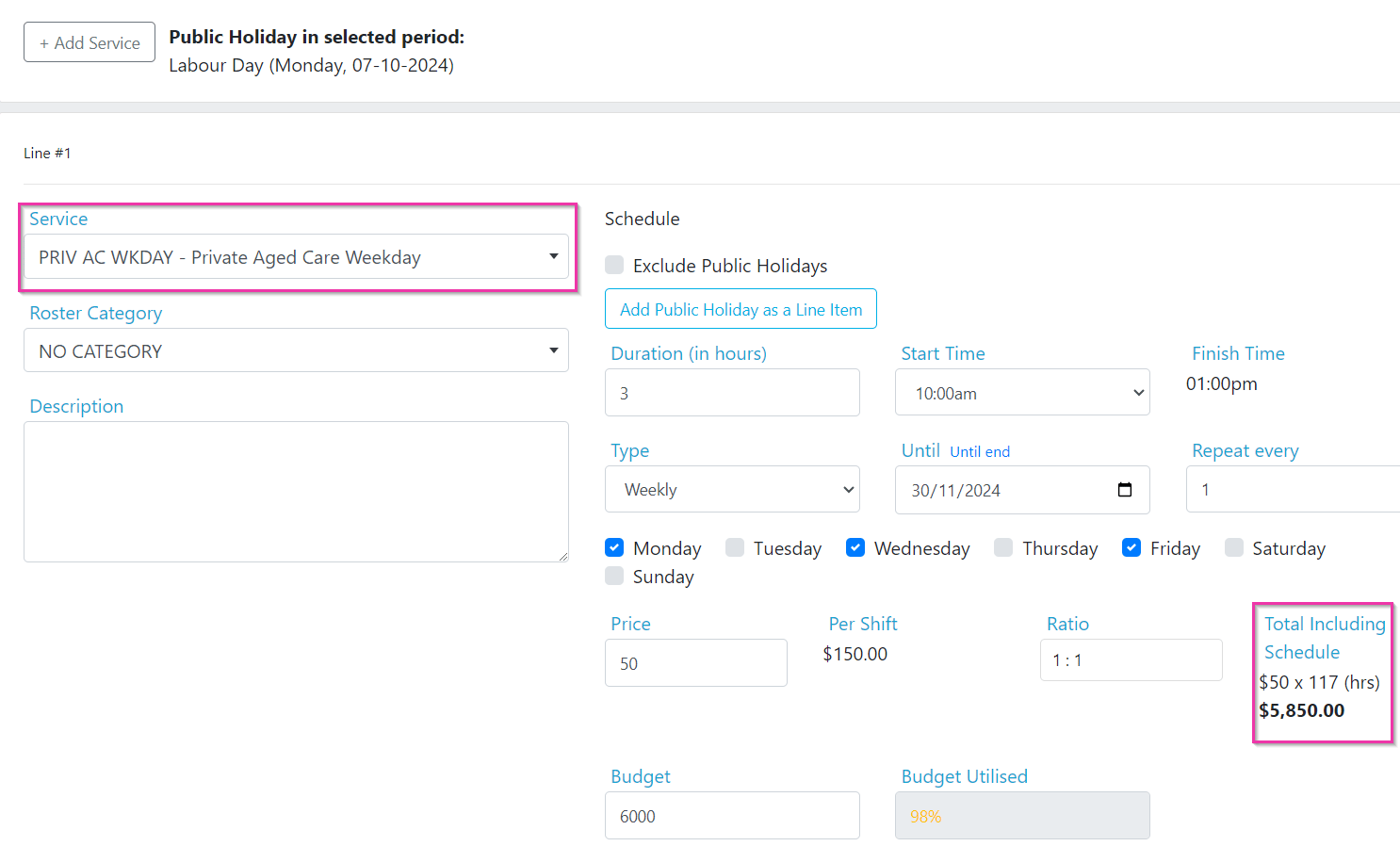
Finalising a quote
Once the quote is complete, send it for client approval using one of these methods:- Email it to the client
- Download the quote and send it manually
- Make it visible on the vAboutMe mobile app by ticking Visible to client (for existing clients)

Converting a quote
Once approved, click Convert Quote to action it. For leads or new client quotes, converting creates a new client profile automatically. You also have the option to create an agreement and roster template during conversion.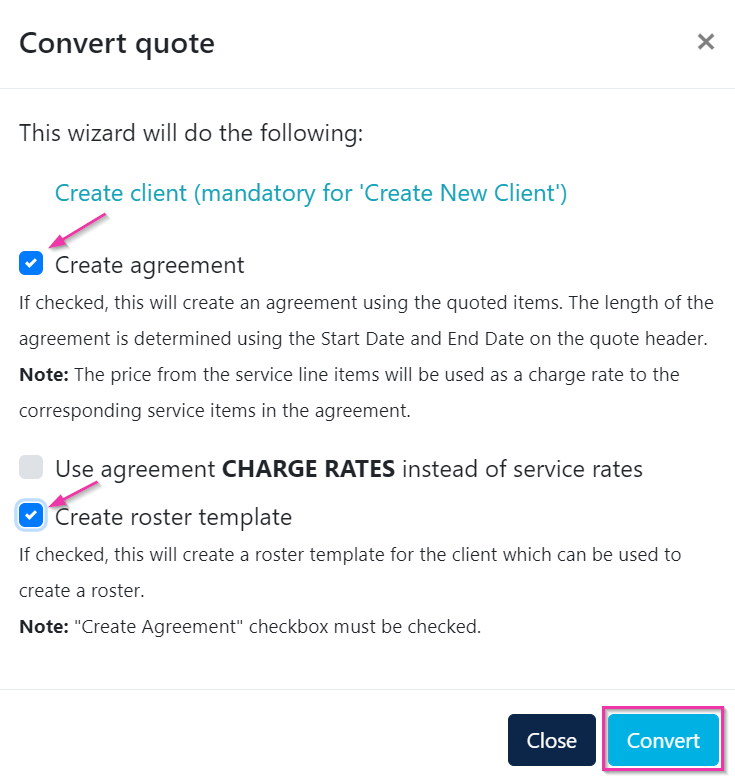
Other quote options
After completing a quote, you also have the ability to:- Delete the quote
- Clone the quote (useful for creating similar quotes for other clients)

Running into issues?
See Client management troubleshooting for common errors and fixes.Related articles
CRM overview
Manage leads and the client onboarding pipeline
Quotes (Support at Home)
SAH-specific quoting functionality
Creating agreements for rostering
Set up agreements after converting a quote