
Setting up for invoicing
Before you can export invoices, client profiles and services need to be linked to their matching records in your accounting software. This mapping tells Visualcare where to send each invoice and which inventory item to bill against.Client setup
Each client profile needs an Accounting Code that maps to a contact in your accounting software (for example, a Xero contact).- Open the client’s profile and go to the Finance tab.
- Click the Accounting Code drop-down and select the matching contact.
- If the client doesn’t appear in the list, create the contact in your accounting software, then resync so it appears in the drop-down and can be selected.
- Go to Maintenance → Payers and create the payer record.
- Assign an Accounting Code to the payer so invoices route to the correct contact in your accounting software.
- Open the client’s profile and assign the payer under their funding agreement or profile settings.
Service setup
Each service also needs an Accounting Code linking it to an inventory item in your accounting software.- Go to Maintenance → Services.
- Select the service you want to configure.
- Click the Accounting Code drop-down and select the matching inventory item from your accounting software.
Visualcare’s charge rate overrides the price listed on the inventory item in your accounting software. The price on the inventory item is not used for billing. Visualcare’s charge rate is what gets sent.
How data export works
All billing and payroll exports start from the Timesheets tab in vCore. The Data Export page is your central hub for sending confirmed timesheet data to your accounting software, the National Disability Insurance Scheme (NDIS) portal, or other claiming systems.Payer lookup order
When you export invoices, Visualcare determines who to bill using this order:- Agreement payer - the payer listed on the client’s agreement
- Client profile payer - the payer set in the client’s profile
- Client accounting code - the accounting code on the client’s profile
Getting to data export
Navigate to Timesheets → Data Export.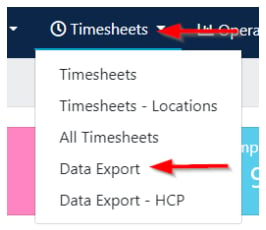
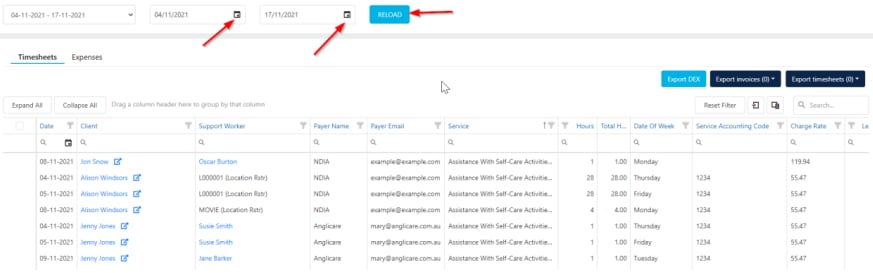
Selecting and exporting timesheets
Select the items you want to export using the tick boxes on the left. Then click the relevant export button:- Export Invoices - sends invoice data to your accounting software or downloads a CSV
- Export Timesheets - sends payroll data to your accounting software
- Export KMs - an option under the Export Timesheets drop-down that exports kilometre reimbursements for payroll (after timesheets have been approved). There is no separate KM export for invoicing - transport kilometres charged to the client are automatically added to the client’s invoice in the standard invoice export
- Export to NDIS - exports a CSV for NDIS claiming
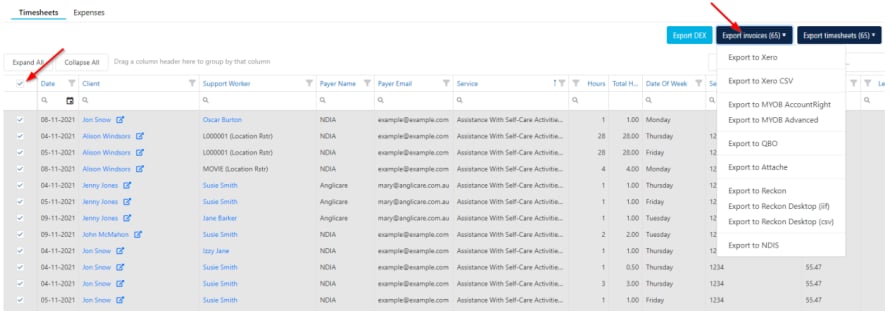
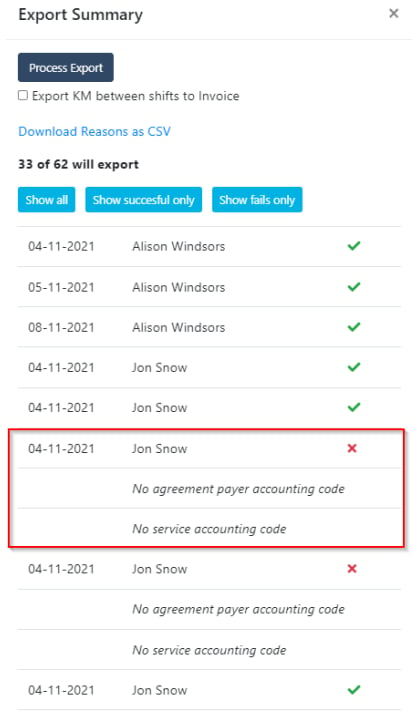
After a successful invoice export, invoices appear as drafts in your accounting software’s draft section. Visualcare auto-populates the Description, Quantity (from hours worked), Price (from the charge rate), and Reference fields. Review the drafts before approving them in your accounting software.
How payroll export matching works
When you export timesheets for payroll, Visualcare matches the Accounting Code on the worker’s profile to the employee or supplier contact in your accounting software. The worker’s Pay Level (set in their Finance section) determines which pay item to export against based on the service’s pay level configuration.Export types at a glance
Expenses
Expenses are recorded on the client profile under the Expenses tab and flow through to data export. See Client expenses for how to record and manage them, and Bulk import expenses for SAH if you’re loading SAH participant expenses in bulk. Expenses fall into two categories during export:- Charge to client - expenses marked with Is Charge are exported as invoices to the client or payer
- Reimburse to worker - expenses marked with Is Reimbursement are exported through the payroll export process
Submitting claims to Services Australia (SAH)
Support at Home (SAH) claim files are generated through Visualcare’s SAH claiming screen, not through the standard Data Export page. This is a separate workflow because SAH requires reconciliation, split invoices (government and participant portions), and, monthly statements.- Go to Timesheets → SAH Claiming.
- Confirm each participant’s Services Australia API connection is set up.
- Follow the steps in Billing to Support at Home to create, submit, and reconcile the claim.
SAH claiming requires the Services Australia API integration. See Services Australia integration for Support at Home to complete the connection before your first claim.
Running into issues?
See Finance troubleshooting for common errors and fixes.Related articles
Billing to accounting software
Step-by-step guide to exporting invoices and payroll to Xero, MYOB, and other accounting platforms
Exporting payroll data
Export timesheet data to your payroll software
Kilometres sync
Export and manage kilometre data for billing and reimbursement
Billing to Support at Home
Create, submit, and reconcile SAH claims with Services Australia
Client expenses
Record client expenses and prepare them for invoicing or reimbursement