
Viewing conflicts
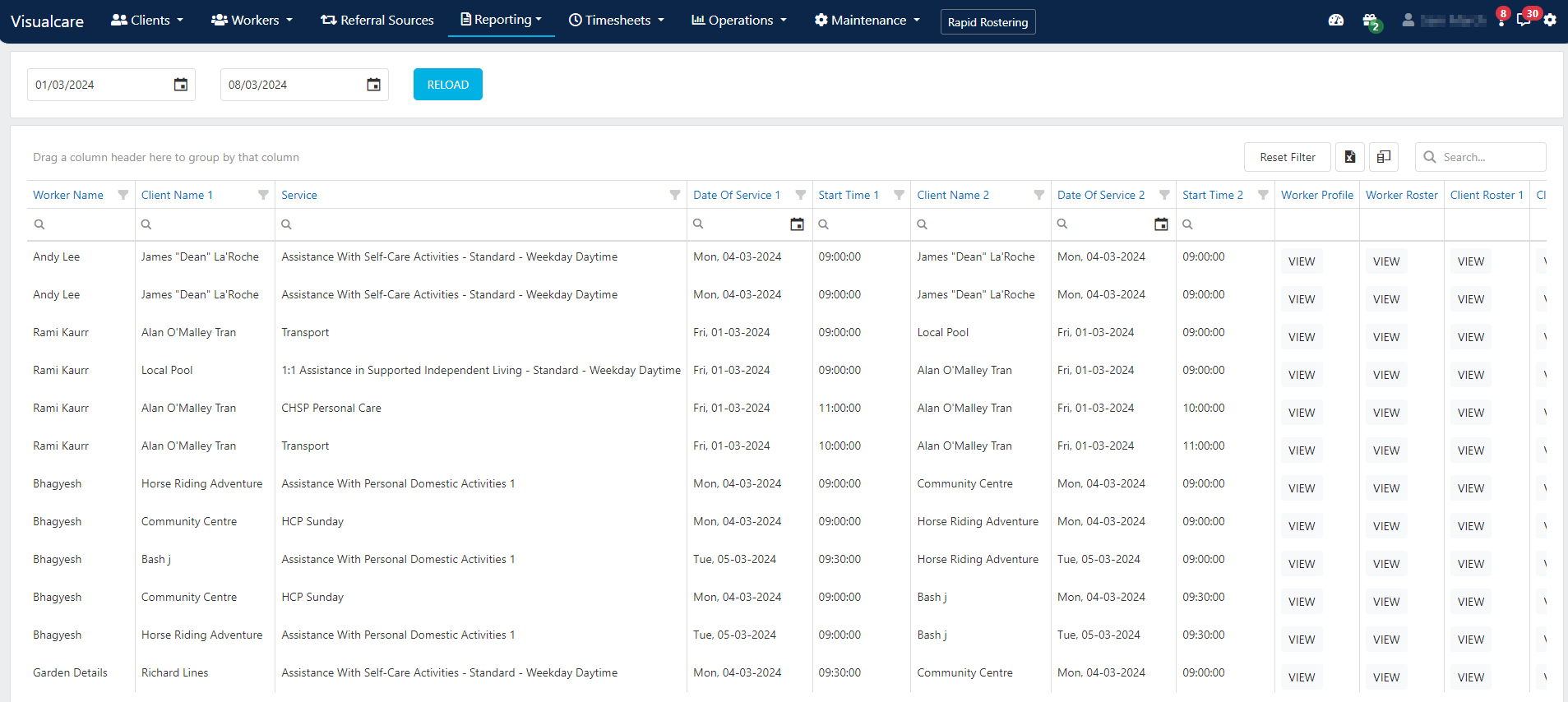
The conflicts KPI on the home page dashboard shows the number of conflicts in your rosters for the next seven days.
Types of conflicts
Conflicts occur when:- A worker is rostered on two shifts at the same time
- A shift overlaps with a worker’s leave
- A shift is scheduled during a time the worker is unavailable
Resolving conflicts
To resolve a conflict:- Click the conflicts KPI to view the list
- Identify the conflicting shifts
- Open the relevant client roster to edit or move the shift
- Alternatively, use the Timeline views to drag and drop shifts to a different worker
Conflict settings
You can adjust how the system handles back-to-back shifts in Settings → Rostering → Display → Conflict Type:- Default - highlights all conflicts, including where one shift’s end time overlaps the next shift’s start time
- Ignore back to back shifts - ignores conflicts where shifts are rostered back to back (for example, one shift ending at 10:00am and the next starting at 10:00am)
Running into issues?
See Scheduling troubleshooting for common errors and fixes.Related articles
Unallocated shifts
Find and manage shifts without assigned workers
Timeline views
View and manage rosters across workers and clients
Editing shifts
Edit one-off shifts, series, and manage leave
Rostering configuration
Configure conflict type and other rostering settings