
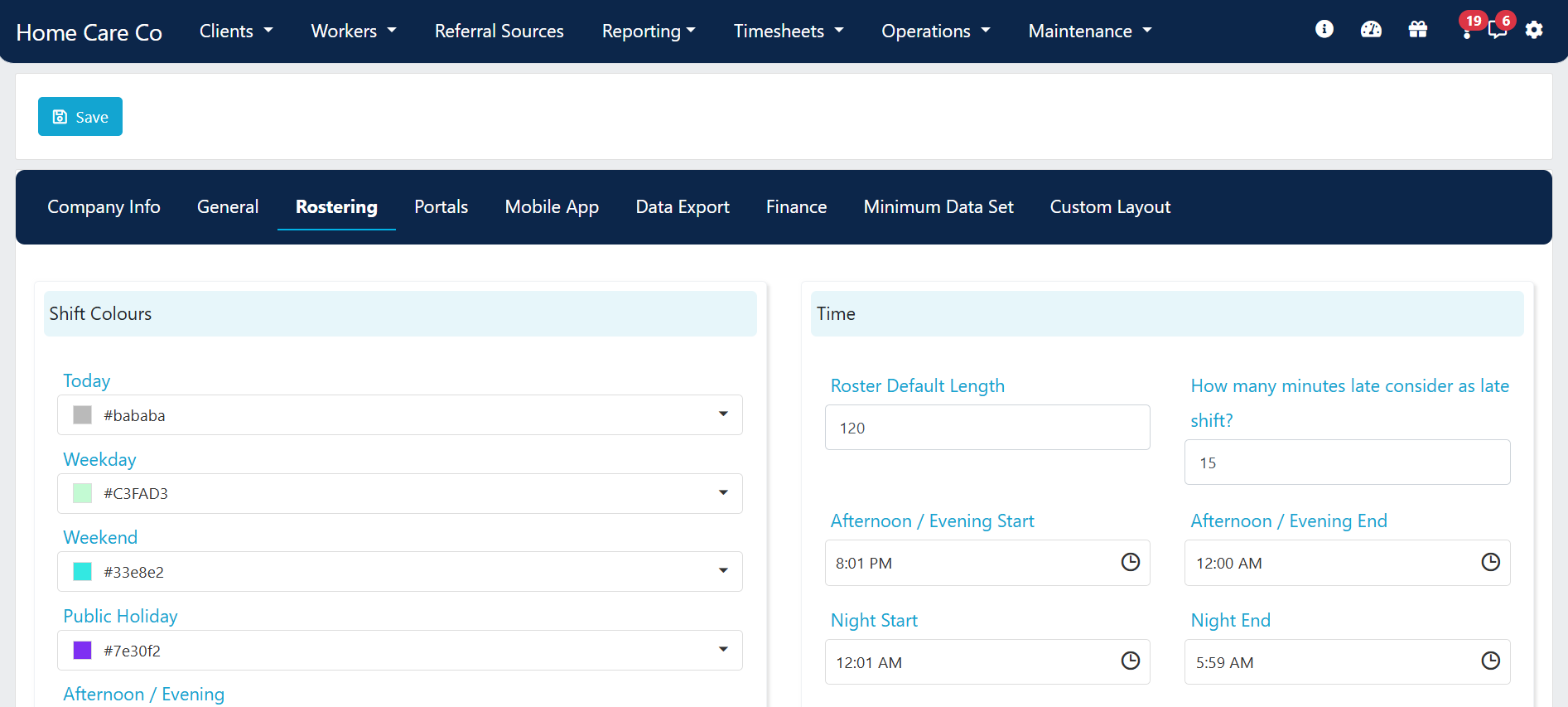
Shift colours
Customise the colour of each shift type displayed on your rosters. Click the drop-down list for each item type to select a colour.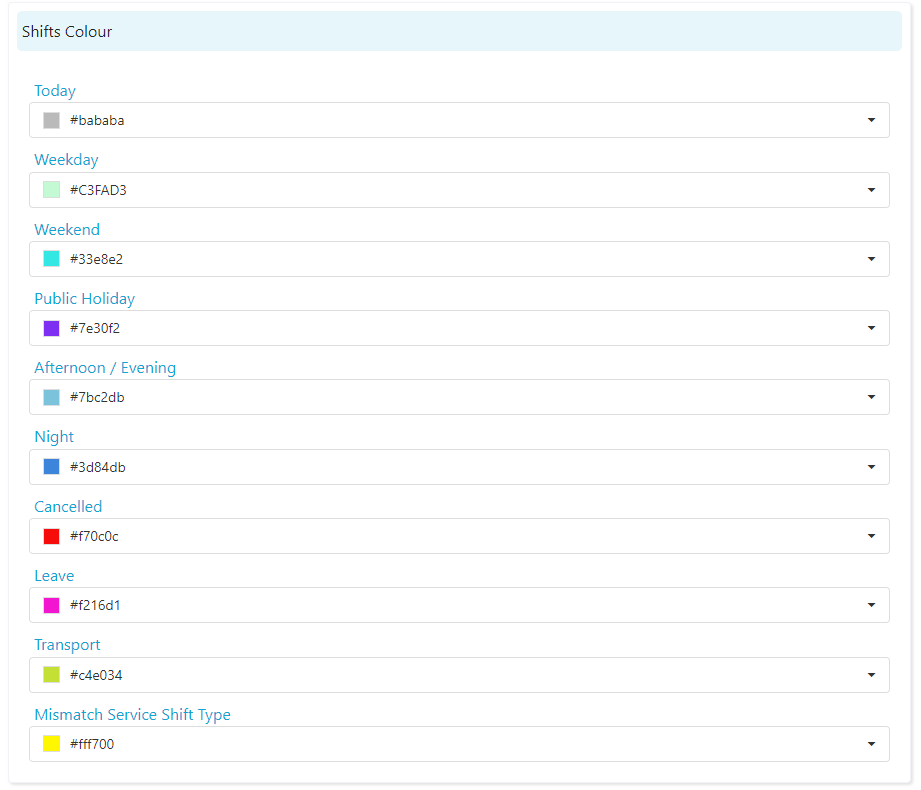
Time settings
Configure how shift times and durations are handled.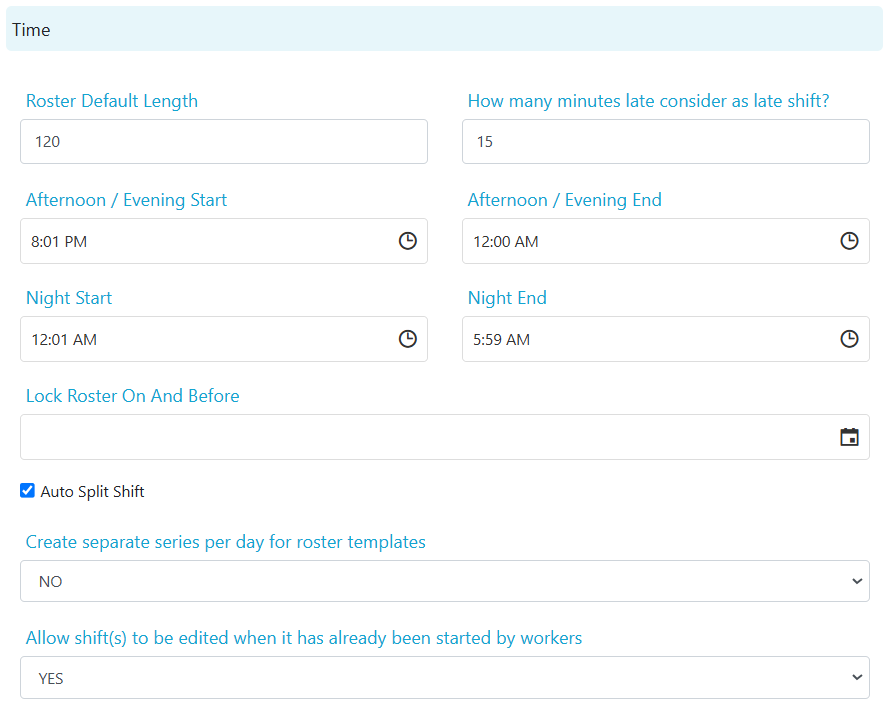
Display settings
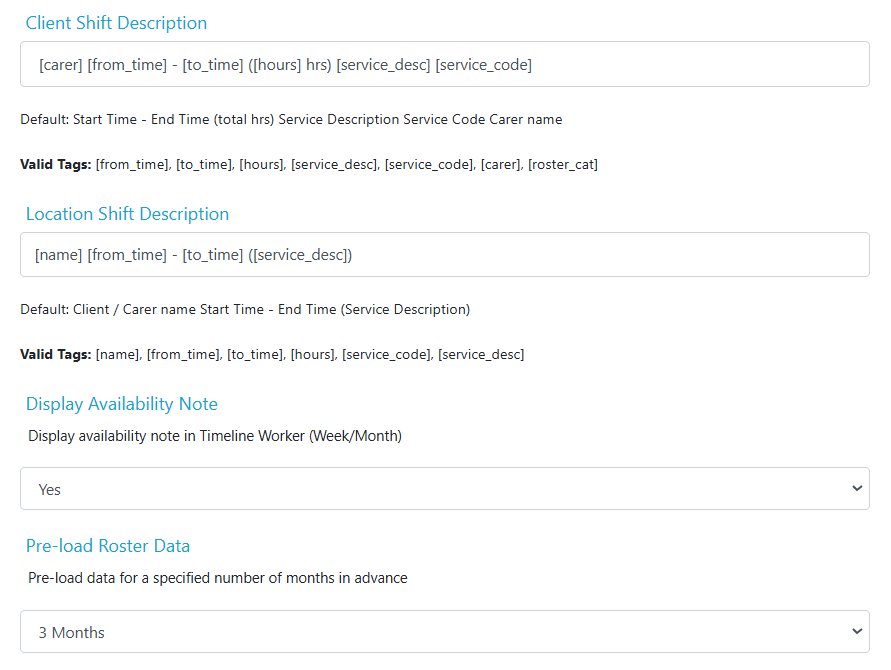
Configure how rosters look and behave.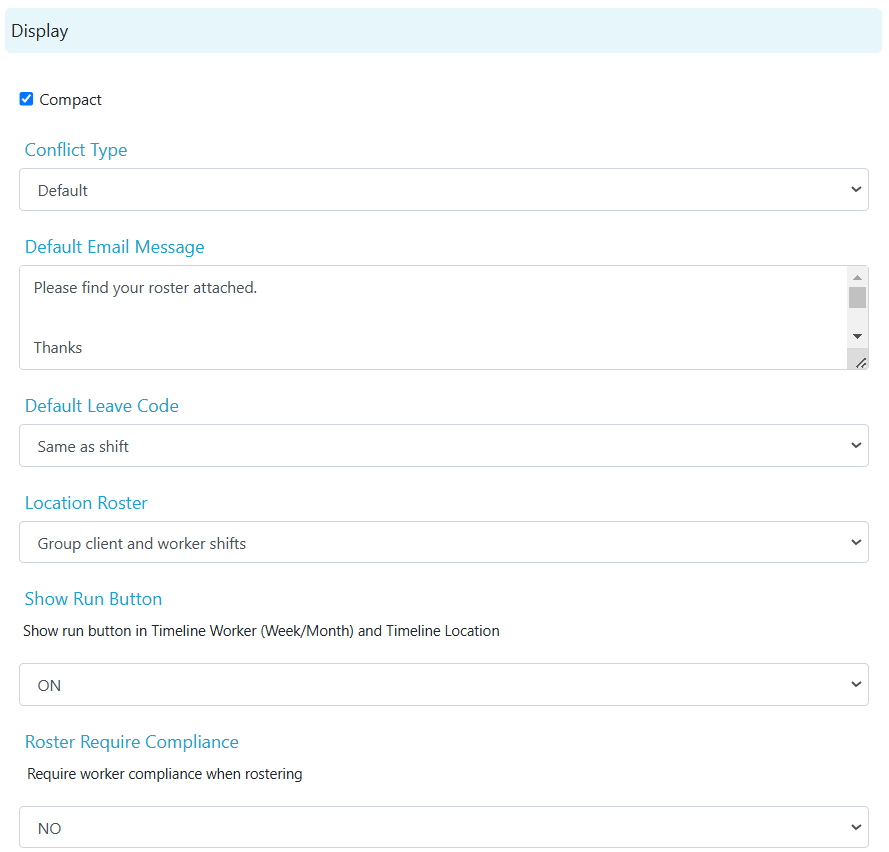
Shift type boundary behaviour
When a shift falls exactly on a time boundary between two shift types (for example, evening and night), Visualcare classifies it based on the shift’s start time. A shift that starts before the night period begins is classified as an evening shift, even if it runs entirely within night hours. For example, if night is set to start at 12:01 AM and morning at 6:00 AM, a shift from 12:00 AM to 6:00 AM is classified as evening because it starts one minute before the night period. Adjusting the night start to include 12:00 AM would fix this specific shift but may affect how other shifts are classified.Running into issues?
See Scheduling troubleshooting for common errors and fixes.Related articles
Creating new shifts
Set up a client roster and create shifts
Conflict management
Identify and resolve shift conflicts
Timeline views
View and manage rosters across workers and clients
Email client rosters
Send roster summaries to clients