
Setting up a workflow
1
Open workflows
Go to Operations → Workflows.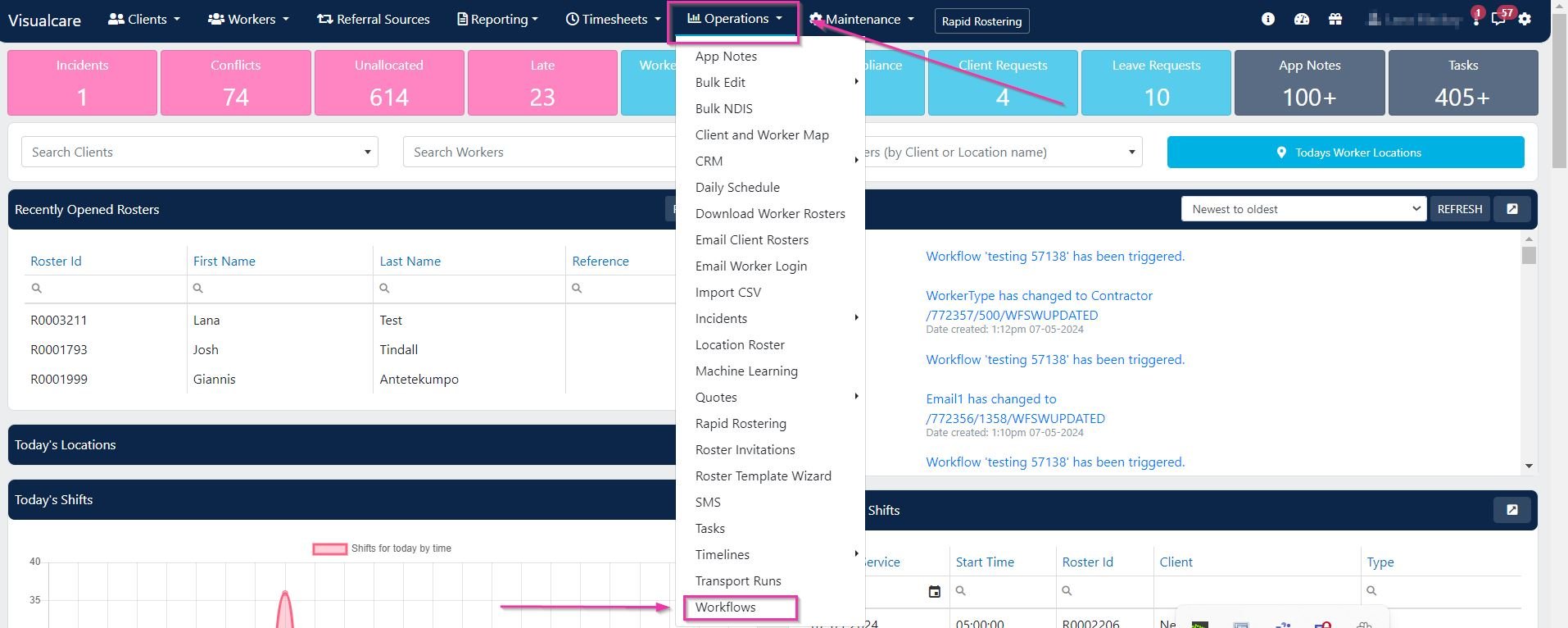
2
Create a new workflow
Click Add New Workflow.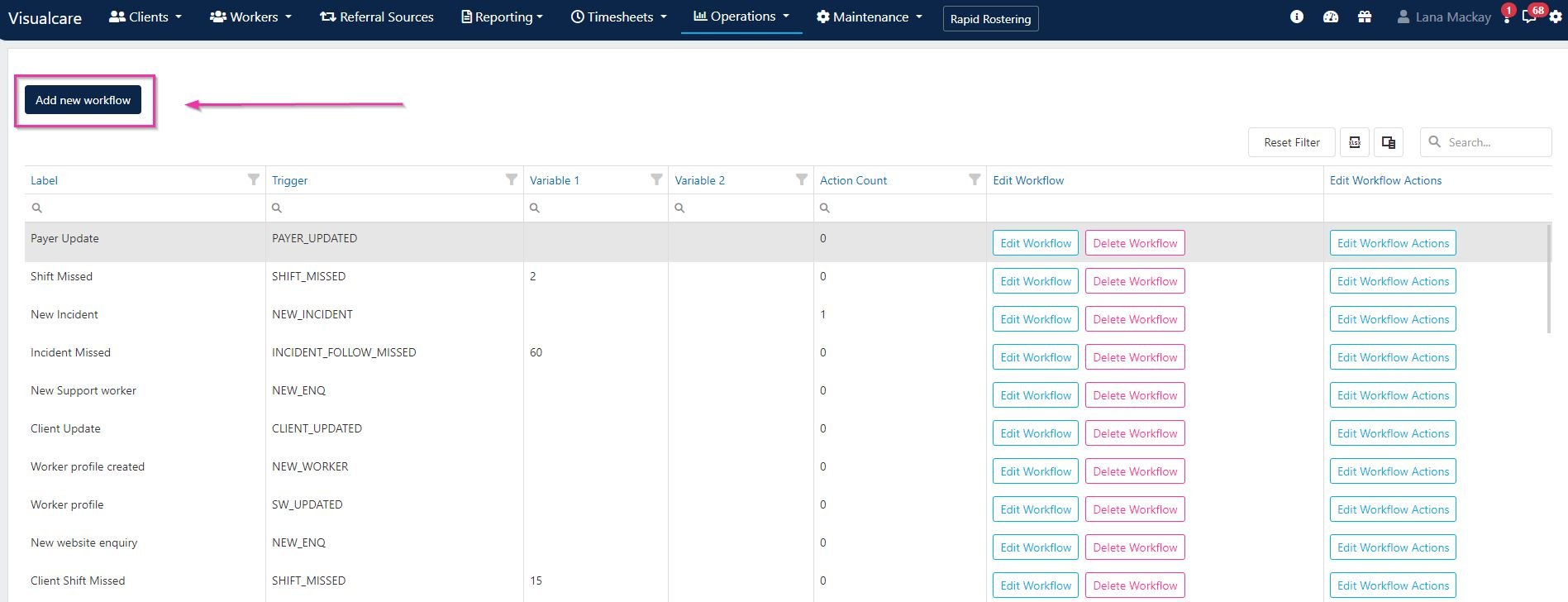
3
Configure the trigger
Enter a name in the Workflow Label field and select a workflow trigger from the drop-down menu.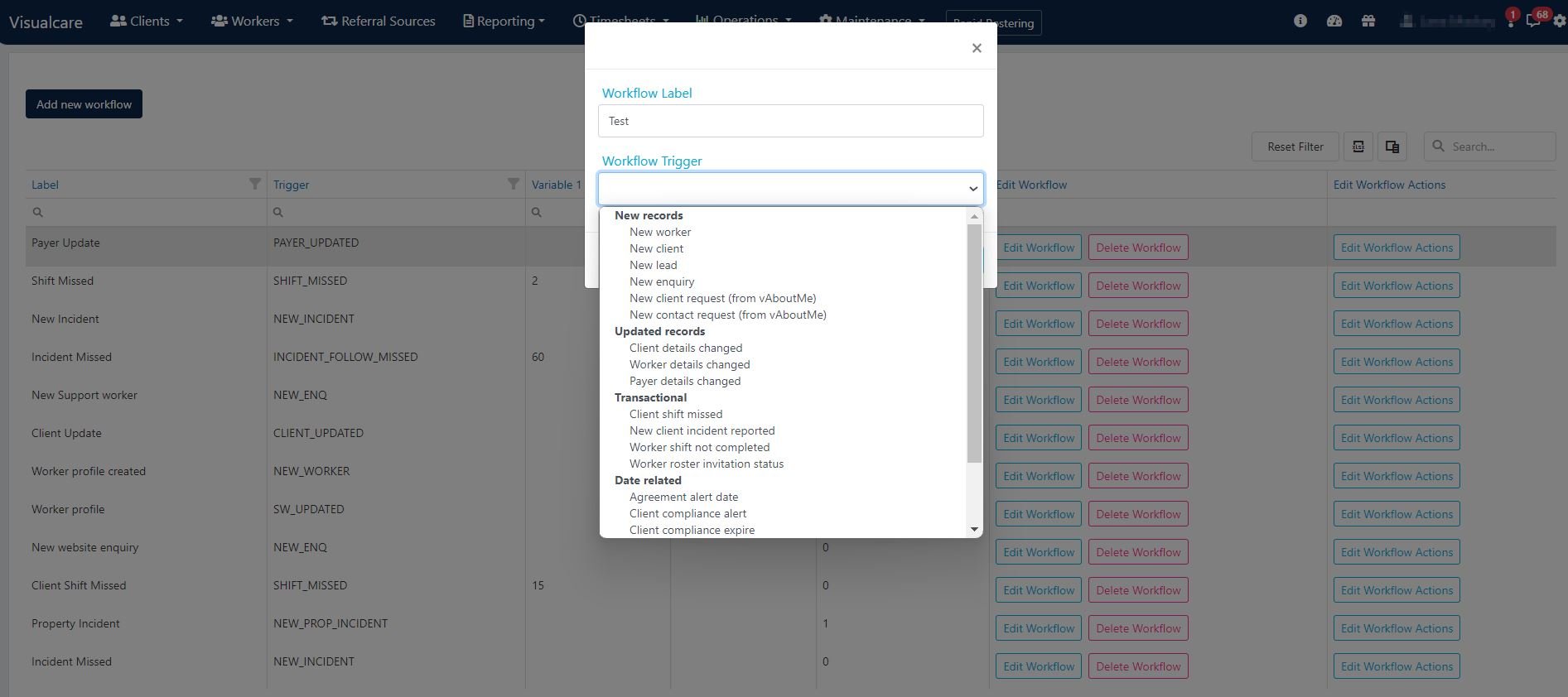
4
Add actions
Click Edit Workflow Actions, then click Add Action.

Managing workflows
Existing workflows can be edited or deleted from the workflows page.
Running into issues?
See Scheduling troubleshooting for common errors and fixes.Related articles
Rostering configuration
Configure general rostering settings
Roster invitations
Send shift invitations to available workers
Editing shifts
Edit one-off shifts, series, and manage leave