
Setting budget hours
Open the worker’s profile and navigate to the Finance tab. Locate the Budget Hours per Day field in the Worker Details section.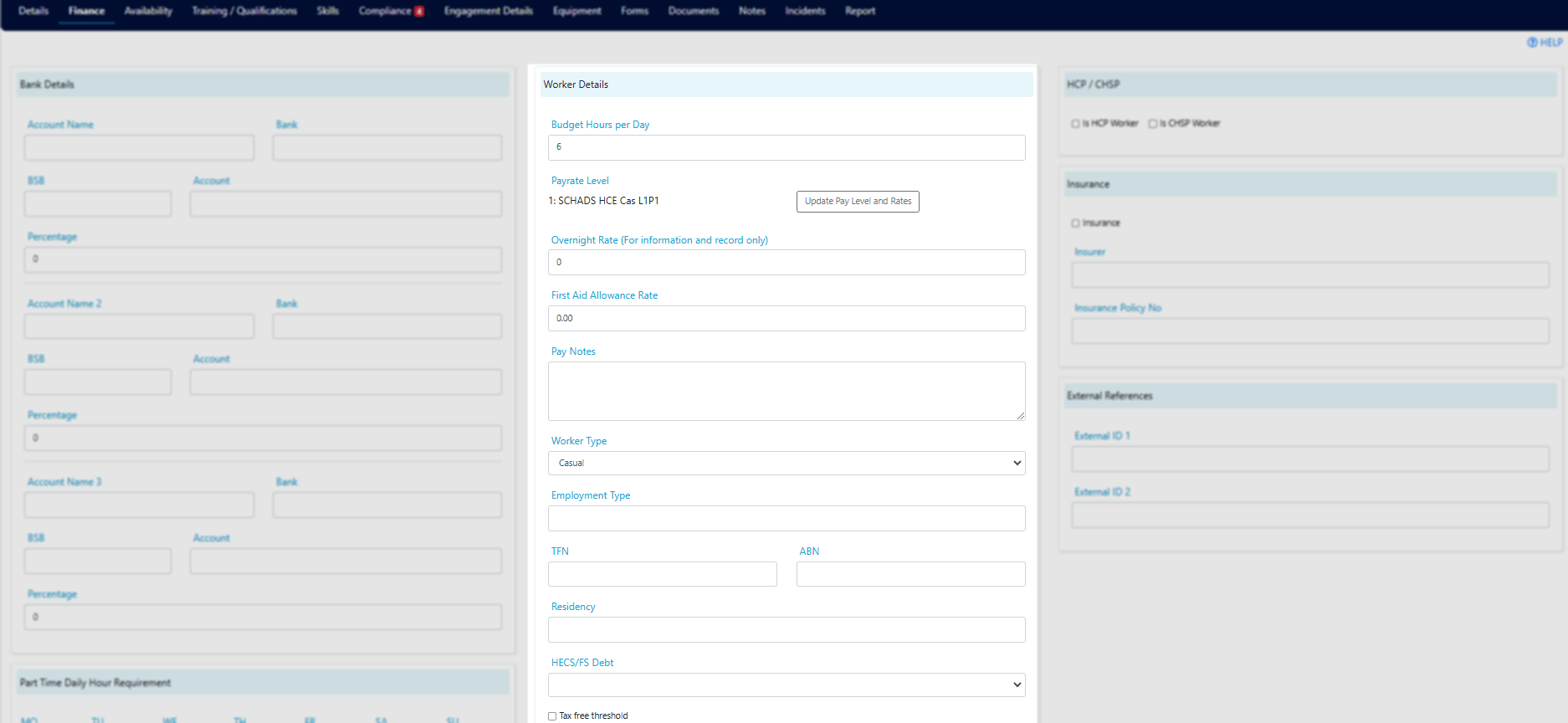
How it works
The system uses this daily figure multiplied across seven days to determine the worker’s total weekly allocation. When rostering, you’ll see a warning if a shift allocation would push the worker over their budgeted hours.
Running into issues?
See Worker management troubleshooting for common errors and fixes.Related articles
Pay rates
Configure bank details and pay rate levels
Managing availability
Set when a worker is available for shifts
Engagement details
Configure award details and employment information