
Instructions
1
Open the incident
Navigate to the client’s profile via Clients → Profile, then open the Incidents tab. Find the incident you want to review and click Edit.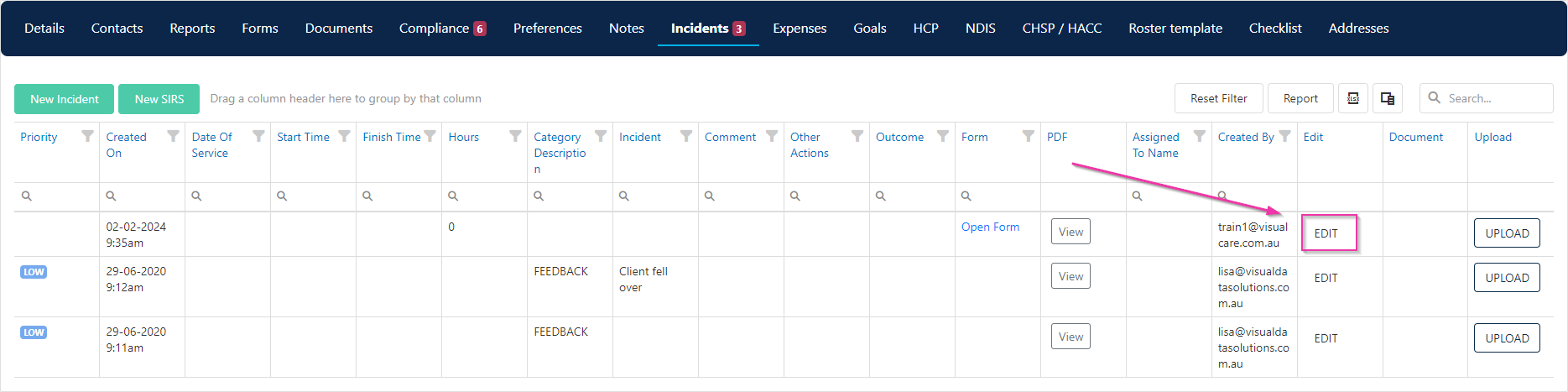
2
Review the incident form
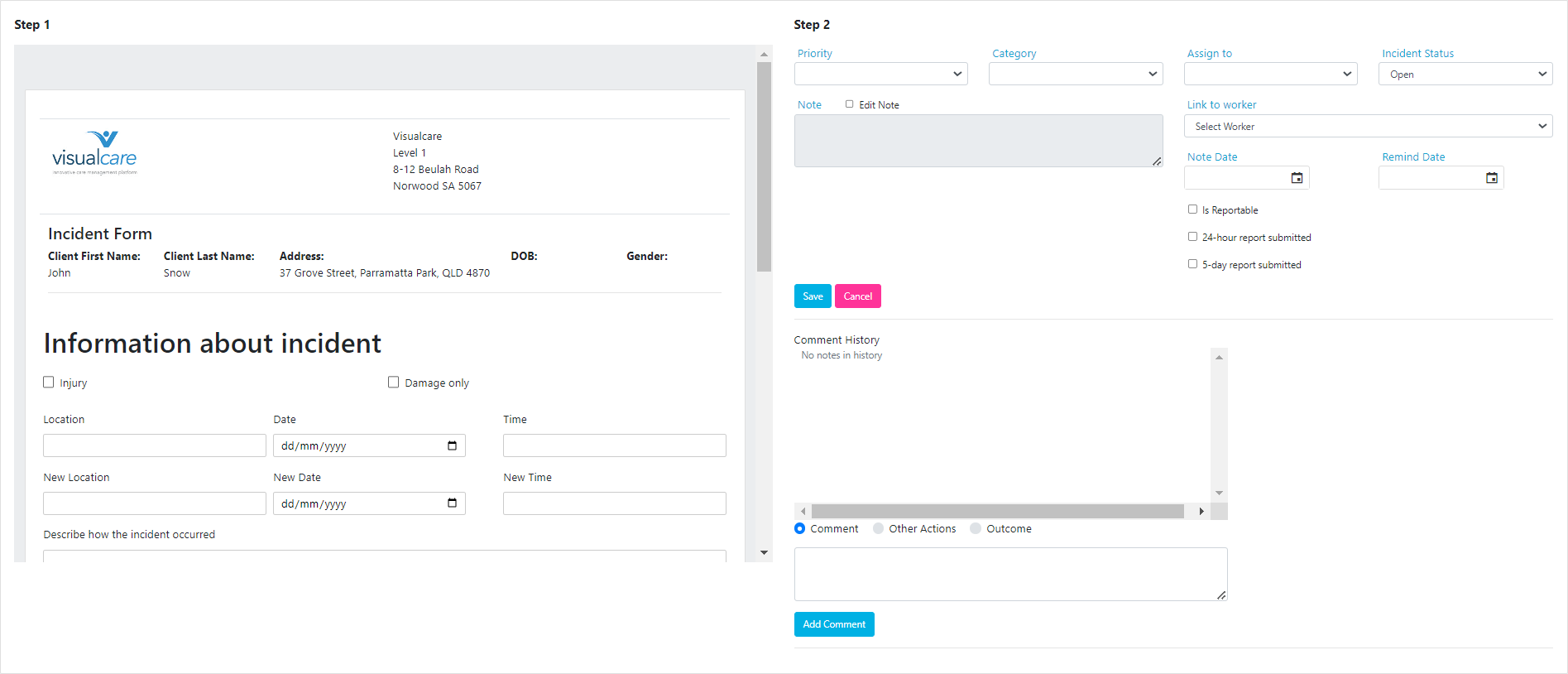
The incident opens in a two-part layout:
- Step 1 (left side) - The original incident form as submitted. This contains the details recorded by the person who raised the incident
-
Step 2 (right side) - The investigation and response section, where office staff add their review notes
3
Complete the investigation
On the right side of the form, fill in the investigation details. Use the comment field to record any comments, actions taken, or outcomes from your review.
4
Save your changes
Click Save to update the incident record with your investigation notes.
Running into issues?
See Incidents troubleshooting for common errors and fixes.Related articles
Creating an incident
How incidents are created and where to find them
Incident tile on home page
Monitor unread incidents from the vCore home page
Automated workflows
Trigger automated emails and tasks from events in Visualcare
SIRS incidents
Create and manage Serious Incident Response Scheme records