
Where public holidays come from
Visualcare maintains the public holiday list for each Australian state and territory. You don’t need to add public holidays yourself. If a public holiday is missing or wrong, contact the Visualcare support team. The list includes part-day public holidays, such as Christmas Eve and New Year’s Eve in states where public holiday rates start in the evening. For these days, public holiday rates only apply to shifts that run past the start time. A shift that finishes before the start time is charged and paid at the normal rate for that day.Which state’s public holidays apply
Public holidays follow the time zone of the roster, not where the worker lives. Every client roster and location roster uses the time zone in Settings → Company Information by default. If a client or location is in a different state, change the time zone on their roster so the correct public holidays apply.1
Open the roster
Open the client roster or location roster.
2
Update the time zone
Change the Time zone to the client’s or location’s time zone and save.
How a shift gets the public holiday rate
When a shift falls on a public holiday, the rate link on its service changes it to the public holiday service you’ve linked. There are three public holiday rate links:
A public holiday takes priority over the day of the week. For example, a public holiday that falls on a Saturday uses the public holiday rate link, not the Saturday one. The afternoon and night windows come from your times in Settings → Rostering.
The Public holiday service code must be included in the participants Visualcare agreement to be applied via the rate link feature.
Rate links only apply if they’re set up on the service. If they aren’t, select the public holiday service manually when you roster the shift. See Service management to set up rate links.
Overnight shifts
An overnight shift that runs into a public holiday isn’t split at midnight, so the weekday night service is used for the whole shift, even though it ends on the public holiday. Auto split shift in Settings → Rostering doesn’t change this. It only splits shifts at weekday and weekend boundaries, not at public holidays. To charge and pay the shift correctly, roster it as two shifts, one each side of midnight:Check overnight shifts around public holidays when you set up a recurring series, so they’re charged and paid correctly before they reach timesheets.
When rate links are applied
Rate links are applied when a shift is created or edited on the roster. They aren’t applied when you edit a timesheet. If you change the service on a shift that has already been sent to timesheets, the rate link won’t correct it. Check that the service is right for the day and time before you save.Changing the service on a public holiday shift
How a manual service change is handled depends on how you edit the shift:
To use a different service on one public holiday shift in a series, edit that shift on its own with Edit.
Excluding public holidays when rostering
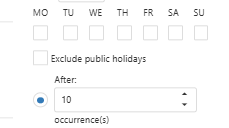
If a client doesn’t receive services on public holidays, you can exclude them when rostering. When Exclude public holidays is ticked on the client profile > agreement or roster series, no shifts are created on public holidays. Agreement: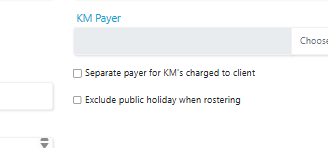
Troubleshooting
Related articles
Service management
Set up services and rate links
Rostering configuration
Shift times and auto split shift settings
Creating recurring shifts
Roster a series of shifts
Editing timesheets
Correct services and rates on confirmed shifts