
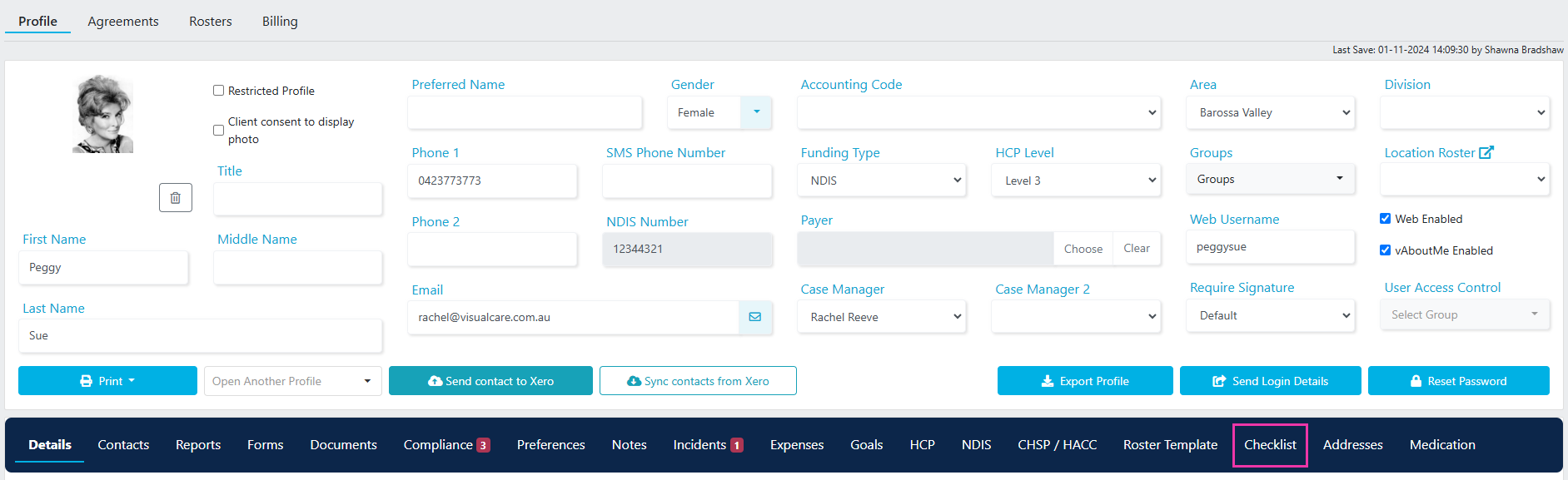
Creating a new checklist
1
Open the checklist tab
Navigate to Client Profile → Checklist tab.
2
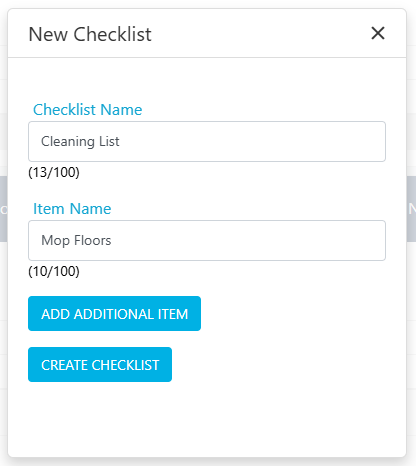
Create the checklist
Click New Checklist. Enter the checklist name and first item name.
3
Add items
Click Add Additional Item for each extra item you need on the checklist.
4
Save
Once all items are added, click Create Checklist.

Adding a checklist to a shift
When rostering a shift for the client, select the relevant checklist from the drop-down menu.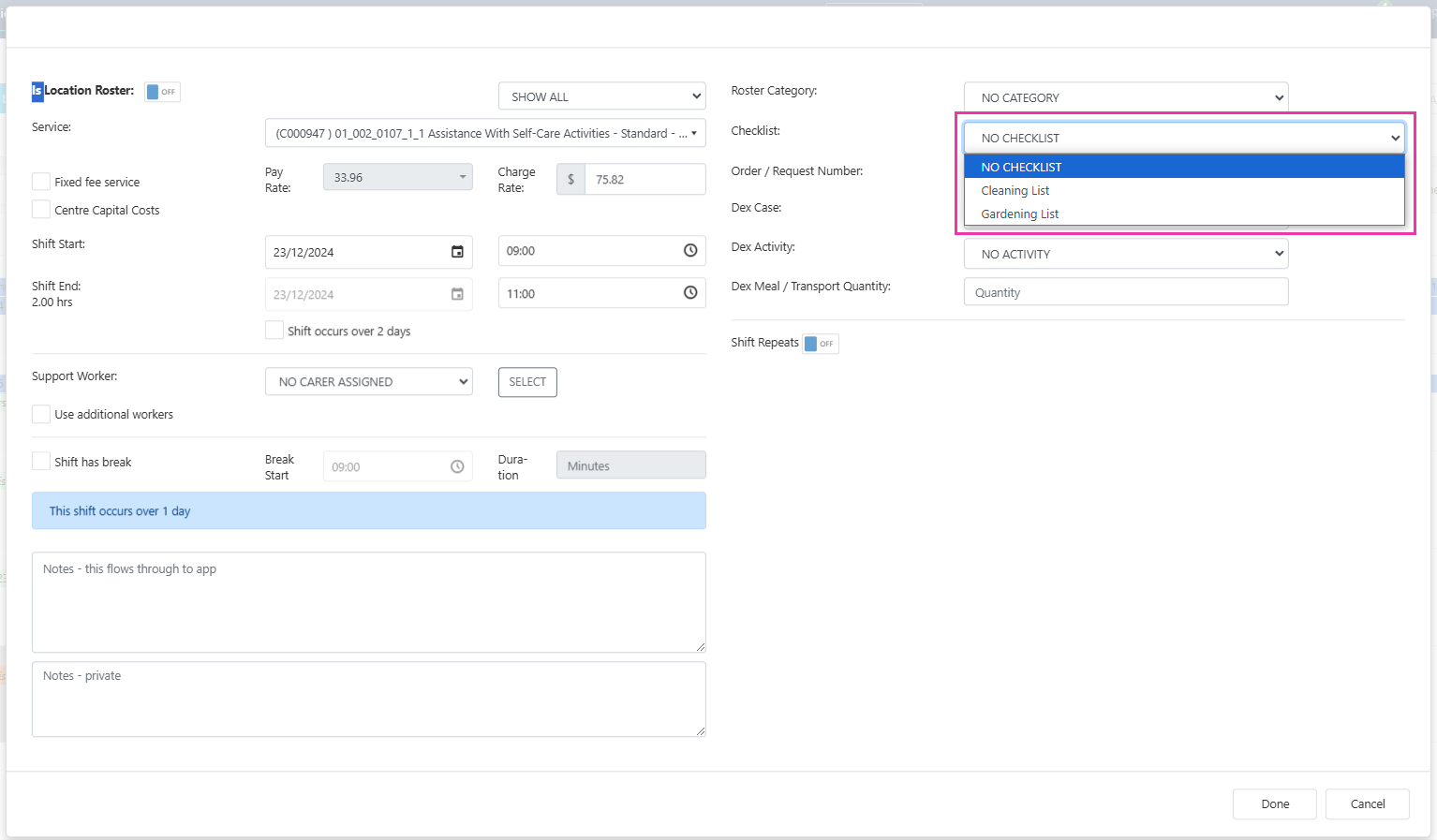
Completing a checklist in vWorker
If a checklist has been added to a shift, it appears on the shift home screen in the vWorker app.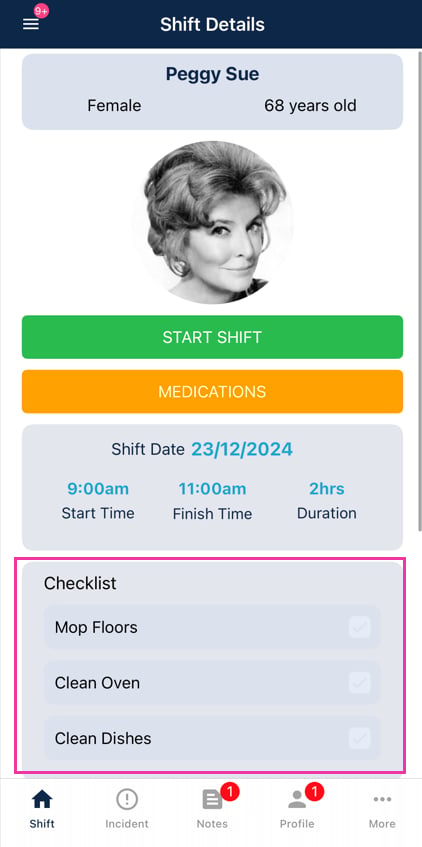
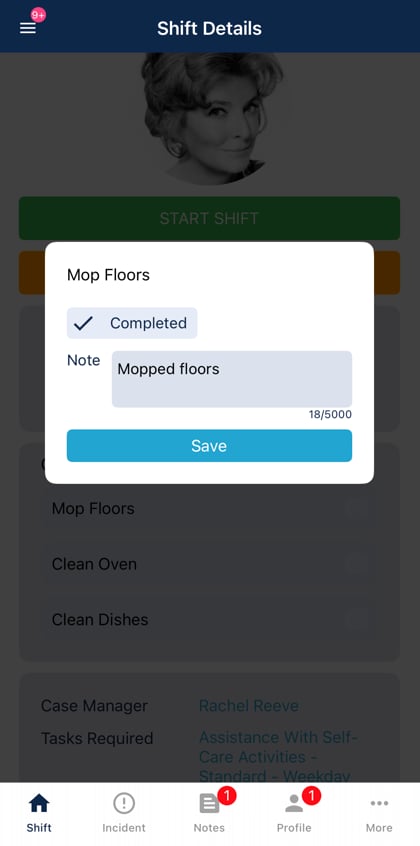
Completing the checklist is not mandatory for the worker to finish their shift. Workers can complete the shift in vWorker without ticking off all checklist items. Use the checklist note report (below) to track whether items were completed.
Checklist note report
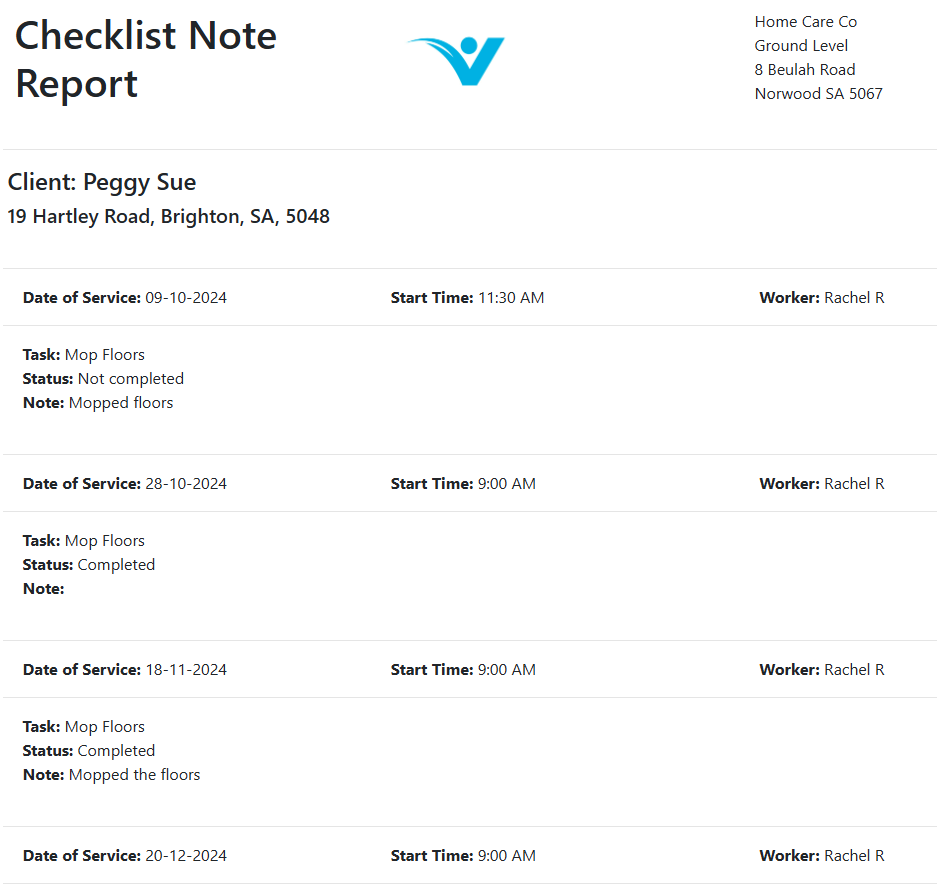
Run a checklist note report to see all completed checklists and any notes workers have added. In the client profile, go to the Checklist tab and click Checklist Note Report.
Running into issues?
See Client management troubleshooting for common errors and fixes.Related articles
Notes and tasks
Manage notes and follow-up tasks on client profiles
Creating a client profile
Set up the client profile that holds checklists