
Setting up preferences
Open the client profile and navigate to the Preferences tab. On the left side, select personal, skills, and training preferences using the tick boxes. These filters help narrow down suitable workers.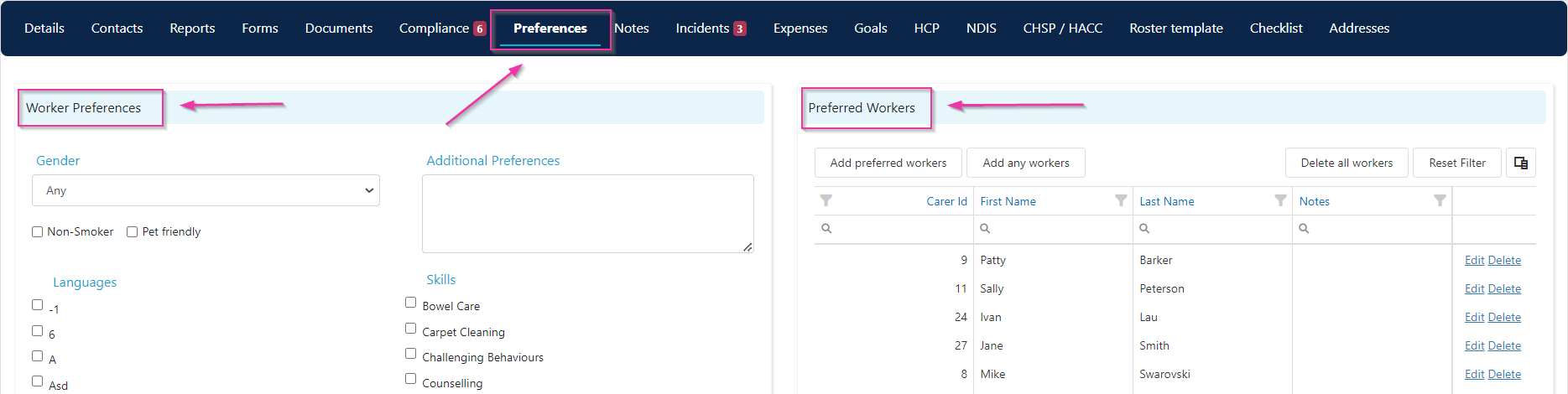
Adding preferred workers
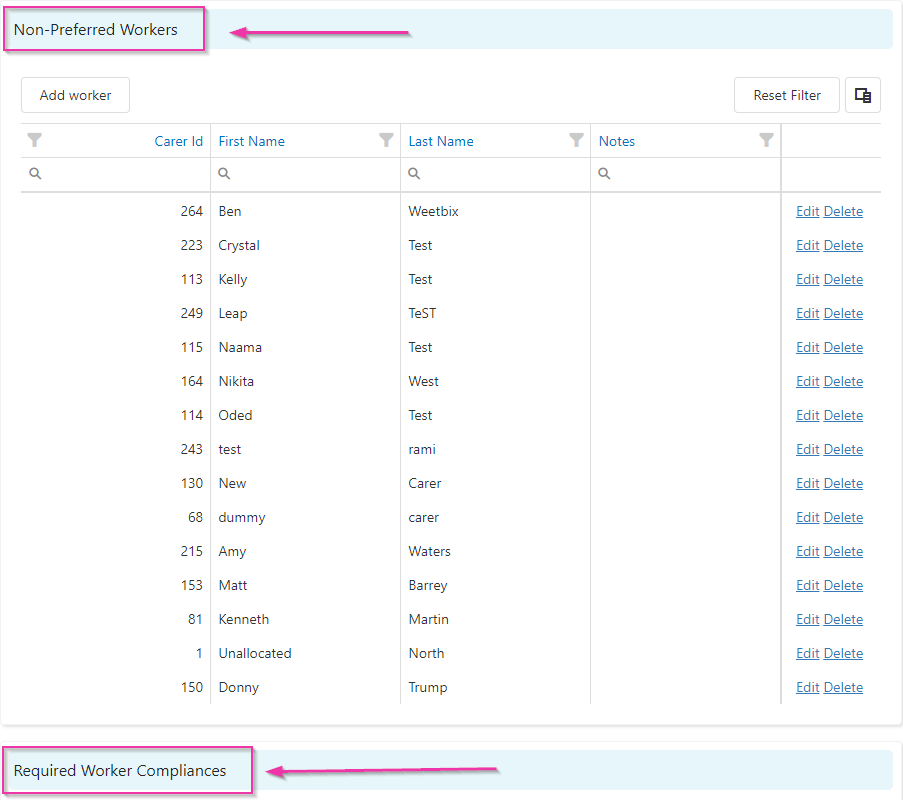
In the Preferred Workers section, click Add Preferred Workers. The list is filtered by the preferences you’ve selected. Choose the workers you want and click Add Selected Workers. You also have the option to add non-preferred workers to flag workers who are not suitable for this client. In the Non-Preferred Workers section, click Add Workers, select the workers, and click Add Selected Workers.Non-preferred workers can still be rostered on the client roster. Adding a worker to the non-preferred list flags them as unsuitable for the client but does not block them from being assigned to shifts.
Running into issues?
See Client management troubleshooting for common errors and fixes.Related articles
Required compliance items
Set up compliance templates that feed into preferences
Creating a client profile
Set up the client profile that holds preferences