
Quick reference
Shifts and rosters
To delete a single shift or a series, right-click the shift on the roster and choose Delete a single shift or Delete series from here forward. To bring back shifts you deleted, open the roster and click Deleted Shifts in the top left corner, then select the shifts to reinstate. If a shift has already been sent to timesheets, deleting it will not be an option. The timesheet will need to be deleted, then the shift becomes editable.Client profiles
Deleting a client profile created in error
A client profile can’t be deleted while it has an active roster.1
Remove the roster items
Open the Client Profile and go to the Roster tab. Double-click the active roster, click Delete Roster and use Delete shifts from date to remove the roster items.
2
Delete the roster
Tick Delete this roster? in the confirmation popup and click Delete.
3
Delete the profile
Return to the Client Profile screen, tick Delete this profile and click Save.
A client who has left
Don’t delete the profile. Follow Offboarding a client to end their agreements and roster, and change their Service Status to something other than Current.A client who is returning
Change their Service Status back to Current on the Details tab, then set up a new agreement and roster.Duplicate client profiles
If you accidentally duplicate a client profile, you should manually convert information to the profile you wish to keep sing and then delete the duplicated record. For Support at Home participants, the Aged Care API link can only sit on one profile. If it’s on the wrong profile, contact the support team with both client IDs and they’ll move it.Worker profiles
Follow these steps to make a worker inactive Offboarding a worker Follow these steps to delete a worker profile1
Remove the worker from any shifts
Open the Worker Profile and go to the Engagement Details tab. Use the Engagement Ended section to remove them from any shifts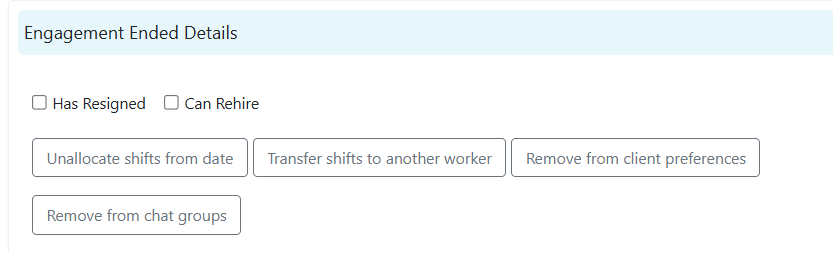
2
Delete the Profile
Tick Delete this profile and click Save
Agreements
Agreements shouldn’t be deleted unless it is a duplicate in error. If no services have been used on a roster or to an expense, open agreement and select Delete. The Clone feature should be used. Close an agreement when it ends, or clone it and transfer the roster items to the new one. See Cloning, transferring and closing agreements. A service can be removed from an agreement only if it isn’t active on the client’s roster.Notes
To delete a client note or progress note, your user group needs the Ability to delete note permission under Clients in User group security.- Open the notes table and click Column Chooser
- Drag in the Delete column
- Click Delete on the note you want to remove
Documents
Delete a client or worker document from the documents table. If there’s no delete option, the document is locked: unlock it under Manage first. See Document storage.Timesheets
Deleting timesheets needs the Delete Timesheets permission on your user group.Records only the support team can remove or restore
Contact the support team to:- Delete an incident report created in error, duplicated or raised under the wrong client
- Remove photos or messages from a group chat
- Delete a note you can’t remove yourself
- Reinstate a deleted roster, user, service, role, area, division, group or contact type
- What kind of record it is and the IDs or numbers (incident number, roster item ID, form number)
- The client or worker it belongs to
- The date and time it was created or deleted
- Why it needs to change
Related articles
Offboarding a client
End agreements and rosters when a client leaves
Editing shifts
Edit, delete and recover shifts
Notes and tasks
Manage client notes and tasks
Suspending and deleting users
Remove access for users who have left