Roster navigation
The client roster screen includes several quick-access features at the top of the page.Hyperlinks
Click on the hyperlinks at the top of the roster screen to quickly access related information:- Client Name - opens the client profile page
- Address - shows the location on Google Maps
- Email - opens a new email to the client

Toolbar
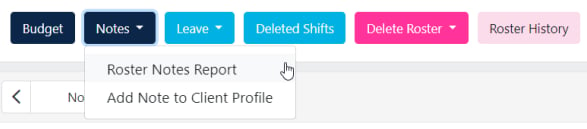
The toolbar provides access to budget, notes, leave, deleted shifts, and roster history.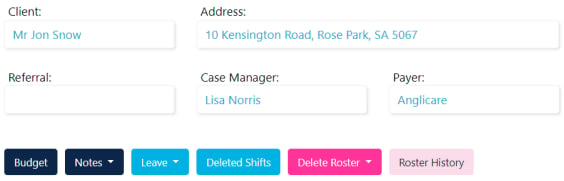
Publish toggle
- Publish ON - workers see their shifts and get notifications as shifts are updated, added, or deleted
- Publish OFF - workers don’t see any shifts on their phone. Make changes without triggering notifications
Complete a roster
When a roster is finished (for example, the client has ceased services), click Complete. Then filter out completed rosters in your roster list.
Roster notes
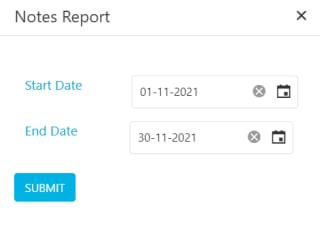
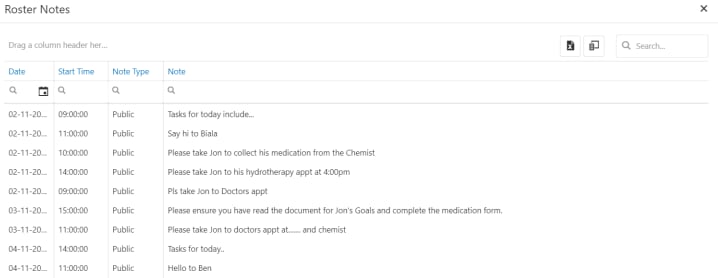
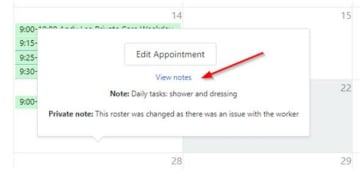
Click the Notes icon in the toolbar to view notes in the roster area.