
Setting up a recurring shift
1
Create a shift
Double-click on the day you want the series to start on. The shift form opens.
2
Enable shift repeats
Toggle Shift Repeats to on and configure the recurrence pattern:
- Select which days the shift repeats on
- Choose to end the series after a set number of occurrences or by a specific date
The system does not allow you to schedule past the agreement end date.
3
Choose individual or combined series
When creating shift repeats, use the Create Individual Series option to separate each day into its own series. This lets you make changes to a specific day’s series without affecting the others.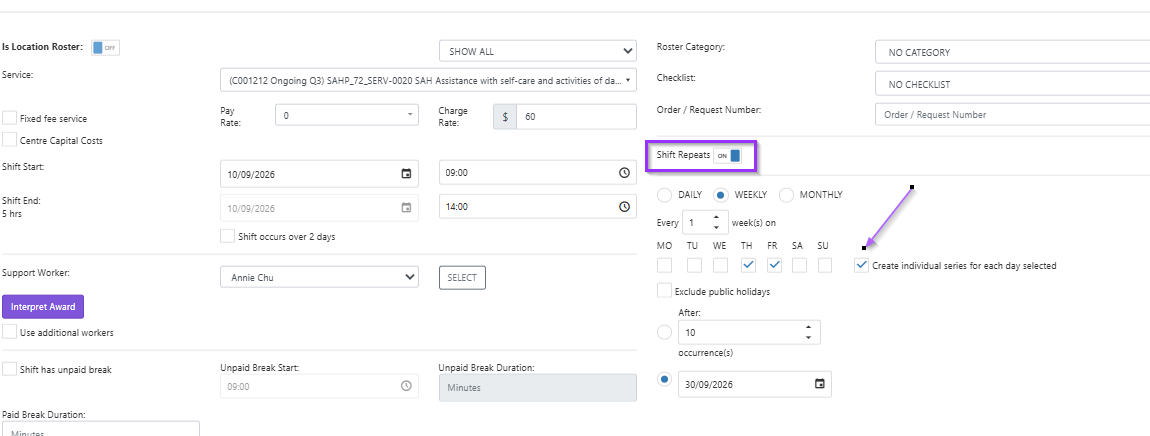
4
Save the series
Complete the remaining shift details and click Done. The recurring shifts appear on the roster.
Split shift rostering
A single shift can be split into multiple segments, each with its own service code and timeframe. This is useful when different rates or services apply during different parts of the same shift.1
Create the shift
Create a new shift and select Split Shift from the service list - it’s always at the end of the list.
2
Configure overnight settings
If this is an overnight shift, tick Shift occurs over 2 days and select the following date. Split shifts support recurring patterns too.
3
Add split segments
Tick Split 1 to enter details for the first segment: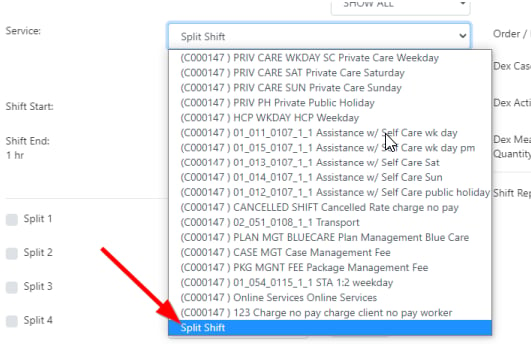
- Select the service relating to that timeframe
- Use the arrows to set the duration - the start and end time display on the right
4
Review the result
The shift appears as one shift on the vWorker mobile app, but in timesheets it splits into an individual line for each segment.
Auto split shift
Instead of manually splitting shifts, you can enable automatic splitting so the system handles rate changes for you.1
Enable auto split
Go to Settings (cog icon) → Settings → Rostering tab and tick the Auto Split Shift box.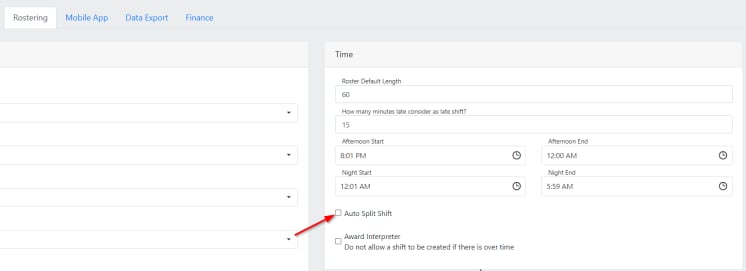
2
Create shifts as normal
The system automatically splits any shifts that cross a pay rate change boundary. For example, an overnight shift from Friday to Saturday is split at midnight, applying the correct rate for each day.
Running into issues?
See Scheduling troubleshooting for common errors and fixes.Related articles
Creating new shifts
Set up a client roster and create individual shifts
Editing shifts
Edit one-off shifts, series, and manage leave
Rostering configuration
Configure rostering settings including auto split shift